

Photoshop Tools: Complete List, Uses, and Functions for Beginners
Adobe Photoshop has remained the industry standard for photo editing and digital design for decades. From professional photographers and graphic designers to social media creators and beginners, millions of people rely on Photoshop to bring their creative ideas to life.
At the heart of Photoshop lies its powerful collection of tools. These tools allow users to select objects, retouch images, paint illustrations, create text effects, manipulate colors, and perform countless other editing tasks with precision.
However, Photoshop can feel overwhelming at first. The toolbar alone contains dozens of icons, many of which include hidden variations and advanced capabilities. Understanding what each tool does and when to use it can dramatically improve both your workflow and the quality of your work.
This guide explains the most important Photoshop tools, their functions, and how they fit into a modern editing workflow.
What Are Photoshop Tools?
Photoshop tools are built-in features that enable users to interact with images and design elements directly on the canvas. Every editing action in Photoshop begins with a tool.
Whether you want to crop a photograph, remove blemishes, draw shapes, select a subject, or add text, Photoshop provides a dedicated tool for the task.
Most tools are accessible from the vertical toolbar located on the left side of the workspace. Some icons group multiple related tools. Clicking and holding a tool icon reveals additional options hidden beneath it.
Understanding the toolbar is essential because efficient editing depends on choosing the right tool for the right job. Professional designers rarely rely on a single tool. Instead, they combine several tools to achieve accurate and polished results.
➔ Expand Your Knowledge: Future of Social Media
Understanding the Photoshop Toolbar
The Photoshop toolbar serves as the command center for image editing. It contains categories of tools designed for different purposes, including selection, retouching, painting, navigation, and drawing.
Many beginners assume they need to memorize every tool immediately. In reality, most professionals regularly use a smaller set of core tools while gradually incorporating advanced features into their workflow.
Photoshop also allows users to customize the toolbar. Frequently used tools can be prioritized, while less important ones can be hidden to create a cleaner workspace.
In recent versions of Adobe Photoshop, AI-powered features such as Object Selection and Remove Tool have become integrated into the toolbar, making complex editing tasks significantly faster.
Selection Tools in Photoshop
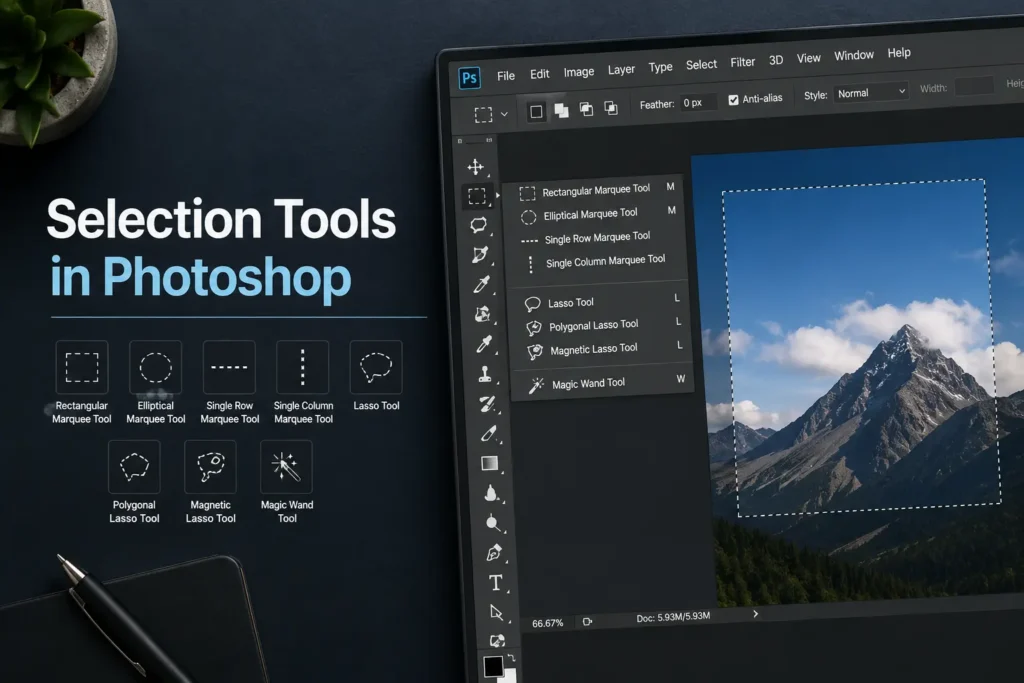
Selection tools are among the most frequently used Photoshop tools because they allow users to isolate specific parts of an image for editing.
Without accurate selections, making precise adjustments becomes extremely difficult.
Move Tool
The Move Tool is often the first tool beginners encounter. It allows users to reposition layers, text, shapes, and selected objects within a document.
Designers use the Move Tool constantly when arranging layouts, aligning elements, or repositioning graphics.
Keyboard Shortcut: V
Marquee Tools
Marquee Tools create geometric selections in rectangular, elliptical, single-row, or single-column shapes.
These tools are especially useful when cropping portions of an image, applying effects to defined areas, or creating simple design compositions.
Common options include:
- Rectangular Marquee Tool
- Elliptical Marquee Tool
- Single Row Marquee Tool
- Single Column Marquee Tool
Lasso Tools
Lasso Tools provide greater flexibility for selecting irregular shapes.
The standard Lasso Tool allows users to draw freehand selections manually. Polygonal Lasso creates straight-edged selections by connecting anchor points, while Magnetic Lasso automatically detects edges as users trace around an object.
These tools are widely used for isolating products, people, and custom-shaped objects.
Keyboard Shortcut: L
Quick Selection Tool
The Quick Selection Tool analyzes textures and colors to identify objects automatically.
By simply brushing over a subject, Photoshop intelligently expands the selection to nearby areas with similar visual characteristics.
This tool significantly reduces the time required for subject isolation, especially when working with clear backgrounds.
Magic Wand Tool
The Magic Wand Tool selects pixels based on color similarity.
When users click on an area, Photoshop selects neighboring pixels that share similar tonal values. It works particularly well on images with solid backgrounds or large uniform color regions.
Although newer AI-based tools have reduced its popularity, the Magic Wand Tool remains valuable for specific editing situations.
Object Selection Tool
Introduced as part of Adobe’s AI-enhanced workflow, the Object Selection Tool automatically detects and selects subjects within an image.
Users simply draw a rough box around an object, and Photoshop identifies its boundaries using machine learning technology.
This feature has transformed professional workflows by reducing time spent on complex selections.
➔ Expand Your Knowledge: Teacher Tools
Crop and Slice Tools
Cropping is one of the most common image-editing tasks.
Crop Tool
The Crop Tool removes unwanted areas from an image while improving composition and framing.
Photographers frequently use this tool to straighten horizons, improve visual balance, or adapt images for social media dimensions.
Modern versions of Photoshop also support non-destructive cropping, allowing users to revisit and adjust previous crop settings without permanently losing image data.
Keyboard Shortcut: C
Perspective Crop Tool
The Perspective Crop Tool corrects distortion while simultaneously cropping an image.
Architectural photographers and real estate editors often use it to straighten buildings and eliminate perspective issues caused by camera angles.
Slice and Slice Select Tools
Slice Tools divide images into multiple sections for web optimization.
Although these tools are less commonly used today, they remain useful for certain web design workflows where separate image assets need to be exported individually.
➔ Expand Your Knowledge: Data-Driven Cognitive Tools
Retouching and Repair Tools in Photoshop
Retouching tools are essential for photographers, designers, and content creators who need to improve image quality. These tools help remove imperfections, restore damaged photos, and make subtle adjustments without affecting the overall composition.
Spot Healing Brush Tool
The Spot Healing Brush Tool is one of Photoshop’s most popular retouching features.
Users simply paint over unwanted elements such as acne, dust spots, scratches, or minor distractions, and Photoshop automatically replaces them using surrounding pixels.
Because the process is largely automated, beginners often find this tool easy to use. It is particularly effective for portrait retouching and quick photo cleanup.
Keyboard Shortcut: J
Healing Brush Tool
While the Spot Healing Brush works automatically, the Healing Brush Tool gives users more control.
Editors manually choose a source area, and Photoshop blends texture, lighting, and color from that sample into the target area. This approach produces highly natural-looking corrections.
Professional retouchers frequently use the Healing Brush when working on high-resolution portraits and commercial photography.
Patch Tool
The Patch Tool allows users to repair larger areas by selecting a damaged region and replacing it with pixels from another area.
It performs exceptionally well when removing wrinkles, unwanted objects, or imperfections across broad sections of an image.
Unlike traditional cloning techniques, the Patch Tool intelligently blends tonal values to create seamless edits.
Content-Aware Move Tool
The Content-Aware Move Tool enables users to relocate objects within an image while automatically filling the empty space left behind.
For example, if a subject needs to be repositioned for better composition, Photoshop analyzes surrounding content and reconstructs the background.
This tool significantly speeds up editing tasks that once required extensive manual work.
Remove Tool
Recent versions of Photoshop introduced the Remove Tool, an AI-assisted feature designed to eliminate distracting elements effortlessly.
Users paint over an unwanted object, and Photoshop generates realistic replacements using contextual information from surrounding areas.
For many everyday editing tasks, the Remove Tool has become one of the fastest and most efficient solutions available.
Painting and Drawing Tools
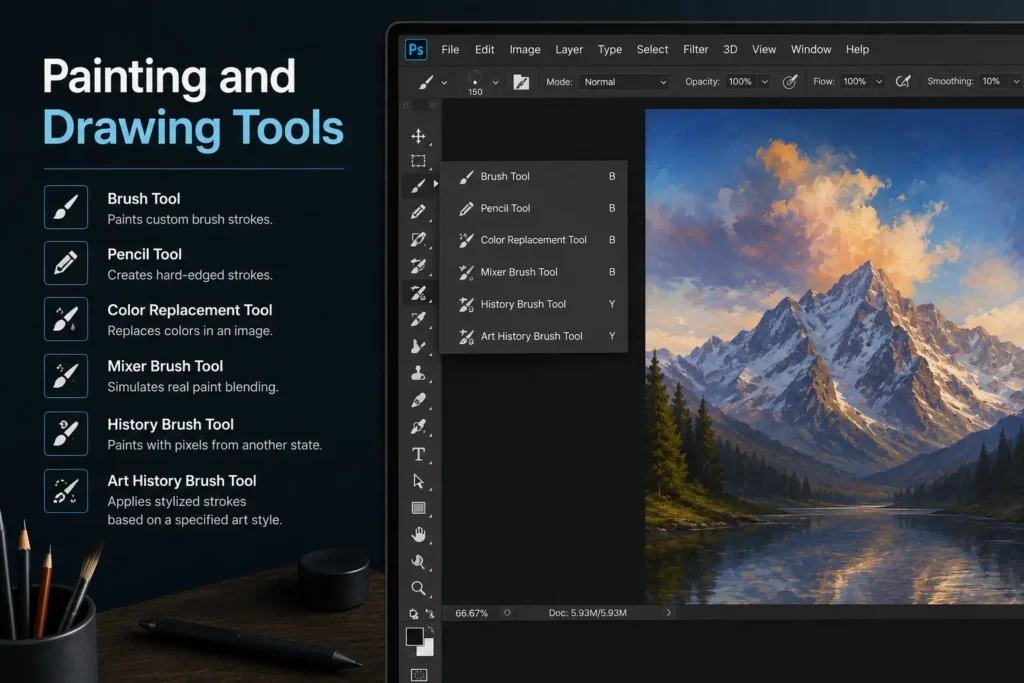
Photoshop is not only a photo editor; it is also a powerful digital painting platform.
Artists, illustrators, and designers rely heavily on painting tools to create artwork, concept designs, and visual effects.
Brush Tool
The Brush Tool is arguably the most versatile in Photoshop.
It allows users to paint with customizable brushes that vary in size, hardness, opacity, texture, and flow. Designers use brushes for everything from digital illustration to masking and retouching.
Thousands of custom brush presets are available, enabling artists to simulate watercolor, charcoal, ink, and countless other traditional media effects.
Keyboard Shortcut: B
Pencil Tool
The Pencil Tool produces hard-edged strokes without the soft blending associated with standard brushes.
It is commonly used for pixel art, technical illustrations, and projects requiring precise, crisp edges.
Unlike the Brush Tool, the Pencil Tool preserves sharp boundaries between pixels.
Color Replacement Tool
The Color Replacement Tool allows users to paint over existing colors while preserving texture and detail.
Photographers often use it to change clothing colors, alter product appearances, or experiment with alternative color schemes.
Because it maintains highlights and shadows, the results typically appear more realistic than simple color fills.
Mixer Brush Tool
The Mixer Brush Tool simulates traditional painting techniques by blending colors directly on the canvas.
Artists can mix wet and dry paint effects, creating strokes that resemble oil or acrylic painting.
This tool has become especially popular among digital painters seeking natural artistic textures.
➔ Expand Your Knowledge: PHP Development Tools
Clone and Stamp Tools
Clone-based tools duplicate pixels from one area and apply them elsewhere.
They remain indispensable for detailed retouching work where precision matters.
Clone Stamp Tool
The Clone Stamp Tool copies pixels exactly from a sampled source area.
Editors frequently use it to remove distractions, duplicate textures, restore old photographs, and refine image details.
Because cloning reproduces pixels precisely, it offers greater control than automated healing tools.
Professional retouchers often combine the Clone Stamp Tool with healing tools to achieve flawless results.
Keyboard Shortcut: S
Pattern Stamp Tool
The Pattern Stamp Tool paints using predefined patterns instead of sampled pixels.
Designers occasionally use it to create decorative backgrounds, textures, and artistic effects.
Although less common in everyday workflows, it remains useful for specialized creative projects.
Eraser and History Tools
Photoshop provides several methods for removing or restoring content during editing.
Eraser Tool
The Eraser Tool removes pixels from a layer, functioning similarly to a traditional eraser.
Depending on the layer type, erased areas may reveal transparency or the background color.
While many professionals prefer layer masks for non-destructive editing, the Eraser Tool remains useful for simple projects.
Keyboard Shortcut: E
Background Eraser Tool
The Background Eraser Tool intelligently removes background pixels while preserving foreground subjects.
It is particularly effective when isolating objects with complex edges, such as hair, fur, or foliage.
By analyzing color differences, Photoshop minimizes accidental deletion of important details.
Magic Eraser Tool
The Magic Eraser Tool deletes pixels based on color similarity.
With a single click, users can remove large areas of uniform color, making it ideal for simple background removal tasks.
History Brush and Art History Brush Tools
The History Brush Tool restores selected portions of an image to a previous editing state.
This feature provides flexibility for experimenting with edits, as users can selectively undo changes without affecting the entire image.
The Art History Brush takes this concept further by applying painterly effects based on previous image states, producing creative and stylized results.
Gradient and Fill Tools
Gradient and fill tools help designers add color, depth, and visual interest to their projects. These tools are widely used in graphic design, digital art, and photo manipulation.
Gradient Tool
The Gradient Tool creates smooth transitions between two or more colors. Designers frequently use gradients to build backgrounds, add lighting effects, create overlays, and enhance compositions.
Modern versions of Photoshop offer multiple gradient styles, including linear, radial, angle, reflected, and diamond gradients. Combined with layer masks, gradients can produce highly sophisticated visual effects.
Keyboard Shortcut: G
Paint Bucket Tool
The Paint Bucket Tool fills an area with a selected color or pattern.
Although relatively simple, it remains useful for basic illustrations, mockups, and quick design adjustments. The tool fills adjacent pixels with similar color values, making it ideal for artwork with clearly defined boundaries.
Blur, Sharpen, and Smudge Tools
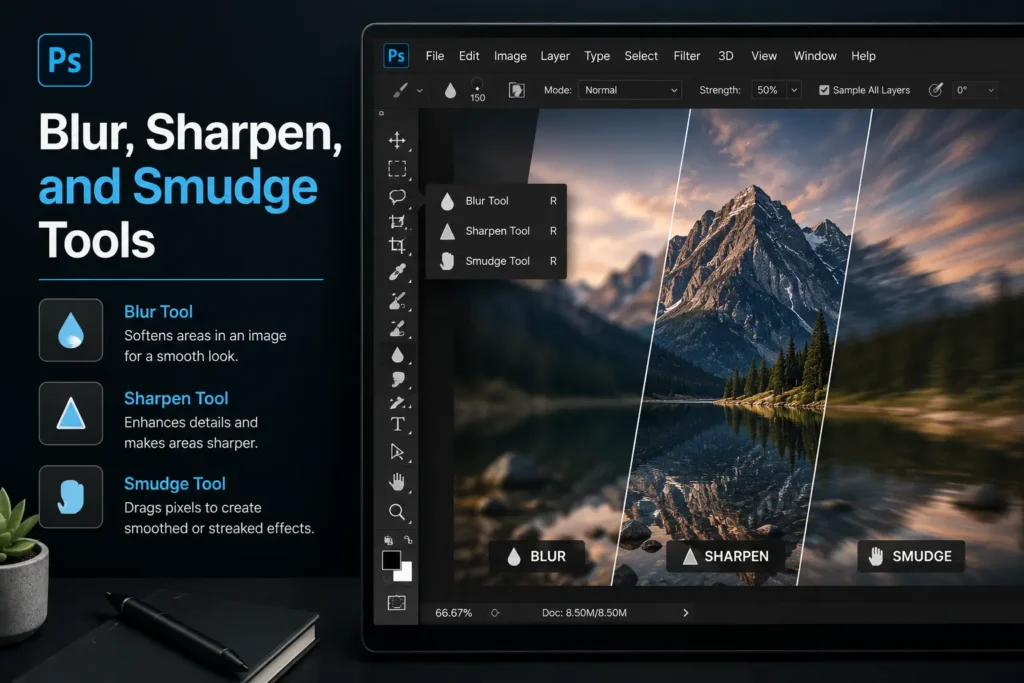
These tools control image clarity and are essential for enhancing focus, softening distractions, and creating artistic effects.
Blur Tool
The Blur Tool softens specific areas by reducing edge contrast.
Photographers often use it to minimize distractions in backgrounds or create depth-of-field effects. When applied carefully, blur can guide viewers’ attention toward the primary subject.
Sharpen Tool
The Sharpen Tool increases edge definition, making image details appear clearer and more prominent.
Excessive sharpening can introduce unwanted artifacts, so professionals typically apply this tool selectively rather than across an entire image.
Smudge Tool
The Smudge Tool simulates the effect of dragging wet paint across a surface.
Digital artists frequently use it to blend colors, soften transitions, and create painterly textures. The tool is also effective for refining hair strands and organic details.
Dodge, Burn, and Sponge Tools
Originally inspired by traditional darkroom techniques, these tools control tonal adjustments within specific image areas.
Dodge Tool
The Dodge Tool lightens selected portions of an image.
Portrait photographers often use it to brighten eyes, emphasize highlights, or enhance facial features subtly.
Burn Tool
The Burn Tool darkens targeted areas.
It is commonly used to add depth, strengthen shadows, and increase contrast within an image. Strategic use of the Burn Tool can significantly improve visual drama.
Sponge Tool
The Sponge Tool adjusts color saturation.
Users can either intensify colors or reduce saturation in selected areas, allowing for precise color refinement without affecting the entire image.
Keyboard Shortcut for these tools: O
Pen and Path Tools
The Pen Tool family is widely regarded as one of Photoshop’s most powerful and initially challenging features.
Pen Tool
The Pen Tool creates precise vector paths using anchor points and direction handles.
Professional designers rely on it for creating clipping paths, product cutouts, logos, and detailed selections. Although mastering the Pen Tool requires practice, it offers unmatched precision.
Keyboard Shortcut: P
Freeform Pen Tool
The Freeform Pen Tool allows users to draw paths more naturally, similar to sketching with a pencil.
It is useful when precise anchor placement is unnecessary.
Curvature Pen Tool
The Curvature Pen Tool simplifies path creation by automatically generating smooth curves between anchor points.
For many beginners, it provides a more intuitive alternative to the traditional Pen Tool.
Shape Tools
Shape Tools enable users to create scalable vector graphics directly within Photoshop.
Available options include rectangles, ellipses, polygons, lines, and custom shapes.
Because vector shapes remain resolution-independent, they can be resized without losing quality. This makes them ideal for interface design, icons, banners, and marketing materials.
Custom Shape Tool functionality also allows designers to access libraries of prebuilt shapes, significantly accelerating workflow.
Keyboard Shortcut: U
Type Tools
Typography plays a critical role in modern design, and Photoshop includes powerful text-editing capabilities.
The Horizontal Type Tool allows users to add standard text layers, while the Vertical Type Tool creates vertically aligned text.
Photoshop also includes Type Mask tools, which convert text into editable selections. Designers often use these selections to create creative text effects and image-filled typography.
From social media graphics to advertising campaigns, Type Tools remain essential in virtually every design project.
Keyboard Shortcut: T
Navigation Tools
Efficient navigation becomes increasingly important when working on complex projects.
Hand Tool
The Hand Tool allows users to move around the canvas without changing zoom levels.
It is particularly useful when editing high-resolution images.
Keyboard Shortcut: H
Rotate View Tool
The Rotate View Tool temporarily rotates the canvas, providing artists with a more comfortable drawing angle.
This feature is especially valuable for illustrators and digital painters.
Zoom Tool
The Zoom Tool enables users to magnify or reduce the canvas view for detailed editing.
Precise retouching often requires frequent zoom adjustments to ensure accuracy.
Keyboard Shortcut: Z
How to Use Photoshop Tools More Efficiently
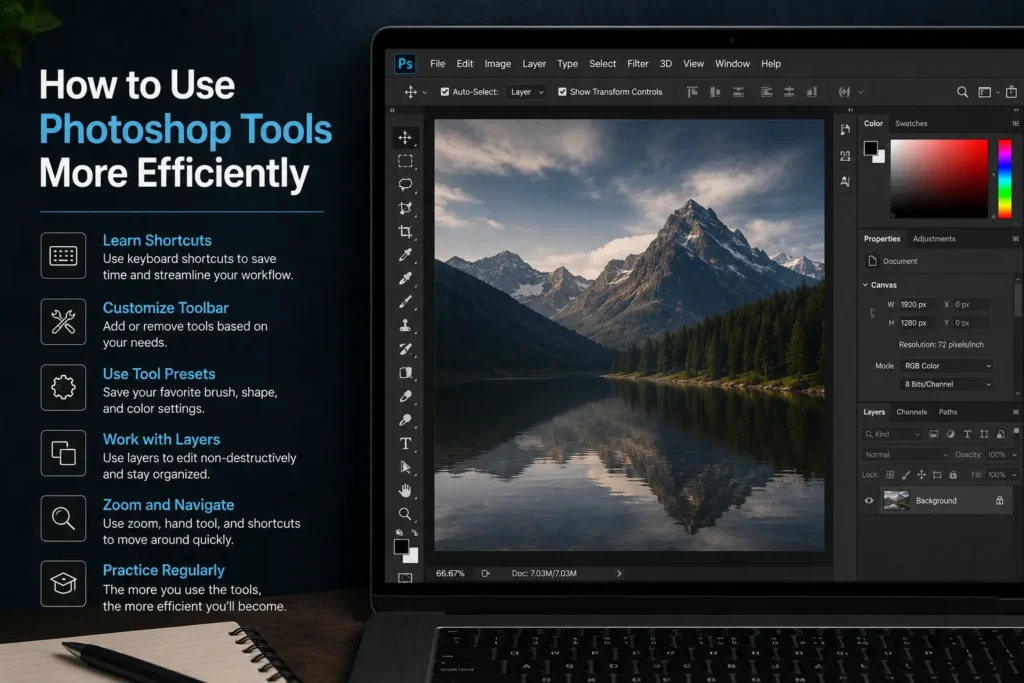
Mastering Photoshop is not only about understanding individual tools; it is also about building an efficient workflow.
Experienced professionals rely heavily on keyboard shortcuts because they eliminate unnecessary clicks and speed up editing considerably. Customizing the toolbar, saving personalized workspaces, and learning non-destructive editing techniques can further improve productivity.
Additionally, regularly practicing with different tools helps users discover faster methods and develop confidence in handling complex projects.
Conclusion
Photoshop’s extensive collection of tools is what makes the software so powerful and versatile. From simple cropping tasks to advanced retouching, illustration, and compositing, each tool serves a unique purpose within the creative process.
Beginners do not need to master every feature immediately. Focusing on core tools such as the Move Tool, Brush Tool, Crop Tool, Selection Tools, and Pen Tool provides a strong foundation for long-term growth.
As experience increases, exploring advanced tools and integrating keyboard shortcuts into daily workflows can significantly enhance both efficiency and creative possibilities.
Frequently Asked Questions
How many tools are available in Photoshop?
Adobe Photoshop includes more than 60 primary tools, with additional hidden variations grouped within the toolbar. The exact number may vary slightly depending on the software version.
Which Photoshop tools should beginners learn first?
Beginners should start with the Move Tool, Crop Tool, Brush Tool, Selection Tools, Type Tool, and basic retouching tools because these features are used in most editing workflows.
Can Photoshop tools be customized?
Yes. Photoshop allows users to customize the toolbar, rearrange panels, create personalized workspaces, and assign custom keyboard shortcuts.
What is the difference between the Lasso Tool and the Magic Wand Tool?
The Lasso Tool creates manual selections by tracing around objects, while the Magic Wand Tool selects pixels automatically based on color similarity.
Where is the Photoshop toolbar located?
By default, the Photoshop toolbar appears on the left side of the workspace. However, users can reposition or customize it according to their preferences.
🖇This is what better content looks like. Follow Tech Statar for more.













































One thought on “Photoshop Tools: Complete List, Uses, and Functions for Beginners”