
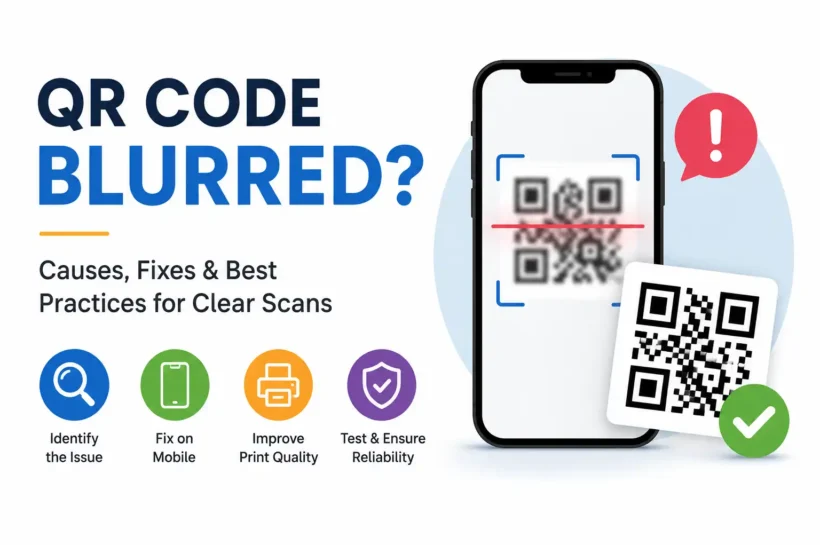

What Does a Blurred QR Code Mean?
A blurred QR code is a QR code that has lost enough visual clarity to make scanning difficult or impossible. QR codes rely on sharp edges, clear contrast, and precise square patterns for accurate recognition. Even small reductions in image quality can prevent smartphones and scanners from decoding the stored information. A QR code may appear blurred because of low-resolution downloads, image compression, poor printing, or camera issues. According to the ISAlways test your QR code using both Android and iPhone devicesO/IEC 18004 standard for QR codes, maintaining proper image quality and contrast is essential for reliable scanning across different devices and environments.
Why Is Your QR Code Blurred?
A QR code can become blurry for several reasons, and identifying the exact cause is the first step toward fixing it. Sometimes the problem originates from the image itself, while in other cases it comes from the camera, printing process, or display settings. Low-quality downloads, resizing images beyond their original resolution, and compression by messaging apps are among the most common issues. Environmental factors like glare, poor lighting, and dirty camera lenses can also reduce scanning accuracy. Understanding these causes helps you create QR codes that remain readable across both digital and printed formats.
Low-Resolution Image Downloads
Downloading a QR code in low resolution often removes the sharp edges scanners need for accurate detection. Small PNG or JPG files may look acceptable on a phone but become blurry when enlarged. Whenever possible, download high-resolution images or vector formats like SVG to preserve quality at any size.
Incorrect Resizing and Image Stretching
Stretching a QR code beyond its original dimensions reduces pixel quality and distorts its square modules. This often happens when images are resized in presentation software or graphic editors. Instead of enlarging raster images, generate the QR code at the required size or use scalable vector files for consistent clarity.
Compression from Messaging Apps and Social Media
Many messaging platforms and social media networks automatically compress uploaded images to reduce file size. While this improves loading speed, it can soften QR code details and lower scan success rates. Sharing the original image or using a downloadable file helps preserve scanning performance and image quality.
Printing Issues and Poor Ink Quality
A QR code may become unreadable if the printer produces smudged edges, uneven ink distribution, or faded colours. Low print resolution can also reduce the definition of individual modules. Printing at high resolution, using quality materials, and checking the final output significantly improves scan reliability across different devices.
Camera Focus, Lighting, and Dirty Lenses
Sometimes the QR code is perfectly clear, but the smartphone camera cannot capture it properly. Autofocus problems, insufficient lighting, fingerprints on the camera lens, or excessive movement may create a blurry image. Cleaning the lens and improving lighting conditions usually restores successful scanning within seconds.
Screen Glare and Display Brightness Problems
Digital QR codes displayed on phones, tablets, or monitors may become difficult to scan because of reflections or low screen brightness. Bright sunlight often creates glare that hides important QR code details. Increasing display brightness, adjusting the viewing angle, or moving indoors can noticeably improve scanning accuracy.
How to Fix a Blurred QR Code on Mobile Devices
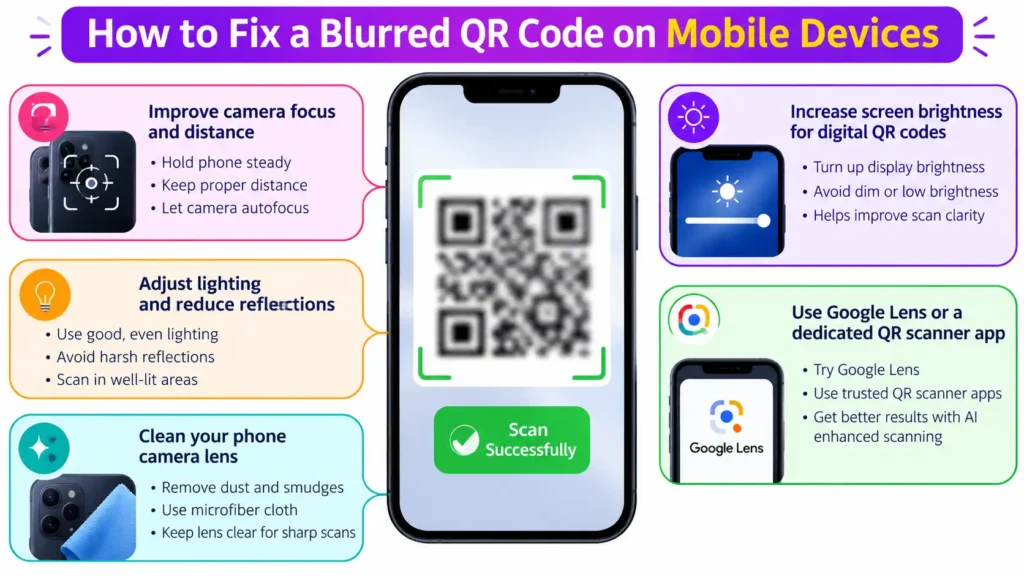
Most blurred QR code issues can be resolved without replacing the code itself. Before generating a new QR code, check whether the problem comes from your smartphone camera, display settings, or surrounding environment. Improving focus, increasing screen brightness, and reducing glare often solve scanning problems immediately. If the image remains unreadable, advanced scanning tools such as Google Lens can identify QR codes that the default camera app may miss. Following these practical troubleshooting steps helps ensure fast, reliable scanning in everyday situations.
Improve Camera Focus and Distance
Hold your phone steady and allow the camera a moment to autofocus before moving closer. If you’re too near the QR code, the camera may struggle to focus correctly. Maintaining an appropriate distance gives the scanner enough detail to recognize the pattern accurately and decode the information successfully.
Adjust Lighting and Reduce Reflections
Good lighting improves the contrast between the dark and light areas of a QR code, making it easier to scan. Avoid harsh reflections from glossy paper or phone screens by changing your viewing angle. Soft, even lighting generally produces the highest scanning success across modern smartphones.
Clean Your Phone Camera Lens
Dust, fingerprints, and smudges on your camera lens can reduce image sharpness and make QR codes appear blurry. Wipe the lens gently with a clean microfiber cloth before scanning. This simple maintenance step often resolves scanning issues without requiring any changes to the QR code itself.
Increase Screen Brightness for Digital QR Codes
If you’re scanning a QR code displayed on another device, increase that screen’s brightness to improve visibility. A brighter display enhances contrast and helps the scanner identify the QR code’s modules more accurately. This is especially useful in outdoor environments or brightly lit offices.
Use Google Lens or a Dedicated QR Scanner App
If your default camera struggles to recognize a QR code, try Google Lens or another trusted QR scanner application. These tools often use advanced image recognition algorithms that improve decoding accuracy. They can successfully scan QR codes that appear difficult to read under normal camera settings.
📖 Read These Next: Technology Trends and the Growing Importance of Digital Innovation
How to Repair or Recreate a Blurry QR Code
If a QR code remains blurry after adjusting your camera or lighting, the issue likely lies with the file itself. Fortunately, most blurry QR codes can be repaired by recreating them using the original data rather than trying to sharpen the existing image. Modern QR code generators produce high-quality files in multiple formats, making it easy to create versions suitable for both digital and print use. Following established QR code design practices such as preserving the correct proportions, maintaining a proper quiet zone, and testing before publishing ensures reliable scanning across Android phones, iPhones, tablets, and dedicated barcode scanners.
Generate a New High-Resolution QR Code
The most effective solution for a blurry QR code is generating a new one from the original URL, text, or file. Export it at a higher resolution instead of enlarging an existing image. Many QR code platforms also allow you to customize error correction levels, helping maintain readability even if the code experiences minor wear or damage.
Export QR Codes in PNG, SVG, or PDF Formats
Choosing the correct file format is just as important as generating the QR code itself. PNG works well for websites and social media, while SVG provides unlimited scalability without losing sharpness. PDF is ideal for professional printing because it preserves image quality and layout across different printers and publishing software.
Maintain the Correct Aspect Ratio During Editing
A QR code should always remain perfectly square. Stretching or compressing the image changes the alignment of its data modules, making scanning less reliable. When editing in graphic design software such as Adobe Illustrator, Photoshop, or Canva, lock the aspect ratio to preserve the original proportions and scanning accuracy.
Add Proper Quiet Zones Around the QR Code
Every QR code requires a blank margin, known as the quiet zone, around all four sides. According to the ISO/IEC 18004 standard, this empty border helps scanners distinguish the QR code from surrounding graphics or text. Removing or reducing the quiet zone significantly increases the likelihood of scan failures.
Test the QR Code Before Publishing
Never publish or print a QR code without testing it first. Scan it using multiple smartphones, including both Android and iPhone devices, and verify that it works under different lighting conditions. Checking the destination link, loading speed, and scan distance helps identify problems before customers or users encounter them.
Printing Best Practices to Prevent Blurred QR Codes
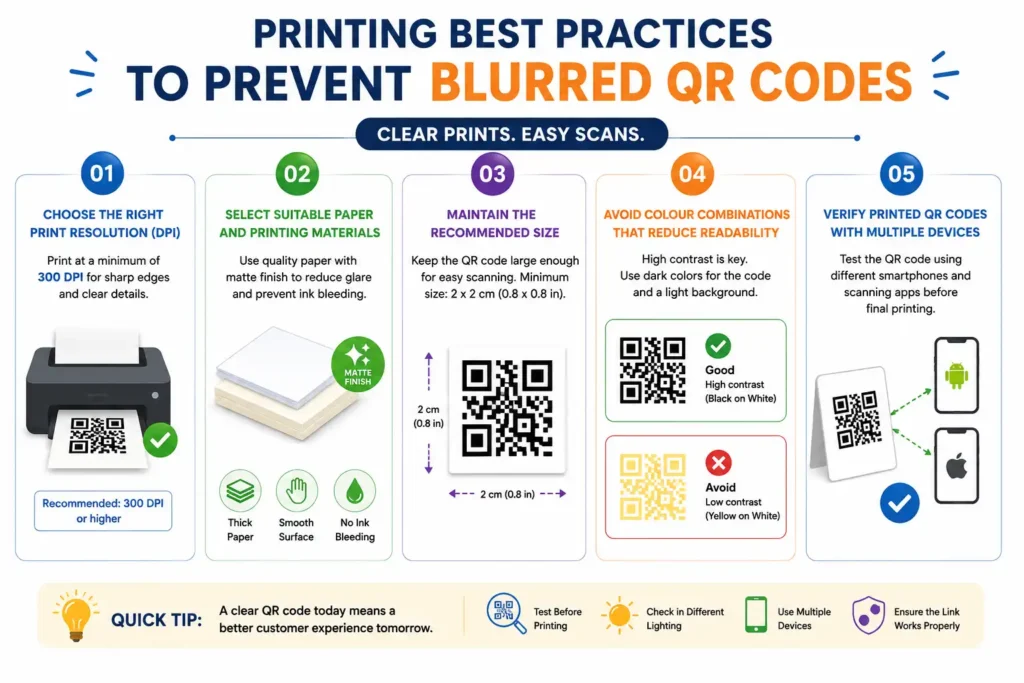
Printed QR codes face challenges that digital versions often avoid, including ink spread, paper texture, and printer quality. Even a perfectly designed QR code can become difficult to scan if it is printed incorrectly. Businesses using QR codes on packaging, menus, brochures, posters, or product labels should follow professional printing standards to maximize readability. Selecting the right resolution, print materials, colours, and dimensions ensures consistent scanning performance while reducing customer frustration and improving overall user experience across different environments.
Choose the Right Print Resolution (DPI)
Print QR codes at a minimum of 300 DPI for professional-quality results. Higher resolutions produce cleaner edges and more defined square modules, making them easier for smartphone cameras to detect. Low-resolution printing often creates fuzzy patterns that reduce scan accuracy, particularly on small labels or detailed marketing materials.
Select Suitable Paper and Printing Materials
Paper quality affects how clearly a QR code is reproduced. Matte finishes generally reduce glare and improve scanning compared to glossy surfaces, which can reflect light directly into the camera. High-quality printing materials also minimize ink bleeding, preserving the sharp edges needed for reliable QR code recognition.
Maintain the Recommended QR Code Size
A QR code that is too small can become difficult to scan, especially when viewed from a distance. As a general guideline, many printing professionals recommend a minimum size of around 2 × 2 cm (0.8 × 0.8 inches) for close-range scanning, with larger sizes required for posters, banners, and outdoor signage.
Avoid Colour Combinations That Reduce Readability
High contrast remains one of the most important factors for successful QR code scanning. Black modules on a white background continue to provide the highest reliability. Avoid light colours, gradients, patterned backgrounds, or combinations with insufficient contrast, as these make it harder for cameras to distinguish the QR code accurately.
Verify Printed QR Codes with Multiple Devices
Before printing thousands of copies, test a sample using several smartphones from different manufacturers. Camera quality and scanning software vary between devices, so checking compatibility helps uncover potential issues early. Testing with Android, iPhone, and tablet cameras increases confidence that the printed QR code will work for most users.
📖 Read These Next: 12 Unique Business Ideas to Start in 2026
Digital Display Best Practices for Sharp QR Codes
QR codes displayed on websites, presentations, digital menus, advertising screens, or mobile apps should remain crisp regardless of screen size. Unlike printed versions, digital QR codes are often affected by image compression, scaling, and screen resolution. Optimizing file formats and display settings helps maintain visual clarity while improving scan success rates. Whether the QR code appears on a smartphone, laptop, TV, or digital billboard, following digital design best practices ensures fast, accurate scanning and delivers a smoother experience for users interacting with your content.
Display QR Codes at the Correct Size
A QR code should be large enough for users to scan comfortably without zooming. Small images force cameras to work harder and increase the chance of scanning errors. On websites and presentations, choose dimensions that remain clear on both desktop monitors and mobile devices while maintaining adequate spacing around the code.
Avoid Screenshots with Reduced Quality
Screenshots often reduce image quality through resizing or compression, especially when shared across messaging apps. Instead of taking screenshots, download or export the original QR code directly from the generator. Using the original file preserves sharp edges and ensures the highest possible scanning performance.
Use Vector Files for Large Displays
Large displays such as conference screens, retail signage, and digital billboards benefit from vector formats like SVG. Unlike raster images, vector graphics scale infinitely without becoming blurry or pixelated. This makes them the preferred choice for professional presentations and high-resolution commercial displays.
Optimise QR Codes for Websites, Presentations, and Digital Signage
Place QR codes where they are easy to notice and scan without obstruction. Leave enough white space around the image, avoid overlapping graphics, and ensure the destination page is mobile-friendly. A well-positioned QR code improves user engagement while encouraging faster interactions across websites, presentations, and digital displays.
Prevent Image Compression During Uploads
Many content management systems and social media platforms automatically compress uploaded images to improve loading speeds. Whenever possible, upload high-resolution originals and avoid repeated downloads and reuploads. Reviewing the published version ensures your QR code remains sharp, readable, and ready for reliable scanning across all supported devices.
How to Test a QR Code Before Sharing or Printing
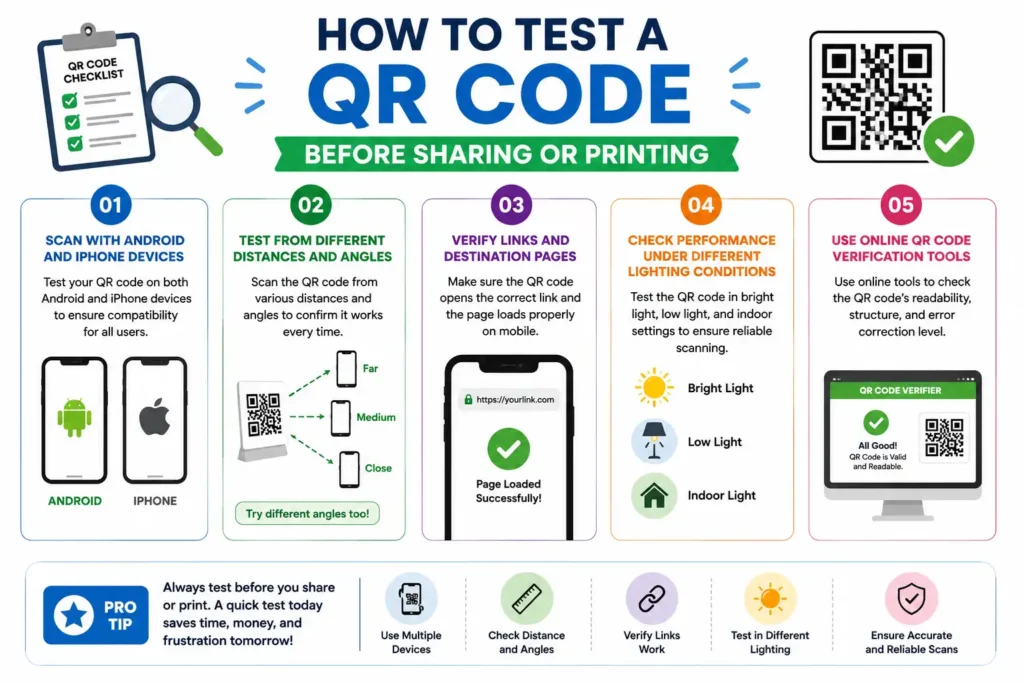
Testing a QR code before publishing is one of the simplest ways to prevent scanning failures and poor user experiences. A QR code that works on one phone may perform differently on another due to variations in camera hardware, scanning software, and display quality. Before adding a QR code to marketing materials, packaging, menus, business cards, or websites, verify that it scans consistently in real-world conditions. Testing multiple devices, viewing distances, lighting environments, and destination links ensures your QR code performs reliably and reaches users without unnecessary frustration.
Scan with Android and iPhone Devices
Different manufacturers use different camera sensors and image-processing algorithms, which can affect scan performance. If possible, also test with older smartphone models to ensure the QR code remains accessible to users who do not have the latest hardware.
Test from Different Distances and Angles
Users rarely scan QR codes under perfect conditions. Check whether your QR code works from close range, several feet away, and at slight viewing angles. This is especially important for posters, banners, retail displays, and event signage, where people scan while standing or walking rather than directly facing the code.
Verify Links and Destination Pages
A QR code is only useful if it leads users to the correct destination. After scanning, confirm that the URL opens properly, loads quickly, and displays correctly on mobile devices. If the QR code links to a website, ensure there are no broken pages, redirects, or security warnings that could discourage visitors.
Check Performance Under Different Lighting Conditions
Lighting significantly affects QR code scanning accuracy. Test the code indoors, outdoors, under bright sunlight, and in low-light environments. Also check for reflections on glossy surfaces or digital screens. A QR code that performs well in various lighting conditions is far more likely to deliver a consistent experience for all users.
Use Online QR Code Verification Tools
Several reputable QR code platforms include built-in testing and validation features that check readability before publishing. These tools can identify formatting issues, missing quiet zones, low contrast, or damaged patterns. Using a verification tool alongside manual smartphone testing provides an additional layer of confidence before your QR code goes live.
Frequently Asked Questions About Blurred QR Codes
Blurred QR codes often raise similar questions, whether they are used for business marketing, digital payments, event registration, or product packaging. The answers below address the most common concerns while reflecting current QR code standards and industry best practices. Understanding these fundamentals will help you create QR codes that remain sharp, easy to scan, and reliable across different devices, printing methods, and digital platforms.
Can a Blurred QR Code Still Be Scanned?
Yes, sometimes. If the blur is minor and the QR code uses a high error correction level, modern smartphones may still decode it successfully. However, severe blurring usually prevents scanners from identifying the square modules accurately. For the best user experience, replace or regenerate any QR code that appears noticeably blurry.
Why Does My QR Code Become Blurry After Downloading?
This usually happens when the QR code is downloaded in a low-resolution format or compressed by websites, messaging apps, or social media platforms. Enlarging a small PNG or JPG also reduces image quality. Downloading the original high-resolution file or using an SVG version helps preserve sharpness and scan reliability.
Which File Format Provides the Best Quality?
For most professional applications, SVG offers the highest quality because it is a vector format that scales without losing detail. PDF is another excellent choice for commercial printing, while PNG works well for websites and digital sharing when exported at a sufficiently high resolution.
How Large Should a QR Code Be for Printing?
The recommended size depends on the viewing distance, but a minimum of 2 × 2 cm (0.8 × 0.8 inches) is suitable for most close-range applications such as business cards and product labels. Larger QR codes are necessary for posters, banners, and outdoor signage to ensure comfortable scanning from greater distances.
Can AI Enhance or Restore a Blurry QR Code?
AI image-enhancement tools can sometimes improve the appearance of a blurry QR code, but they cannot reliably reconstruct missing data or damaged modules. If the original QR code has lost critical information, generating a new QR code from the original content is the safest and most reliable solution.
📖 Read These Next: How Artificial Intelligence Is Accelerating Scientific Discovery
Conclusion
A blurred QR code may seem like a small issue, but it can lead to missed opportunities, frustrated users, and lower engagement. The good news is that most problems are preventable with the right approach. Creating high-resolution QR codes, using appropriate file formats, maintaining proper sizing, following printing and digital display best practices, and testing across multiple devices all contribute to dependable scanning performance.
Whether you’re using QR codes for marketing campaigns, payments, product packaging, or customer support, prioritizing image quality and usability ensures a seamless experience. By applying the best practices covered in this guide, you can create QR codes that remain sharp, accessible, and easy to scan in virtually any environment.
✨ Smart minds follow smart pages, hit follow on Tech Statar.






























2 thoughts on “QR Code Blurred? Causes, Fixes & Solutions”