

ChatGPT can help you write, research, summarize information, and solve problems. But constantly switching between your browser and an AI chatbot can interrupt your workflow.
Depending on the extension, you can summarize a lengthy article, rewrite an email, compare information across sources, or automate repetitive browser tasks without starting from scratch.
But not every extension offers the same features. Some focus on writing and research, while others provide access to multiple AI models or automate browser activities. Free plans, privacy policies, and permission requirements also vary.
How ChatGPT Chrome Extensions Work
Most AI-powered Chrome extensions follow a similar process:
- Install the extension: Add it from the Chrome Web Store and review the requested permissions.
- Connect an account: Depending on the tool, you may need to sign in or connect an AI service.
- Open a webpage: Navigate to your page.
- Choose an action: Ask a question
- Review the response: Check the output for accuracy before using it.
The exact process depends on the extension. Some operate through a browser sidebar, while others add buttons to webpages or provide shortcuts for common tasks.
What Can You Do With ChatGPT Chrome Extensions?
Here are some practical ways to use them:
- Writing: It helps you with writing.
- Research: Summarize articles, identify important ideas, and ask questions about online content.
- Productivity: This helps you increase your productivity.
- Learning: Simplify complex explanations and generate questions for studying.
- Marketing: Brainstorm content ideas, draft social media posts, and analyze publicly available webpages.
- Automation: Perform supported browser tasks, extract information, or monitor changes on selected websites.
These tools can reduce repetitive work, but they don’t eliminate the need for judgment. AI-generated answers can contain errors, omit context, or misinterpret the source material.
5 Best ChatGPT Chrome Extensions in 2027
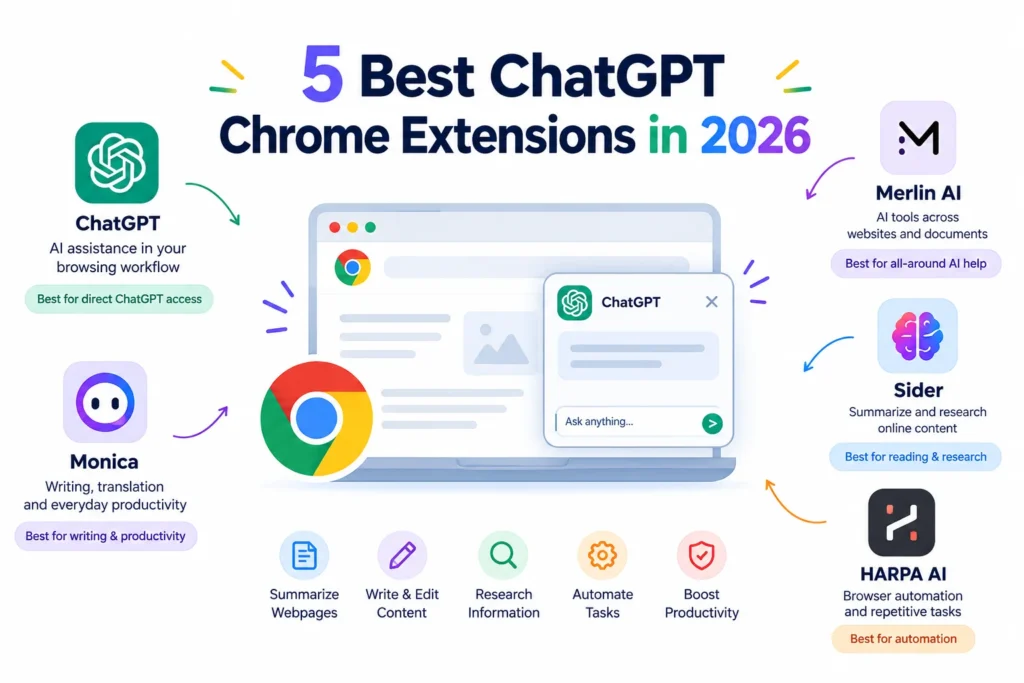
1. ChatGPT: Best for Using ChatGPT Directly in Your Browser
If ChatGPT is already part of your daily routine, its official Chrome extension is a natural starting point. OpenAI’s browser extension integrates with the ChatGPT desktop app, allowing supported browser workflows to use webpage context and interact with sites you already access. It also provides a side chat in supported browsers.
One important distinction: this extension is more than a simple writing assistant, but it also requires setup through the ChatGPT desktop app for browser-control features. It’s not just a standalone replacement for visiting ChatGPT in a browser tab.
Key features
- Browser-side chat: Ask questions about the webpage you’re viewing without constantly switching tabs.
- Connected workflow: Continue supported work between the browser and ChatGPT desktop app.
Pros
- Comes from OpenAI, the developer of ChatGPT.
- Connects AI assistance with your existing browser workflow.
- Can support more involved tasks than basic text generation.
Cons
- Some browser-control features require the desktop app and additional setup.
- Supported browsers and features vary.
- Browser access and permissions deserve careful review.
Official resource: ChatGPT Chrome extension.
2. Merlin AI: Best for AI Assistance Across Websites
Best for: Writers, marketers, students, and professionals who regularly switch between different websites and documents.
Merlin AI brings multiple AI models and productivity tools into a browser extension. According to its Chrome Web Store listing, it supports tasks such as researching webpages, summarizing documents and videos, rewriting text, translating content, and creating written material.
Its main advantage is convenience. You can use AI assistance in the context of your current task rather than opening a separate chatbot for every question.
For example, a content marketer could summarize a competitor’s article, identify its main arguments, and brainstorm questions for a new piece. A student could summarize a reading and ask follow-up questions to clarify unfamiliar concepts.
Key features
- AI model access: Work with multiple supported AI models through one interface.
- Webpage and document summaries: Condense lengthy content into key takeaways.
- Writing assistance: Draft, rewrite, and adjust the tone of text.
- Research support: Ask questions about online content and explore related information.
- Translation: Work with content in supported languages.
Pros
- Combines several writing, research, and summarization tools.
- Works across a range of online tasks.
- Can reduce the need to switch between separate AI applications.
Cons
- Some features and model access may require a paid plan.
- AI-generated summaries may leave out important details.
Official resource: Merlin AI on the Chrome Web Store.
3. Monica: Best for Writing and Everyday Productivity
Monica is an all-in-one AI assistant designed to bring multiple AI-powered capabilities into the browser. Depending on the available plan and current feature set, it can help with text generation, summarization, translation, and other everyday productivity tasks.
Imagine you’re preparing a client email. You can use an AI assistant to turn rough notes into a clearer draft, adjust the tone for a professional audience, and refine the final wording.
The main reason to consider Monica is the breadth of its tools. However, having more features doesn’t automatically make it the best option. If you only need occasional ChatGPT access, a simpler extension may be sufficient.
Key features to evaluate
- Writing and rewriting: Improve clarity, grammar, tone, and structure.
- AI chat: Ask questions and generate ideas.
- Summarization: Condense supported webpages and documents.
- Translation: Help understand or prepare text in other languages.
- Multiple AI models: Check which models are available under each plan.
Pros
- Offers a broad range of AI productivity features.
- Can support different writing and research workflows.
- May suit users who prefer a single interface for multiple tasks.
Cons
- The full feature set may be available only on paid plans.
- A large tool collection can make the interface feel more complex.
4. Sider: Best for Reading and Researching Online Content
Best for: Students, researchers, and professionals who regularly work with long articles, PDFs, and other online material.
Sider is designed to make AI assistance available alongside your browsing activities. Its broader appeal is the ability to work with content you’re already reading, rather than treating every question as a completely separate chat session.
For example, a researcher reviewing several articles might use an AI sidebar to summarize each source, identify the main arguments, and generate follow-up questions.
Still, a summary is not a substitute for reading an important source. AI can overlook qualifications, confuse claims, or omit details that change the meaning of a passage.
Key features to evaluate
- AI sidebar: Access assistance while browsing supported websites.
- Question answering: Ask follow-up questions about the material you’re reviewing.
- Writing support: Draft or refine text when needed.
Pros
- Suits research-heavy browsing.
- Can help organize information from lengthy sources.
- Brings reading and writing assistance into one workflow.
Cons
- Summaries may omit context or nuance.
- Available models and usage allowances can vary by subscription.
- You should review privacy policies before providing sensitive content.
5. HARPA AI: Best for Browser Automation and Repetitive Tasks
Best for: Power users, marketers, and professionals who want to combine AI assistance with browser-based workflows.
HARPA AI goes beyond basic question answering by combining an AI sidebar with commands for web-related tasks. Its Chrome Web Store listing describes support for multiple AI models, webpage analysis, summarization, writing, data extraction, and website monitoring.
This makes it a different kind of tool from a straightforward chatbot extension.
For instance, a marketer might use it to analyze publicly accessible webpages, organize information for competitor research, or monitor selected pages for changes. A professional could use supported commands to extract relevant details or summarize online material.
Automation is useful when the same task needs to be repeated. However, you should test commands carefully, particularly when a workflow interacts with signed-in accounts or important business information.
Key features
- AI sidebar: Access supported AI models while browsing.
- Predefined commands: Run supported actions for common research and writing tasks.
- Monitoring: Set up supported website or price-monitoring workflows.
- Content assistance: Draft emails, refine text, and summarize supported files.
Pros
- Offers more automation-oriented functionality than a basic chatbot.
- Supports a range of research and productivity tasks.
- Can help reduce repetitive browser work.
Cons
- May require more setup than simpler extensions.
- Some features depend on particular AI models or paid access.
- Automated results still need verification.
Comparison of the 5 Best ChatGPT Chrome Extensions
Choosing between these extensions becomes easier when you compare their main purposes rather than focusing on the number of features they advertise.
| Extension | Best for | Main strength | What to check |
| ChatGPT | Official ChatGPT integration | Browser context and supported browser tasks | Desktop app requirements and permissions |
| Merlin AI | General AI assistance | Writing, research, and summarization | Free usage limits and model access |
| Monica | Everyday productivity | A broad collection of AI tools | Subscription features and privacy |
| Sider | Reading and research | Working with online content | Document support and usage limits |
| HARPA AI | Browser automation | Commands and recurring browser tasks | Setup requirements and automation permissions |
This comparison summarizes the tools’ general positioning. Exact features depend on their current versions, account types, and subscription plans.
There’s no single winner for every user. ChatGPT is a sensible starting point for people already using OpenAI’s tools, while Merlin and Monica are worth comparing for general AI assistance. Sider is a candidate for research-heavy workflows, and HARPA AI is better suited to users who want browser automation.
How to Choose the Best ChatGPT Chrome Extension
1. Identify Your Main Use Case
Start with your most frequent task.
- Writing emails and articles: Look for rewriting, grammar assistance, tone controls, and text generation.
- Researching topics: Prioritize webpage summaries, source-aware answers, and follow-up questions.
- Studying: Look for document summarization and tools that help you understand concepts.
- Automating workflows: Check whether the extension supports the specific browser actions you need.
- General AI assistance: Consider an extension that combines several useful tools in one interface.
For example, a freelance writer may benefit more from convenient rewriting tools than from advanced browser automation. A marketing analyst who repeats the same research process every week may value automation more highly.
2. Compare Free and Paid Plans
A free plan can be enough for occasional tasks, but frequent users may encounter message caps, model restrictions, or limits on advanced features.
Before upgrading, check:
- How many requests you can make.
- Which AI models are included.
- Whether document uploads and webpage summaries are limited.
- Whether advanced tools require a subscription.
- Whether billing renews automatically.
Don’t compare subscription prices alone. Compare the features and usage allowances included at each price point. A cheaper plan may be less useful if it restricts the tasks you perform most often.
3. Check AI Model Availability
Not every extension uses the same models or provides the same access to them.
Some extensions focus on a single AI service, while others combine models from different providers. Multiple models can be useful when you want to compare responses or choose a model for a particular task.
4. Review Privacy and Browser Permissions
This is one of the most important selection criteria.
Depending on their functionality, browser extensions may request access to webpage content, browsing activity, or other browser features. That access can be necessary for legitimate tasks, but it also creates potential privacy risks.
Avoid sending passwords, financial records, confidential client documents, or other sensitive information unless you’ve confirmed that the service is appropriate for handling it.
5. Evaluate Ease of Use and Performance
An extension should make your work easier, not add another complicated workflow.
Check whether it opens quickly, fits naturally into your browsing habits, and produces useful results without excessive configuration. If you rely on keyboard shortcuts or work across multiple browser profiles, test those features before making the extension part of your routine.
A simple extension that performs your main task reliably may be more valuable than a feature-heavy alternative that you rarely use.
📌 Don’t Miss These Articles: How to Use ChatGPT – Beginner to Pro Guide
How to Install ChatGPT Chrome Extension Step by Step
Installing a Chrome extension is straightforward. The important part is verifying that you’re installing the correct product and understanding what it can access.
Step 1: Open the Chrome Web Store
Visit the Chrome Web Store…
For example, search for Merlin AI or any other. If you’re looking for the official ChatGPT extension, confirm that the publisher is OpenAI.
Step 2: Verify the Developer and Extension Details
Before installing, check the developer name, recent updates, user reviews, and available privacy information.
Look closely at the extension’s requested permissions. An unfamiliar extension that asks for broad access to websites should receive extra scrutiny.
Step 3: Install the Extension
Select the extension’s official listing and click Add to Chrome. Review the permission prompt before confirming the installation.
If the requested access seems excessive for the features you need, reconsider installing the extension.
Step 4: Sign In and Configure Permissions
Open the extension and follow its setup instructions. You may need to create an account, sign in, or connect a supported AI service.
Grant only the access needed for your intended tasks. If the extension supports website-specific permissions, consider limiting access to the sites where you plan to use it.
Some tools, including OpenAI’s browser extension, require additional desktop-app setup for certain browser-control features. Follow the developer’s current instructions rather than assuming every extension works the same way.
Step 5: Test It With a Practical Task
Start with a low-risk task to understand the extension’s capabilities.
For example, open a public article and try this prompt:
Summarize this article in five bullet points. Identify its main argument, supporting evidence, and any limitations. Don’t add information that isn’t supported by the article.
Compare the response with the original article. If the extension misses important details or invents claims, adjust your prompt or try another tool.
Benefits of Using ChatGPT Chrome Extensions
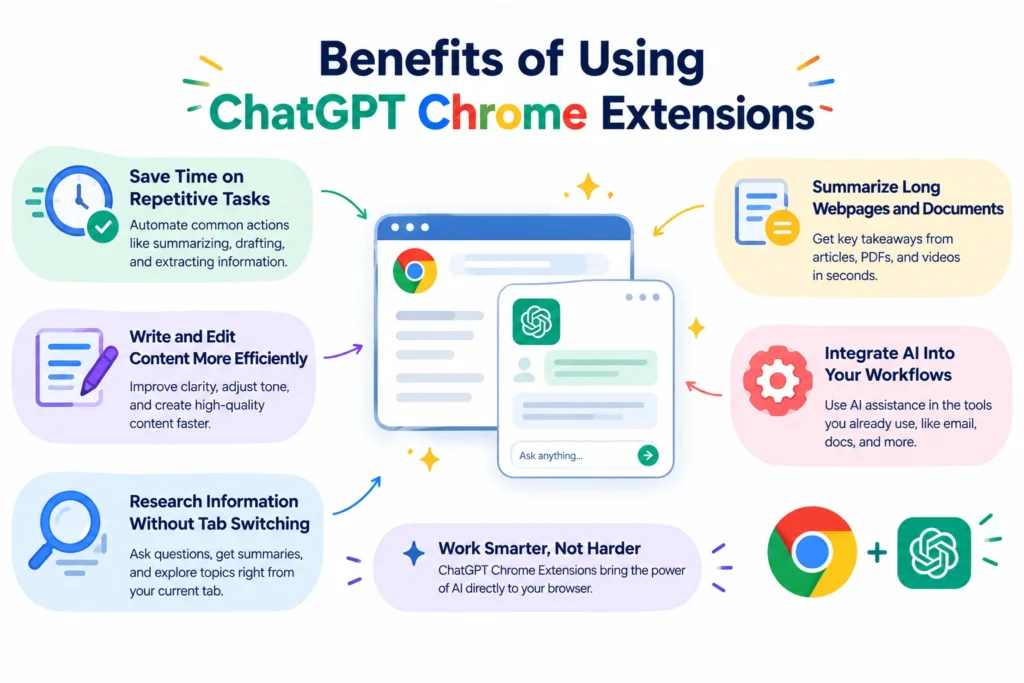
AI browser extensions can make common online tasks more convenient. Their value depends on how well they fit your workflow and how much time they actually save.
Save Time on Repetitive Tasks
Many online tasks involve repeating the same steps, such as summarizing articles, drafting similar emails, or extracting information from webpages.
An extension with reusable prompts or automation features can reduce this repetitive work. The greatest benefit often comes from applying a reliable process to tasks you perform regularly.
Write and Edit Content More Efficiently
AI writing tools can help you turn rough notes into structured drafts, improve sentence clarity, and adjust tone for different audiences.
These tools are most useful as editing assistants. You should still verify facts, preserve your intended meaning, and ensure that the final content reflects your own expertise.
Research Information Without Constant Tab Switching
This can be particularly useful when reviewing several sources or investigating an unfamiliar topic. Still, AI-generated answers shouldn’t replace checking original sources, especially when accuracy matters.
Summarize Long Webpages and Documents
Some extensions can condense supported articles, PDFs, and videos into shorter summaries.
For academic, legal, financial, or technical material, verify important details against the original document rather than relying solely on an AI summary.
Integrate AI Into Existing Workflows
Instead of opening a separate application for every small task, an extension may let you access AI assistance within the browser tools you already use.
Depending on the product, that might mean drafting a reply in an email interface, summarizing a document, or analyzing a public webpage. The practical benefit is fewer interruptions, not simply having more AI features available.
Frequently Asked Questions About ChatGPT Chrome Extensions
What Is the Best ChatGPT Chrome Extension in 2027?
The best choice depends on your needs. The official ChatGPT extension is worth considering for OpenAI’s browser workflow. Merlin and Monica are candidates for general AI assistance, Sider for reading and research, and HARPA AI for browser automation.
Compare current features, permissions, pricing, and privacy practices before choosing.
Are ChatGPT Chrome Extensions Free?
Both; it’s free and paid also…
Is There an Official ChatGPT Chrome Extension?
Yes. Its current functionality includes side chat in supported browsers and integration with the ChatGPT desktop app for browser-control tasks. Setup and browser compatibility requirements apply.
Can I Use ChatGPT in Chrome Without an Extension?
Yes. You can use ChatGPT directly through its website in Chrome without installing a browser extension. An extension is optional and may be helpful when you want additional browser integration or specialized functionality.
Which ChatGPT Chrome Extension Is Best for Students?
Students who regularly read online articles or supported documents may want to compare Sider and Merlin. Both are candidates for research and summarization workflows.
The best choice is the one that helps you understand source material, fits your budget, and handles your information appropriately. Verify summaries against the original sources rather than relying on AI-generated answers alone.
Which Extension Is Best for Writing and Research?
Merlin and Monica are worth evaluating for broad writing and research assistance. Sider may also suit people who primarily need help reading and summarizing online material.
Test the same realistic task in each tool before committing to a subscription.
📌 Don’t Miss These Articles: Best AI Tools for Writing Marketing Copy
Conclusion
ChatGPT is a logical choice for users who want OpenAI’s browser integration. Merlin and Monica offer broader AI productivity features, Sider is worth considering for reading and research, and HARPA AI is a candidate for automating repetitive browser tasks.
Before installing any of them, compare their current capabilities, free-plan limits, and privacy policies. Start with one extension, test it on a few everyday tasks, and keep it only if it provides a clear benefit.
You don’t need the extension with the most features. You need the one that helps you work more effectively without introducing unnecessary complexity or risk.
✨ Tech made simple, follow Tech Statar for more.