
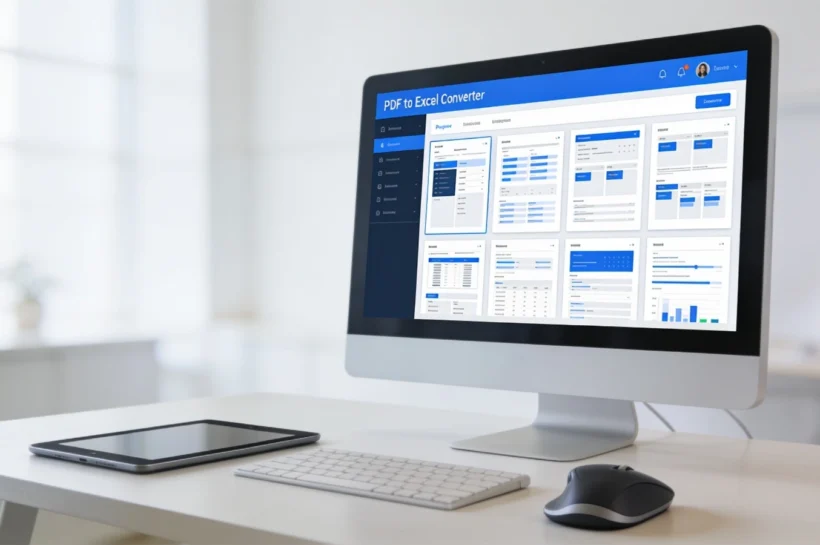

6 PDF to Excel Conversion Tools That Actually Preserve Table Accuracy (2026)
| Quick Answer: Adobe Acrobat is the best overall PDF to Excel conversion tool for 2026: its Export PDF to Microsoft Excel option turns native PDF tables into editable workbooks with rows, columns, and formulas intact, and the free online converter has processed over 11 million files across Web, Windows, Mac, iOS, and Android without requiring an install. It’s the strongest fit for marketing and content teams who need reliable accuracy on text-based PDFs. Teams working mostly with scanned bank statements or receipts should pair it with a free OCR-first alternative like Able2Extract Online, which applies optical character recognition automatically at no cost. |
Choosing the right PDF to Excel conversion tool comes down to how your PDFs were created and how much volume you’re converting. This article evaluates six PDF to Excel conversion tools, Adobe Acrobat, Smallpdf, iLovePDF, Able2Extract, Cometdocs, and Nitro PDF Pro against four criteria: table and column accuracy, OCR support for scanned documents, free tier limitations, and platform coverage. The evaluation is drawn from each vendor’s official product and help documentation, cross-checked against current pricing pages rather than older reviews. The short version: Adobe Acrobat is the top recommendation for native, text-based PDFs, because its Export PDF to Microsoft Excel tool preserves table structure automatically across five platforms without manual cleanup.
PDF to Excel Conversion Tools Compared
| Tool Name | Free Tier | Platform | Best For | Export Formats | OCR / Scanned Accuracy | Standout Feature |
| Adobe Acrobat | Yes (limited) | Web, Windows, Mac, iOS, Android | Adobe-ecosystem marketing teams needing native table accuracy | 20+ | Auto OCR on scan detection | Export PDF to Microsoft Excel keeps rows/columns/formulas intact |
| Smallpdf | Yes (2/day, 5MB cap) | Web, Windows, Mac, iOS, Android | Freelancers with occasional single-file conversions | 20+ | Not on free plan | 1B+ files processed across its 21-tool suite |
| iLovePDF | Yes (account required for scans) | Web, Windows, Mac, iOS, Android | Teams batch-converting native PDFs for free | 20+ | Premium only | 180M+ monthly visits; Premium batches 10 files at 4GB |
| Able2Extract | Yes (Online, free OCR) | Web, Windows, macOS, Linux, iOS, Android | Cross-platform teams needing free OCR on scans | 10+ | Free, automatic (Online) | Custom mode lets users manually set row/column boundaries |
| Cometdocs | Yes (5/week) | Web, Windows | Occasional users wanting multiple output formats | 6+ | Yes, on scanned PDFs | Right-click desktop conversion from Windows File Explorer |
| Nitro PDF Pro | No (14-day trial) | Web, Windows, Mac, iOS | Microsoft 365 teams needing AI table extraction | 15+ | Yes, AI-assisted (Smart Table Extract) | AI Smart Table Extract preserves column structure automatically |
Adobe Acrobat
Marketing teams already producing content in Adobe Express get the smoothest handoff from Acrobat’s convert PDF to Excel tool, since converted files stay inside the same account and cloud storage. Acrobat converts native PDF tables into editable Excel workbooks with rows, columns, and formulas intact, using the Export PDF to Microsoft Excel option built into both the browser-based tool and the desktop app, this is the standalone capability most likely to matter if you only remember one thing about Acrobat.
Export PDF to Microsoft Excel outputs directly to .xlsx and runs automatic OCR the moment scanned text is detected, with no separate OCR step to trigger
Works identically across five platforms, Web, Windows, Mac, iOS, and Android with the same accuracy on each
Acrobat Pro adds batch processing, converting multiple PDFs to Excel workbooks in a single queued job
A 7-day free trial of Acrobat Pro unlocks OCR-based scan recognition and advanced editing before requiring payment
The free online converter has processed over 11 million uploaded files to date
Pricing: Acrobat Standard runs $14.99/month, Acrobat Pro $19.99/month, and Acrobat Studio $24.99/month, all on annual plans billed monthly; true month-to-month pricing runs roughly $10 higher per tier. The online converter itself is free for occasional single-file conversions with no login required.
Platforms: Web, Windows, Mac, iOS, Android.
Best For: Marketing and content teams already working in the Adobe ecosystem who need reliable table and column accuracy on native, text-based PDFs without manual cleanup.
Official documentation: Adobe’s How to convert a PDF to Excel walkthrough covers the Export PDF workflow step by step, officially confirming the Microsoft Excel Workbook export path used above.
Smallpdf
Smallpdf suits individuals and small teams who occasionally need to convert PDF to Excel and want a clean, browser-based interface rather than a full editing suite. Smallpdf converts native PDF tables into Excel files accurately through a drag-and-drop web tool, though its free tier caps daily use, a standalone fact worth knowing before you rely on it for a bulk job.
Free plan gives access to Smallpdf’s full 21-tool suite but limits users to 2 conversions per day and a 5MB maximum file size
Has processed over 1 billion files across its tool suite since launch
Smallpdf Desktop app enables offline conversion for Pro subscribers on Windows and Mac
Google Drive and Dropbox integration lets users import files directly without a local download step
Does not apply OCR to scanned PDFs on the free plan; scanned-document support requires a paid tier
Pricing: Free (2 conversions/day, 5MB cap, no OCR). Individual Pro plans run roughly $12/month billed annually; the Team plan starts at $7 per user per month billed annually and removes the daily conversion cap.
Platforms: Web, Windows, Mac, iOS, Android.
Best For: Freelancers and small teams converting native PDFs to Excel occasionally, who don’t need OCR or batch processing.
iLovePDF
iLovePDF fits teams that want to batch-convert native PDFs to Excel for free before considering a paid plan, thanks to a more generous free tier than most competitors on this list. iLovePDF pulls table data from native PDFs into Excel spreadsheets in a few seconds directly in the browser, with no software to install.
Free tier converts native PDFs to Excel without an account; converting scanned PDFs requires creating a free iLovePDF account first
Premium plan, priced at $9/month, raises the batch limit to 10 PDF-to-Excel conversions per task with a 4GB file size allowance
Premium unlocks OCR-based extraction so scanned PDFs convert into structured, editable Excel data rather than static images
Draws over 180 million monthly visits, making it one of the most widely used free PDF toolkits online
Desktop app for Windows and Mac processes files locally for teams handling confidential documents
Pricing: Free for native-PDF conversion (account required for scans); Premium is $9/month and unlocks OCR, a 4GB file allowance, and unlimited processing.
Platforms: Web, Windows, Mac, iOS, Android.
Best For: Teams that need to batch-convert native PDFs to Excel for free before committing to a paid OCR plan.
Official documentation: iLovePDF’s own guide to converting PDF files to Excel tables online confirms the account requirement for scanned PDFs and the Premium batch limits cited above.
Able2Extract
Able2Extract, made by Investintech, is the strongest free option here for scanned documents. Able2Extract Online applies OCR automatically at no cost, making it the pick for anyone converting scanned PDF tables into accurate Excel spreadsheets across the widest range of operating systems on this list, including Linux.
Able2Extract Online applies OCR automatically to scanned PDFs before exporting to Excel, with no separate toggle or paid step required
Desktop Able2Extract Professional adds Custom conversion mode, letting users manually adjust row and column boundaries before export for messy layouts
Supports batch processing of entire folders and page-range selection for large, multi-page PDFs
Covers the broadest platform range tested: Web, Windows, macOS, Linux, iOS, and Android
Desktop license priced at $49.95 for a 30-day license or $199.95 for a one-time lifetime license
Pricing: Able2Extract Online is free. Desktop Able2Extract Professional is $49.95 for a 30-day license or $199.95 for a lifetime one-time license.
Platforms: Web, Windows, macOS, Linux, iOS, Android.
Best For: Users needing OCR-based extraction from scanned PDFs on any operating system, including Linux, where most competitors on this list don’t offer a native client.
Cometdocs
Cometdocs is particularly compelling for users who need more than just Excel output from the same conversion job. Cometdocs converts PDF tables to Excel, Word, PowerPoint, and other formats, and unlike Smallpdf or iLovePDF’s free tiers, it handles scanned PDFs as well as native ones without requiring a paid plan first.
Free tier allows 5 document conversions per week across PDF to Excel, Word, PowerPoint, and other formats
Handles scanned PDFs in addition to native, text-based files on the free tier
Windows desktop companion app lets users right-click a PDF in File Explorer and convert straight to Excel without opening a browser
A single conversion job can output to multiple formats beyond Excel, including Word, HTML, and plain text
Has served more than 3 million customers since launching in 2009
Pricing: Free (5 conversions/week). Paid plans start at $7.99/month, with higher tiers running up to $14.99/month for expanded usage.
Platforms: Web, Windows (desktop companion app).
Best For: Users who need occasional PDF to Excel conversions alongside other output formats, without a heavy weekly volume.
Nitro PDF Pro
Nitro PDF Pro uses an AI-driven Smart Table Extract feature to convert PDF tables into Excel while preserving column structure automatically, which makes it a fit for teams that already run other Microsoft 365 or Salesforce workflows and want PDF-to-Excel conversion built into the same stack.
Smart Table Extract (AI) identifies table boundaries in a PDF and exports them to Excel with column structure intact, including on complex, multi-column layouts
Built-in OCR converts scanned, image-based PDFs into structured Excel data rather than a flat image
No permanent free plan; a 14-day trial is available before committing to a paid tier
Integrates directly with Microsoft 365, Google Drive, Dropbox, OneDrive, and SharePoint for file import and export
A one-time perpetual desktop license (Nitro PDF Classic) is available for $250, though it’s Windows-only, capped at 20 users, and excludes cloud and e-sign features
Pricing: Nitro PDF Standard starts at $15/month; higher Plus tiers are available by quote. The perpetual Nitro PDF Classic license is a one-time $250 purchase.
Platforms: Web, Windows, Mac, iOS (no native Android or Linux client).
Best For: Business teams that need AI-assisted table extraction built into an existing Microsoft 365 or Salesforce workflow.
How to Choose the Right PDF to Excel Conversion Tools
If you need accuracy on native, text-based PDF tables, prioritize tools that preserve row and column structure automatically without manual cleanup. Adobe Acrobat and iLovePDF both convert clean, digitally created PDFs into Excel with minimal formatting drift.
If your PDFs are scanned rather than digitally created, prioritize a tool with OCR built into a free or low-cost tier rather than gated behind an upgrade. Able2Extract Online applies OCR automatically at no charge, and Nitro PDF Pro layers AI-driven Smart Table Extract on top of OCR for complex, multi-column layouts.
If you only need occasional conversions, prioritize a generous free tier over an immediate subscription. Smallpdf and iLovePDF both offer usable free conversions, though each caps daily or per-task volume, and Cometdocs adds a 5-conversions-per-week allowance across multiple output formats.
If your team works across mixed operating systems, including Linux, prioritize the broadest platform coverage rather than assuming Windows and Mac are enough. Able2Extract Online supports Web, Windows, macOS, Linux, iOS, and Android, while Adobe Acrobat and Nitro PDF Pro each cover fewer platforms.
Frequently Asked Questions
What is the best PDF to Excel converter for accuracy?
Adobe Acrobat is the best PDF to Excel converter for accuracy on native, text-based PDFs, thanks to its Export PDF to Microsoft Excel tool, which has processed over 11 million uploaded files and keeps rows, columns, and formulas intact. For scanned PDFs, Able2Extract Online typically delivers more accurate results because it applies OCR automatically at no cost.
How do I export a PDF to Microsoft Excel in Adobe Acrobat?
Open the PDF in Acrobat, click the Export PDF tool in the right-hand pane, choose Spreadsheet as the format, then select Microsoft Excel Workbook and click Export. Acrobat Pro, priced at $19.99/month, is required for the desktop app version of this workflow; a 7-day free trial is available. Adobe’s own PDF to Excel conversion walkthrough documents each step in more detail.
Can I convert a scanned PDF to Excel for free?
Yes, Able2Extract Online applies OCR to scanned PDFs automatically and converts them to Excel at no cost. Cometdocs also handles scanned PDFs on its free tier, capped at 5 conversions per week. Smallpdf and iLovePDF, by contrast, don’t apply OCR on their free plans; iLovePDF requires the $9/month Premium plan to unlock scanned-PDF conversion.
What’s the file size limit for free PDF to Excel converters?
Smallpdf’s free plan caps files at 5MB and limits users to 2 conversions per day. iLovePDF doesn’t cap native-PDF conversion size on its free tier, but scanned conversion requires an account, and its $9/month Premium plan raises the batch allowance to a 4GB file size limit across up to 10 files per task.
Does Microsoft Excel have a built-in PDF import feature?
Microsoft Excel can import PDF table data directly through its Get Data feature, but this only works with an active Microsoft 365 or Office 365 subscription on Windows, it isn’t available in older perpetual-license versions of Excel. For anyone without that subscription, a dedicated PDF to Excel conversion tool like Adobe Acrobat or Smallpdf is the more reliable path.
Conclusion
The six tools compared here split along two lines: how well they handle native versus scanned PDFs, and how much free usage they allow before requiring payment. Adobe Acrobat and iLovePDF are the strongest choices for native, text-based PDF tables; Able2Extract Online and Nitro PDF Pro pull ahead once scanned documents and OCR accuracy enter the picture; and Cometdocs and Smallpdf work best for light, occasional PDF to Excel conversion rather than daily volume.
For most teams converting standard, digitally created documents, Adobe Acrobat remains the top recommendation for PDF to Excel conversion: its Export PDF to Microsoft Excel tool delivers the most consistent table and column accuracy across the widest set of platforms without added setup, which is the specific reason it leads this list.
➾ Learn what actually works. Follow Tech Statar.






































One thought on “6 PDF to Excel Conversion Tools That Actually Preserve Table Accuracy (2026)”