

Video conferencing makes it easier to collaborate with colleagues, meet clients, and manage remote teams without being in the same room. But a video call doesn’t automatically make a meeting productive. Poor audio, unstable internet, distracting backgrounds, and conversations without a clear purpose can waste everyone’s time.
The good news is that you don’t need expensive equipment or complicated software to improve your online meetings. A few simple changes to your setup, communication habits, and meeting structure can make a noticeable difference.
In this guide, you’ll learn practical video conferencing tips to improve audio and video quality, keep participants engaged, manage meeting time, protect privacy, and make every online meeting more effective.
Pro Tips for Video Conferencing for Better Online Meetings
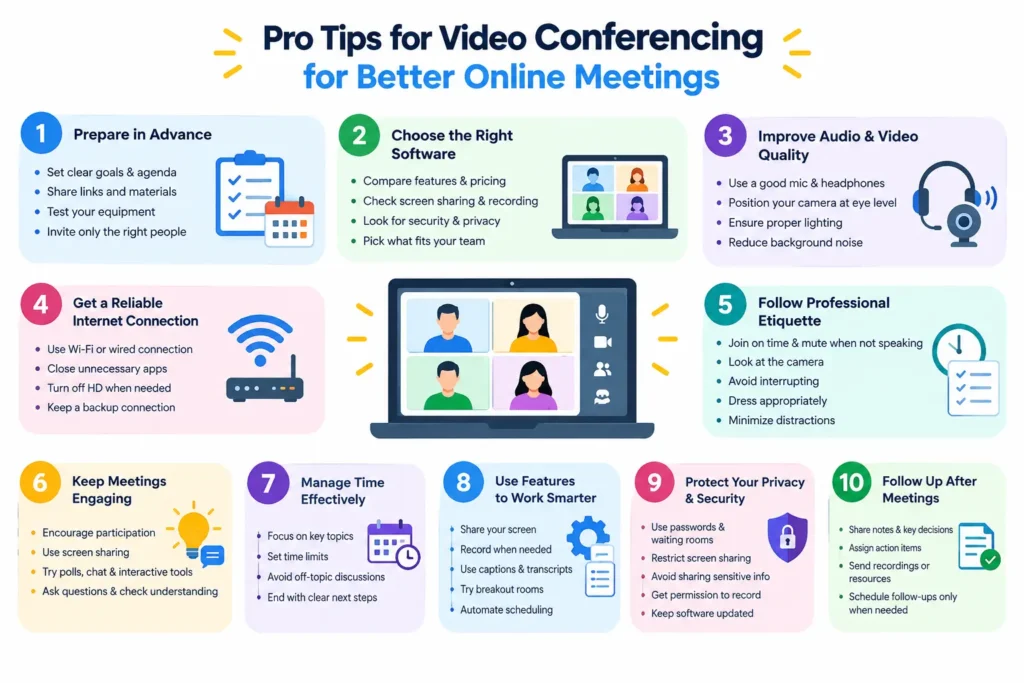
1. Prepare for Your Video Conference in Advance
A productive video conference starts before anyone joins the call. Taking a few minutes to prepare helps prevent technical problems, keeps the discussion focused, and makes it easier for everyone to contribute.
Set Clear Meeting Goals and an Agenda
Before scheduling a meeting, decide what you want to accomplish. Are you sharing project updates, solving a problem, making a decision, or brainstorming ideas? A clear goal helps you determine whether a meeting is necessary and who should attend.
Create a short agenda that lists the main discussion points in order of importance. Include an estimated time for each topic so participants know what to expect.
For example, a 30-minute project meeting might include:
- 5 minutes: Review project progress.
- 10 minutes: Discuss current challenges.
- 10 minutes: Agree on solutions and responsibilities.
- 5 minutes: Confirm deadlines and next steps.
Share Meeting Links and Materials Beforehand
Send the meeting invitation, joining link, agenda, and relevant documents in advance. This is particularly helpful when meeting with clients or participants from different departments.
If you plan to present a report, ask attendees to review it beforehand. That way, you can spend the meeting discussing important findings instead of reading information everyone could have reviewed independently.
Double-check the date, time zone, and meeting link before sending the invitation. A small scheduling mistake can delay the entire session.
Test Your Camera, Microphone, and Internet Connection
Technical problems can interrupt a meeting before it gets started. Test your microphone, speakers, camera, and internet connection a few minutes before joining.
Check that your conferencing software has permission to access your camera and microphone. If you’re using headphones or an external webcam, confirm that the correct devices are selected in the meeting settings.
It’s also worth checking your display name and camera position. These small details help you appear prepared and professional, especially during interviews, client presentations, and important business calls.
2. Choose the Right Video Conferencing Software
The right video conferencing software makes it easier to communicate, share information, and collaborate remotely. However, the best tool depends on your team’s size, budget, security requirements, and daily workflow.
Before choosing a platform, consider how you plan to use it. A freelancer meeting clients occasionally may need only basic video calls, while a large organization may require meeting recordings, administrative controls, integrations, and collaboration features.
Compare Features, Pricing, and Participant Limits
Start by identifying the features you actually need. Most teams should consider video and audio quality, participant limits, meeting duration, scheduling options, and ease of use.
For example, a team already using Microsoft 365 may find Teams convenient because it connects with other Microsoft applications. A business using Google Workspace may prefer Google Meet for its integration with Google Calendar and other Google tools.
Don’t pay for advanced features simply because they are available. Choose a plan that supports your actual meeting requirements and allows room for future growth.
Check Screen Sharing, Recording, and Collaboration Features
Video calls become more useful when participants can work with the same information. Look for features such as screen sharing, presentation mode, chat, captions, whiteboards, and meeting recordings.
Screen sharing is useful for demonstrating software, reviewing documents, or explaining complex ideas visually. Chat lets participants share links and short comments without interrupting the speaker.
Recording can help people who missed a meeting catch up later, while collaborative whiteboards can make brainstorming sessions more interactive. Before relying on any feature, check whether it is included in your plan and whether your organization permits its use.
Consider Security, Privacy, and Meeting Controls
Security matters whenever a meeting involves clients, internal projects, confidential documents, or personal information.
Look for features such as waiting rooms, meeting passwords, host controls, participant permissions, and administrative security settings. Review the provider’s privacy practices and recording policies before sharing sensitive information.
For business meetings, consider whether the platform supports your organization’s requirements for data handling, access control, and retention. A tool that is easy to use but difficult to manage securely may not be the right choice.
3. Improve Your Audio and Video Quality
Good audio and video quality make online meetings easier to follow. Participants shouldn’t have to strain to hear you or struggle to understand what you’re showing on screen.
You don’t need a professional studio to look and sound clear. Start with your microphone, camera position, lighting, and surroundings.
Use a Good Microphone and Headphones
Audio quality often matters more than camera quality. Participants can usually follow a meeting without high-definition video, but unclear speech makes communication difficult.
If you frequently attend online meetings, consider using a dedicated USB microphone or a reliable headset. Headphones also help prevent your speakers’ audio from feeding back into your microphone and creating an echo.
Before an important call, record a short voice sample or use your conferencing app’s audio test. Listen for background noise, distortion, and changes in volume.
Position Your Camera at Eye Level
Camera placement affects how you appear to other participants. A camera positioned too low may point upward toward your face, while one positioned too high can make your posture look unnatural.
Place your webcam approximately at eye level and position yourself near the center of the frame. Leave enough space around your head and shoulders so your face is clearly visible.
When speaking, look toward the camera occasionally rather than watching your own image throughout the conversation. This helps create a stronger sense of eye contact.
If you’re using a laptop or desktop webcam, a simple stand or adjustable mount can help you achieve a more natural angle.
Use Clear Lighting and a Simple Background
Good lighting makes your face easier to see. Whenever possible, face a window or place a soft light in front of you. Avoid sitting with a bright window directly behind you because it can leave your face looking dark.
Your background should be tidy and free from unnecessary movement. You don’t need a perfectly designed office, but removing clutter helps participants focus on what you’re saying.
🧠 Expand Your Knowledge: Which iPhone Has the Best Camera?
4. Make Your Internet Connection More Reliable
A stable internet connection is essential for smooth video conferencing. Slow or inconsistent connectivity can cause frozen video, delayed audio, dropped calls, and repeated interruptions.
Although you can’t eliminate every network problem, you can take practical steps to reduce the risk of connection issues.
Use a Stable Wi-Fi or Wired Connection
Whenever possible, use an Ethernet cable to link your computer directly to the router. This wired setup can minimize wireless interference and deliver a more stable, reliable connection than Wi-Fi in certain settings.
If Ethernet isn’t practical, move closer to your router and avoid physical obstacles that weaken the wireless signal. You can also use a suitable mesh Wi-Fi system or access point if your workspace is far from the router.
A fast connection with frequent interruptions can still produce a poor meeting experience.
Close Unnecessary Apps and Browser Tabs
Applications running in the background can compete for your computer’s processing power, memory, and internet bandwidth.
Before joining an important meeting, close unnecessary downloads, streaming services, cloud backups, and applications you don’t need.
This is particularly helpful on older computers or devices with limited memory.
If your video continues to freeze, check whether another device on your network is downloading large files or streaming high-resolution content. Reducing unnecessary network activity may improve call quality.
Turn Off HD Video When Bandwidth Is Limited
High-definition video can consume more bandwidth than lower-resolution video.
Try turning off HD video, disabling your camera when it isn’t necessary, or using audio-only mode temporarily. If your platform offers adjustable video settings, choose a resolution that balances clarity with connection stability.
You should also avoid sharing unnecessary high-resolution video content while presenting. A simple slide deck or static document may be easier to transmit than a demanding video stream.
The goal isn’t to achieve the highest possible video quality. It’s to maintain a clear, reliable conversation.
5. Follow Professional Video Conferencing Etiquette
Join on Time
Joining a meeting a few minutes early gives you time to resolve minor technical issues and review your notes.
If you’re hosting, join early enough to check your settings and admit participants if necessary.
However, don’t stay muted when you need to contribute. Be ready to unmute, speak clearly, and return to mute when you’re finished.
Look at the Camera When Addressing Participants
When making an important point, look toward the camera rather than continuously watching your own image or another participant’s video tile. You don’t need to stare at the camera throughout the meeting.
If you’re presenting slides, alternate between looking at the shared content and addressing the audience. This helps you explain the material without losing your connection with participants.
Your posture also matters. Sit comfortably, keep your face visible, and use natural gestures when they help explain your ideas.
Avoid Interrupting and Practice Active Listening
Audio delays can make it difficult to know when someone has finished speaking. Give participants a moment to complete their thoughts before responding.
If you need to disagree or ask a question, wait for a suitable pause. In larger meetings, use the raise-hand feature or meeting chat to signal that you’d like to contribute.
Active listening means paying attention to what others say instead of planning your response while they’re speaking. Ask clarifying questions when necessary and briefly summarize important points to confirm your understanding.
These habits are especially valuable during client calls, performance discussions, and meetings where the group needs to make a decision.
Dress Appropriately and Maintain Professional Body Language
Your appearance and body language influence how others perceive your participation. Choose clothing that suits the purpose of the meeting and helps you feel comfortable.
Keep your posture attentive, avoid unnecessary movements, and use facial expressions that match the conversation. You don’t need to appear overly formal, but looking engaged helps demonstrate that you’re paying attention.
If you’re joining from home, choose a setting that supports the meeting’s purpose. A quiet, organized space can make a stronger impression than a noisy environment with frequent interruptions.
6. Keep Online Meetings Engaging and Interactive
A video meeting can quickly become tiring when one person speaks for the entire session. Interactive discussions give participants more opportunities to contribute ideas, ask questions, and stay involved.
The right approach depends on the meeting’s purpose, but the general principle is simple: make it easy for people to participate.
Encourage Everyone to Participate
Don’t let every discussion revolve around the same two or three people. Invite input from participants who have relevant knowledge but haven’t had a chance to speak.
For example, a team leader might ask each department representative to share one important update or challenge. During a smaller discussion, you can invite quieter participants to contribute without putting them under unnecessary pressure.
A respectful environment encourages useful contributions and makes it easier to identify problems early.
Use Screen Sharing to Explain Ideas Clearly
Screen sharing is useful when you need to demonstrate a process, review a report, or walk someone through a document.
Instead of describing every detail verbally, show the relevant information on screen. For example, you could present a project timeline, demonstrate a software feature, or compare two versions of a document.
Before sharing, close unrelated files and notifications. Open the correct application, enlarge the content so it’s easy to read, and make sure you aren’t exposing private information.
Add Polls, Chat, and Interactive Tools
Interactive features can help you gather opinions and check understanding without extending the meeting unnecessarily.
Use polls to collect quick feedback, chat to share links or questions, and digital whiteboards to organize ideas during brainstorming sessions.
For example, if your team needs to choose between three project priorities, a short poll can reveal the group’s preferences before the discussion begins.
However, don’t use every available feature simply because it’s there. Choose tools that support the meeting’s goal and make participation easier rather than adding distractions.
7. Manage Meeting Time More Effectively
A productive meeting doesn’t need to be long. It needs to achieve its purpose within a reasonable amount of time.
Good time management respects participants’ schedules, reduces unnecessary discussions, and leaves more room for focused work.
Start With the Most Important Topics
Place the most important agenda items near the beginning of the meeting. This ensures that essential decisions receive attention before time runs out.
If your meeting includes several topics, identify which ones require discussion and which can be handled through email or a shared document.
For example, a project meeting might prioritize a delayed deadline, a resource shortage, and a decision that is blocking the team. Routine updates can be shared beforehand so the meeting focuses on issues that require collaboration.
Assign a Time Limit to Each Agenda Item
Estimate how much time each topic needs and communicate those limits to participants.
You don’t need to interrupt every discussion when its time expires. Instead, use the agenda to keep conversations moving and identify topics that need a separate session.
If a subject requires more time than expected, decide whether it’s important enough to extend the meeting or whether a smaller group can handle it afterward.
Keep Discussions Focused and Avoid Unnecessary Topics
It’s easy for online meetings to drift into unrelated conversations. When a new topic appears, consider whether it contributes to the meeting’s main goal.
If it doesn’t, add it to a list of items to address later.
The meeting host should help redirect conversations when needed, but participants can also support this by keeping their comments relevant and concise.
For complex issues, identify the specific decision or problem that needs to be resolved before discussing possible solutions.
🧠 Expand Your Knowledge: How Data-Driven Insights Are Transforming Interview Preparation
8. Use Video Conferencing Features to Work Smarter
Modern video conferencing tools offer features that can reduce manual work, improve accessibility, and make collaboration easier. Learning which features are available in your platform can help you get more value from every meeting.
Share Your Screen and Present Documents
Screen sharing helps participants follow your explanation without having to open the same files independently.
Before presenting, organize your materials and open the documents you need. If you’re switching between applications, practice the sequence so you don’t waste time searching for files during the call.
Use presentation mode when showing slides, and zoom in on small text or important details. If several people need to contribute, confirm who will control the shared screen and how participants should request changes.
For confidential work, check the contents of your screen before sharing. Close private messages, hide sensitive notifications, and avoid displaying information unrelated to the discussion.
Record Meetings When Appropriate
Meeting recordings can be useful for training, documenting decisions, and helping absent colleagues catch up. They can also reduce the need for participants to write down every detail.
However, recording isn’t necessary for every meeting. Before starting a recording, explain why it’s needed and obtain any required consent. Follow your organization’s policies and applicable privacy laws.
After recording, share the file only with authorized people.
For routine meetings, a concise written summary may be more useful than a lengthy recording that nobody has time to review.
Use Captions and Transcription Features
Live captions display spoken words as text, helping participants follow conversations in noisy environments or when audio quality is poor.
Transcription features can also create a written record of the discussion, depending on the software and plan you’re using.
These tools are particularly helpful for participants who have hearing difficulties, people joining from different language backgrounds, and teams that need searchable meeting notes.
Keep in mind that automatic captions and transcripts can contain errors, especially when speakers use technical terms, accents, or unfamiliar names. Review important details before relying on them for formal decisions or records.
Use Breakout Rooms for Smaller Group Discussions
Breakout rooms divide a larger meeting into smaller groups. They’re useful for workshops, training sessions, brainstorming, and discussions that benefit from input from several teams.
For example, a manager might divide a 20-person meeting into four groups to discuss different solutions to a shared problem. Each group can then present its findings to the full team.
Use breakout rooms only when smaller discussions add value. For a simple announcement or status update, keeping everyone in the main meeting is usually more efficient.
9. Protect Your Privacy and Meeting Security
Convenient online meetings can also create privacy risks when links, recordings, and shared information aren’t handled carefully. A few basic security practices can help protect your conversations and prevent unwanted interruptions.
Use Passwords and Waiting Rooms
For meetings involving confidential information or external participants, use available access controls such as meeting passwords, waiting rooms, or host approval.
Share meeting links only with intended attendees, especially when discussing sensitive business matters. Avoid posting private meeting links publicly unless the event is specifically designed for open access.
If an unexpected participant joins, verify their identity before allowing them into a restricted discussion.
For recurring meetings, review the access settings periodically. A link that was appropriate for a small internal group may not be suitable for a larger or more sensitive conversation.
Restrict Screen Sharing to Authorized Participants
Unrestricted screen sharing can lead to accidental interruptions or inappropriate content appearing during a call.
When hosting a meeting, configure sharing permissions so only the host or designated presenters can share their screens, unless broader access is necessary.
If participants need to present, grant permission when appropriate and explain how to switch presenters.
Before sharing your own screen, close private documents and notifications. If you’re discussing customer information or internal business data, confirm that everyone viewing the screen is authorized to see it.
Avoid Sharing Sensitive Information Unnecessarily
Not every detail needs to be discussed or displayed during a video call. Limit shared information to what participants need to complete the task.
For example, avoid displaying passwords, authentication codes, private customer records, or financial information unless there’s a legitimate reason and suitable safeguards are in place.
Use approved file-sharing systems for sensitive documents rather than sending them through unsecured channels. When possible, share only the relevant document or application instead of your entire desktop.
These precautions reduce the risk of accidental disclosure and help keep confidential information under control.
Get Permission Before Recording Meetings
Recording a meeting can create a lasting copy of conversations that participants expected to be temporary.
Explain the purpose of recording before it begins and obtain consent where required. Make sure participants understand who can access the recording and how it will be used.
If someone raises a concern, follow your organization’s policy and consider whether meeting notes can achieve the same purpose without creating a recording.
Remember that recording requirements vary by location and context. Businesses should follow applicable laws and their own privacy and data-retention policies.
10. Follow Up After Every Important Meeting
A useful follow-up turns discussion into action and gives participants a shared record of what happened.
Share Meeting Notes and Key Decisions
Send a short summary after important meetings, focusing on decisions, key findings, unresolved questions, and relevant deadlines.
You don’t need to document every sentence. Instead, capture the information participants will need when they return to their work.
For example, a project meeting summary might include the revised delivery date, an approved design change, and a list of remaining blockers.
Share the notes through an approved channel that everyone involved can access. For recurring projects, keeping notes in a shared workspace makes it easier to find previous decisions later.
Assign Action Items With Deadlines
Every important task should have a clear owner and an expected completion date.
Avoid vague follow-up messages such as “The team will review this soon.” Specify who will review the work and when the review should be completed.
You can track action items in a project management tool, shared document, or task list. The important thing is to use a system that participants can access and update.
When responsibilities are clear, team members can work independently without repeatedly asking what they need to do next.
Send Recordings or Resources When Needed
If you recorded the meeting or shared useful resources, send the relevant links to authorized participants.
Include a short explanation of what each resource contains and why it matters. For a lengthy recording, add timestamps or a summary when practical so people can find the relevant section quickly.
Check access permissions before sharing files, recordings, or transcripts. Participants should be able to open the material without exposing it to people who don’t need access.
If a written summary covers everything necessary, you may not need to send the full recording at all.
Common Video Conferencing Mistakes to Avoid
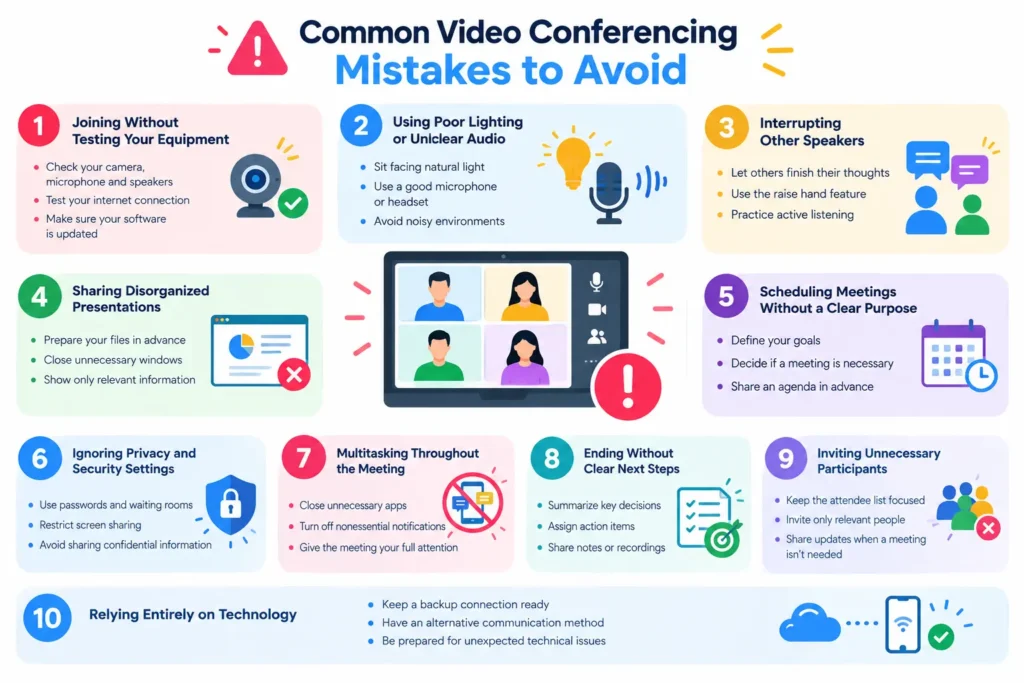
Even with the right equipment and software, a few bad habits can make online meetings less effective. Watch out for these common mistakes:
- Joining without testing your equipment: Check your camera, microphone, and connection before important calls.
- Using poor lighting or unclear audio: Position your camera correctly and reduce background noise so participants can see and hear you.
- Interrupting other speakers: Allow people to finish their thoughts and use meeting controls when you need to contribute.
- Sharing disorganized presentations: Prepare your files, close unnecessary windows, and show only relevant information.
- Scheduling meetings without a clear purpose: Decide what needs to be accomplished and whether a meeting is the best way to achieve it.
- Ignoring privacy and security settings: Restrict access, manage recording permissions, and avoid exposing confidential information.
- Multitasking throughout the meeting: Give the discussion your attention and take notes in a way that doesn’t distract you.
- Ending without clear next steps: Summarize decisions and assign responsibilities with deadlines.
- Inviting unnecessary participants: Keep attendance focused on people who need to contribute or receive the information.
- Relying entirely on technology: Keep a backup connection or communication method available for important meetings.
Frequently Asked Questions About Video Conferencing
What are the best tips for effective video conferencing?
The best video conferencing tips include preparing an agenda, testing your equipment, using a stable internet connection, choosing a quiet location, and following professional meeting etiquette. Keep discussions focused, encourage participation, and finish with clear action items. These practices help make meetings more organized and productive.
How can I make video calls more professional?
Use a clean background, position your camera at eye level, and make sure your face is well lit. Wear appropriate clothing, use a reliable microphone, and join on time. During the call, speak clearly, avoid interrupting others, and minimize distractions. Preparing your agenda and presentation materials beforehand also helps you appear confident and organized.
What is the best internet speed for video conferencing?
The required internet speed depends on your conferencing platform, video resolution, number of participants, and whether you’re sharing your screen. A connection of around 5 Mbps for downloads and uploads is a reasonable starting point for many individual HD video calls, but it’s not a universal requirement.
Check your platform’s current bandwidth recommendations for the specific meeting type. A stable connection, low latency, and minimal packet loss are also important for clear audio and smooth video.
How do you keep participants engaged during online meetings?
Keep meetings focused, invite participants to contribute, and use screen sharing to explain complex ideas. Polls, chat, and collaborative whiteboards can make discussions more interactive when used appropriately. Avoid long presentations without opportunities for questions, and regularly check whether participants understand the main points.
What should you avoid during a video conference?
Avoid joining late, interrupting speakers, multitasking, using noisy environments, and sharing unrelated information. You should also avoid recording meetings without appropriate permission or exposing confidential information on your screen. Finally, don’t schedule meetings without a clear objective or end them without confirming responsibilities and next steps.
Which video conferencing tools are best for online meetings?
Popular options include Zoom, Google Meet, and Microsoft Teams. The best choice depends on your budget, team size, required features, security needs, and existing software.
Zoom is widely used for business calls and virtual events, Google Meet works well with Google Workspace, and Microsoft Teams integrates with Microsoft’s collaboration tools. Compare current plans and features to find the platform that suits your workflow.
Conclusion
Better video conferencing isn’t just about having a good camera or a fast internet connection. It’s about making online meetings easier to follow, more engaging, and worth everyone’s time.
Start with the basics: prepare an agenda, test your equipment, improve your audio and lighting, and choose software that fits your needs. During meetings, communicate clearly, encourage participation, and keep discussions focused. Afterward, share decisions and assign clear next steps.
You don’t need to change everything at once. Pick two or three improvements that address your biggest meeting problems and put them into practice in your next call.
💡 Smart insights start with one tap. Follow Tech Statar.