
How to Do Audio to Text Conversion: 4 Simple Methods
Audio-to-text conversion has become a fundamental need in modern digital workplaces and academic environments. Whether you need to log long meeting recordings, preserve lecture insights, or transcribe verbal drafts, speech-to-text workflows eliminate tedious keyboard entry. Automating this process reduces turnaround times and significantly improves daily documentation efficiency.
However, selecting the most efficient audio-to-text conversion software for your specific file volume and accuracy requirements remains difficult. This guide outlines four practical ways to handle your files, complete with step-by-step instructions. By comparing their operational limits and optimal use cases, you can quickly find the right setup to match your current documentation task.
What Is Audio-to-Text Conversion?
Audio to text conversion software uses modern speech recognition to translate recorded files or live speech into digital documents. By eliminating manual typing, these systems process hours of audio in minutes, offering a fast, automated path for archiving files, transcribing interviews, and organizing team notes.
Fast Meeting Documentation: Turning group discussions into written text allows project teams to search, verify, and distribute core decisions immediately. This eliminates the need to replay hours of recorded audio just to confirm specific action items, keeping everyone aligned right after a call ends.
Efficient First-Draft Dictation: Speaking your thoughts aloud captures creative concepts instantly without keyboard speed limitations. This hands-free approach keeps your writing momentum smooth and prevents physical wrist fatigue from prolonged typing.
Simplified Material Archiving: Transcribing research recordings, lectures, or interviews builds a structured digital archive for long-term reference. Instead of wasting time scrubbing through scattered audio materials, a quick keyword search lets you locate specific quotes, definitions, or data points within seconds.
Seamless Multilingual Collaboration: Automated transcription bridges communication gaps by converting foreign language audio into readable text and accurate translations. This allows team members from different regional backgrounds to share project insights effortlessly without operational friction.
Method 1: Use Web-Based Audio-to-Text Conversion Tool
When managing a large backlog of audio recordings that require rapid transcription, utilizing a web-based cloud platform offers the most efficient solution. Online tools like Hoocs.ai eliminate the need to download or install complex software on your computer. By simply opening your standard web browser, you can drag and drop various file formats to start immediate audio to text conversion.
Since the entire transcription process runs in the cloud, it consumes zero local computer resources. The platform delivers exceptional processing speeds, converting hours of audio in minutes with up to 90% accuracy even in noisy environments. Beyond verbatim text, it automatically generates concise summaries and logical mind maps, providing a complete one-stop workflow for meeting minutes and lectures.
Pros
Ultra-fast cloud rendering to process heavy video files
90% accuracy even in noisy background environments
Extensive language support covering over 130 regional dialects
Broad format compatibility accepting 23 different file types
Generous free tier providing 300 minutes for new accounts
Cons
Limited mobile access without a dedicated smartphone application
No manual human transcription services currently
How to Convert Audio Files with Hoocs.ai
Turning your recordings into text takes only a few minutes through the browser dashboard. Follow these operational steps to process your data and generate structured documents.
Step 1: Register and log in to the official Hoocs.ai website to create a free account and activate your 300 free transcription minutes.
Step 2: Drag local audio files directly into the Hoocs.ai dashboard or use the upload section to add your recordings.
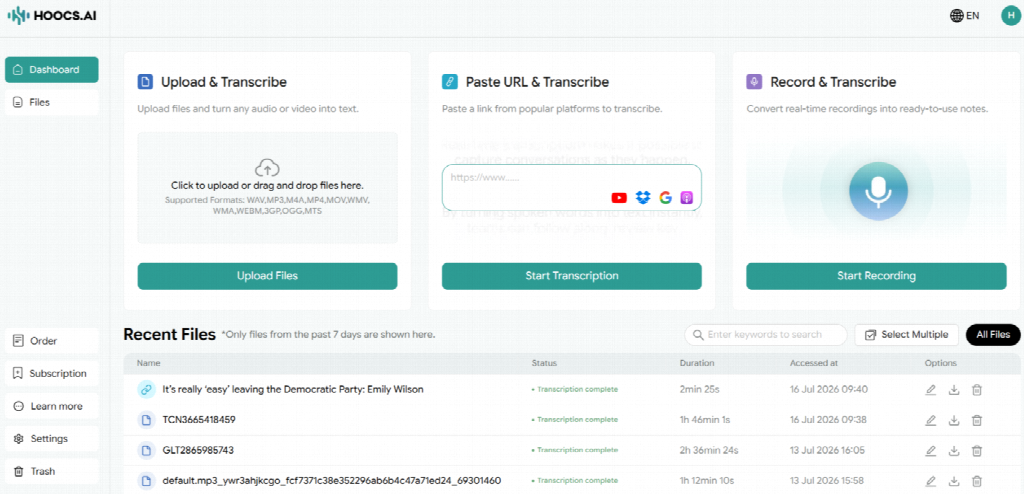
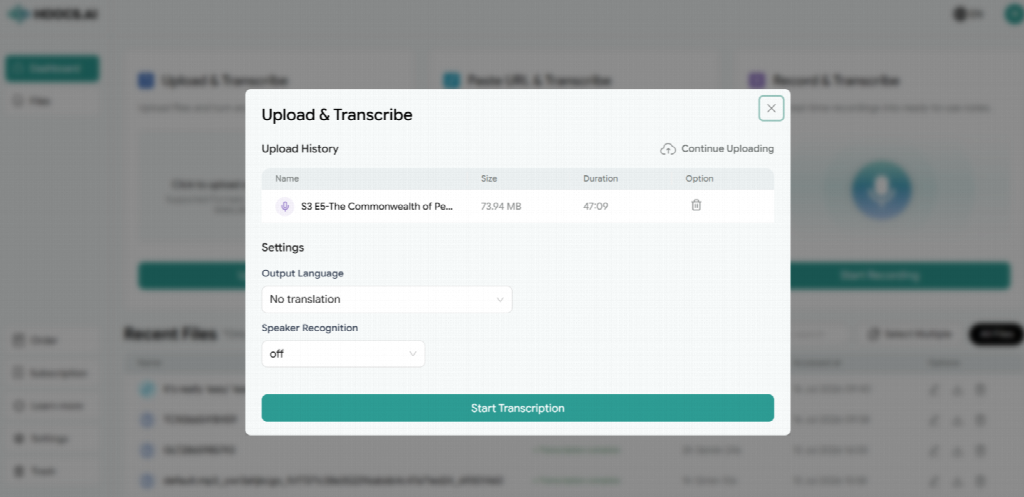
Step 3: Select the output language, choose whether to enable speaker identification, and click the Start Transcription button to begin.
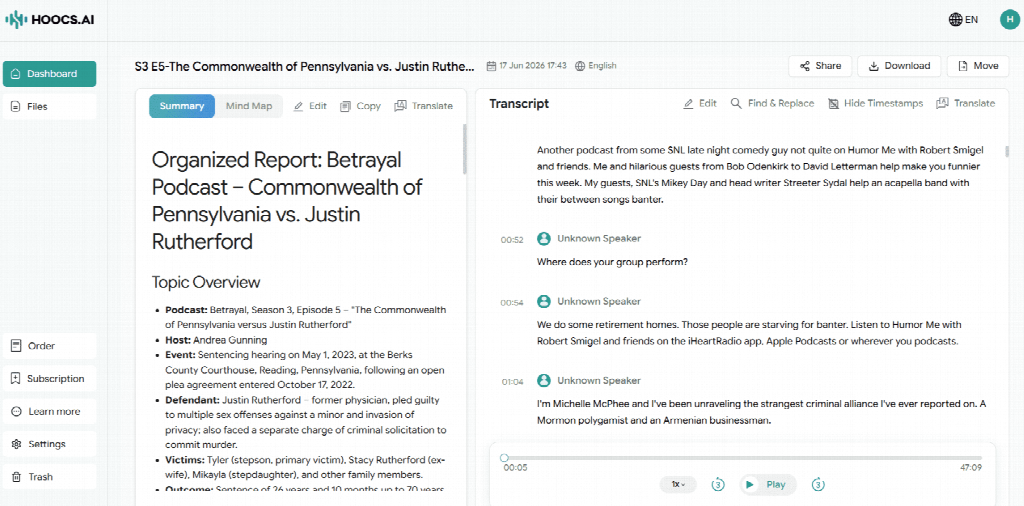
Step 4: Preview and refine the transcript within the built-in online editor while reviewing your automated AI summaries and mind maps.
Step 5: Download the finished document in your preferred text format or generate a secure sharing link to distribute the transcript externally.
Method 2: Install System-Wide Dictation Applications
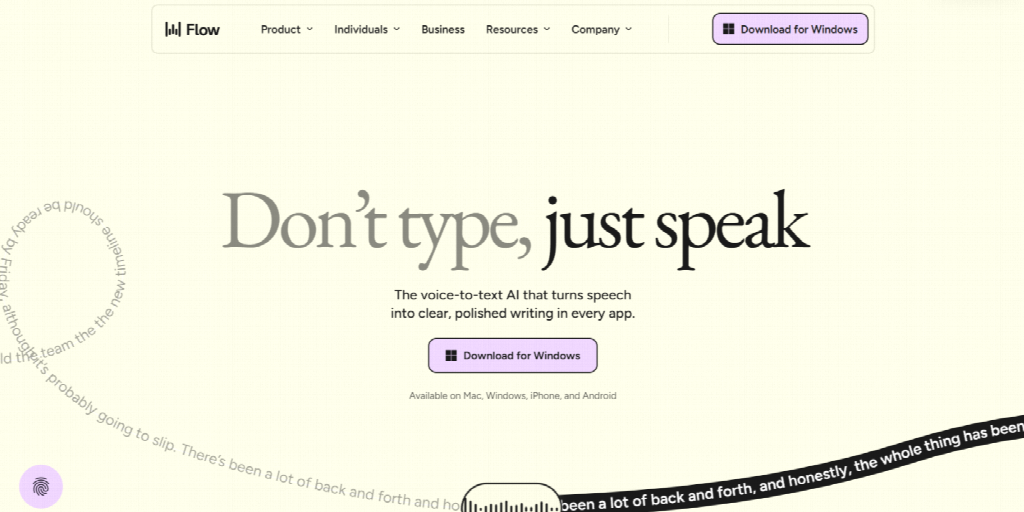
If you want to dictate ideas instantly or transcribe live speech on your computer, using system-wide audio-to-text conversion applications is the best approach. Tools like Wisprflow.ai function as background microphone assistants. Once activated, the built-in speech recognition immediately transcribes your voice into text, inserting it directly at your active cursor.
Of course, desktop apps like this have a narrower focus than web platforms like Hoocs.ai. They cannot process pre-recorded audio files or generate automated AI summaries. But if your daily routine involves drafting emails, replying to chats, or writing reports, a dedicated system input tool saves massive amounts of manual typing time.
Pros
Direct text output straight into any active application
Lightweight background processing with minimal system lag
Universal system-wide availability across all desktop apps
Smooth hands-free typing without extra copy-paste steps
Cons
Zero native support for pre-recorded audio uploads
No automated text summaries or visual mind maps
How to Dictate on Wisprflow.ai in 4 Steps
Activating a system-wide tool takes just a few setup steps before you can type with your voice.
Step 1: Download the appropriate installer from the official website, install the application on your computer, and launch it.
Step 2: Grant the software permission to access your physical microphone and complete the initial audio calibration.
Step 3: Press your customized hotkey, start speaking clearly into the microphone, and watch the text appear in real-time.
Step 4: Observe the generated text in your current active window, correcting any spelling or formatting mistakes as you go.
Step 5: Save the document directly within your current editor or copy the transcribed text block for external use.
Method 3: Use Built-in Tools in Office Suites for Free Dictation
If you want to dictate drafts without downloading third-party software or managing complex files, the built-in audio-to-text conversion software in standard office suites is an ideal option. Google Docs, for example, includes a voice typing tool directly in its top menu. You only need a working microphone and basic browser permissions to start writing.
Backed by Google’s speech recognition technology, this built-in tool offers surprisingly high accuracy for English without charging subscription fees. However, it requires a constant internet connection and cannot transcribe uploaded audio files. This makes it a great fit for lightweight dictation rather than heavy post-meeting transcription tasks.
Pros
Zero subscription fees or mandatory registration steps
Instant browser setup with no software downloads
Highly accurate English dictation using Google technology
Direct document editing inside your everyday workplace
Cons
Strict internet connectivity demands for continuous operation
No native capability to import external audio recordings
How to Use Voice Typing in Google Docs to Transcribe Audio
Getting started with built-in voice typing requires no specialized setup beyond opening your web browser.
Step 1: Launch Google Chrome, sign into your Google account, and open a new blank document.
Step 2: Click the “Tools” option in the top menu bar and select “Voice typing” to open the microphone panel.
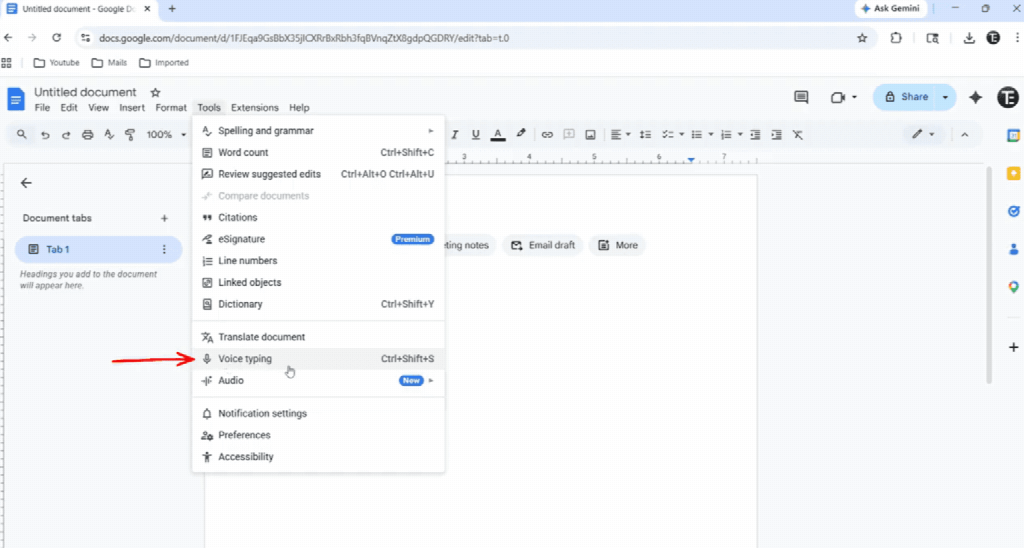
Step 3: Click the microphone icon, choose your preferred spoken language, and start talking to trigger the speech-to-text engine.
Step 4: Dictate your thoughts while using your keyboard to format paragraphs and correct typos directly on the page.
Step 5: Click the “File” menu, choose your preferred format like Word or PDF, and download the document locally.
Method 4: Deploy Local Open-Source Software for Offline Audio Conversion
If you handle business secrets, financial audits, or highly sensitive meeting records, setting up an offline environment is the safest choice. Running open-source audio-to-text conversion software like Whisper via a desktop client keeps all data on your machine. This offline setup completely blocks external cloud access, giving you total ownership of your audio.
Although this offline method offers unmatched privacy, it comes with a steep learning curve. Running complex AI models locally requires robust computer hardware to avoid extremely slow processing speeds on long files. Because configuration and installation can be complicated, this path is best suited for tech-savvy professionals with strict security requirements.
Pros
Maximum data privacy, keeping files strictly offline
Zero subscription costs after the initial installation
Flexible open-source customization for advanced technical setups
Cons
High hardware requirements for reasonable processing speeds
Complex software setup processes for non-technical users
How to Process Offline Transcription with Local Software
Getting local open-source software running takes a bit of preparation, but it secures your workflow entirely offline.
Step 1: Download and install a Whisper-based desktop application on your computer, then open the program.
Step 2: Click the import option on the main dashboard to add your saved audio files from your hard drive.
Step 3: Select the spoken language, click the transcribe button, and let your local hardware run offline conversion.
Step 4: Open the finished transcription in the local workspace to review the text and make manual adjustments.
Step 5: Click the Save button to export your text or subtitle files directly to a local folder.
Final Verdict
Optimizing your audio-to-text conversion workflow depends entirely on your daily file volume and speed needs. While local apps or built-in office tools handle casual voice-typing well, they cannot manage large batch uploads or deep AI summaries. For heavy workloads requiring instant transcripts and mind maps, an all-in-one web platform like Hoocs.ai delivers the fastest results.
Your final choice should align with your specific privacy policies and document turnaround requirements. If you want a smooth starting point, giving Hoocs.ai a try handles long recordings effortlessly without complex software installations. You can then mix this cloud processor with quick built-in tools for brief daily dictation, creating a seamless routine that boosts your productivity.
✨ Tech made simple, follow Tech Statar for more.