

Planning your day shouldn’t feel like another task on your to-do list.
But with work, school, appointments, personal goals, and everything else competing for your attention, keeping track of it all can get messy.
That’s where a digital planner can help.
A good digital planner gives you one place to organize tasks, schedule events, set reminders, and keep track of what matters. Some also add features like time blocking, habit tracking, AI scheduling, or handwritten notes.
The tricky part is finding one that fits the way you actually plan.
Some people want a simple to-do list. Others prefer a visual timeline or a customizable workspace. And if you like writing with a stylus, a PDF planner in an app like GoodNotes may feel much more natural.
So, we tested and compared 10 popular digital planners, including free and paid options.
In this guide, you’ll see what each planner does, who it’s best for, what you get for free, and when the paid version is worth considering.
Let’s get into it.
10 Best Digital Planners for Everyone (Free & Paid)
1. Todoist: Best for Simple Everyday Planning
If you want a digital planner that doesn’t take hours to set up, start with Todoist.
It’s built around a simple idea: capture what you need to do, organize it, and get it done.
You can create tasks, add due dates, set priorities, create recurring tasks, and organize work into projects.
One of its most useful features is natural-language task entry. You can type something like “Send the report every Friday at 10 AM,” and Todoist can interpret the date and recurrence for you.
What makes Todoist useful?
The biggest advantage is speed.
You don’t need to build a complicated dashboard before you can start planning.
Just add a task.
Then give it a deadline, priority, or project if needed.
You can also switch between different views, including list and board-style layouts, depending on how you prefer to organize your work.
Key features
- Tasks and subtasks
- Recurring tasks
- Due dates and priorities
- Projects and labels
- Natural-language task entry
- Board and list views
- Cross-device synchronization
Free vs. paid
Todoist has a free plan that covers basic task management.
Its paid plan adds more advanced features and is aimed at people who need more flexibility from their task system. Current pricing is around $5 per month when billed annually, although pricing can vary by plan and region.
Who should use Todoist?
Todoist is a good fit if you want a simple, fast digital planner for everyday tasks.
It’s especially useful if you don’t want to spend a lot of time customizing your planning system.
2. Notion: Best for Custom Digital Planning
Notion is for people who look at a blank page and think, “I can build my own system.”
Instead of giving you one fixed planning method, Notion lets you create your own.
You can build task lists, calendars, project boards, goal trackers, habit trackers, notes, and more inside the same workspace.
That’s also what makes Notion different from simpler planner apps.
You get more freedom.
But you also have more setup work.
What makes Notion useful?
The real strength of Notion is customization.
You can create a simple daily planner with a few tasks.
Or build a much larger system that connects your goals, projects, notes, and calendar.
Notion’s databases are particularly useful here. The same information can be displayed in different views, such as a table, board, calendar, or timeline.
Key features
- Custom databases
- Calendar and timeline views
- Task management
- Templates
- Notes and documentation
- Project management
- Cross-platform access
Free vs. paid
Notion offers a free plan with plenty of functionality for personal planning.
Paid plans add features aimed more at teams and advanced workspace needs. Current pricing for the Plus plan is around $10 to $12 per user per month, depending on billing and pricing updates.
Who should use Notion?
Use Notion if you want one flexible workspace for planning, notes, projects, and goals.
It’s a particularly good choice if you enjoy customizing your tools.
If you just want to add a task and move on, though, Notion may feel like more work than you need.
🧠 Expand Your Knowledge: 12 Best Office Management Software for Modern Workplaces
3. Google Calendar: Best Free Digital Planner
Sometimes you don’t need another productivity system.
You just need to know where your time is going.
That’s where Google Calendar works well.
It’s primarily a calendar rather than a full task-management app, but you can use it as a simple digital planner by scheduling appointments, deadlines, routines, study sessions, workouts, and focused work.
And if you already use Google services, there’s very little setup involved.
What makes Google Calendar useful?
Its biggest strength is simplicity.
You can see your day, week, or month at a glance.
You can also create recurring events for things you do regularly, such as weekly meetings, classes, workouts, or personal routines.
Time blocking is another useful approach.
Instead of writing “work on project” on a to-do list, you can reserve 2:00 to 4:00 PM for it.
Now the task has a place in your day.
Key features
- Daily, weekly, and monthly calendar views
- Recurring events
- Reminders
- Multiple calendars
- Time blocking
- Calendar sharing
- Google ecosystem integration
Free vs. paid
Google Calendar is available for free with a Google account.
Some business and organization features are available through Google Workspace plans, but most people can use the core calendar features without paying.
Who should use Google Calendar?
Google Calendar is a strong choice if you want a free digital planner focused mainly on scheduling and time management.
It’s less suitable if you need advanced task management, project dependencies, or a detailed personal productivity system.
4. TickTick: Best for Tasks, Habits, and Time Management
TickTick sits somewhere between a to-do list and a full digital planner.
You can manage tasks, schedule them on a calendar, build habits, and use focus tools without switching between several apps.
That’s useful if you want your daily planning and personal routines in one place.
What makes TickTick useful?
The combination of features is the main attraction.
You can create a task for something you need to finish.
Then schedule it.
You can also turn recurring activities into habits and track your progress over time.
TickTick also includes a built-in Pomodoro timer, which can be useful when you want your planning system to help with focused work too.
Key features
- Tasks and subtasks
- Calendar views
- Recurring tasks
- Habit tracking
- Reminders
- Pomodoro timer
- Priority levels
- Cross-device synchronization
Free vs. paid
TickTick has a free version with basic planning features.
Premium adds more advanced functionality. Current pricing is around $35.99 per year, although the exact price can vary by region and promotion.
Who should use TickTick?
TickTick makes sense if you want tasks, habits, calendar planning, and focus tools in one app.
It’s a good middle ground between a basic to-do list and a more advanced productivity system.
🧠 Expand Your Knowledge: Best AI Tools for Writing Marketing Copy (2026 Guide)
5. GoodNotes: Best for Handwritten Digital Planning
If you like writing things down, GoodNotes may feel more natural than a traditional productivity app.
Instead of typing tasks into lists, you can write directly on a digital page with a stylus.
Think of it as a paper planner that lives on your tablet.
You can import a digital planner PDF, write on it, highlight important items, add notes, and move between pages using hyperlinks.
GoodNotes also supports handwriting search, so your handwritten notes can still be easier to find later.
What makes GoodNotes useful?
The biggest advantage is the writing experience.
You aren’t forced into a particular planning system.
You can use a daily planner, weekly planner, habit tracker, journal, or a combination of all of them.
There are also templates and customization options for creating a planner that matches your routine.
Key features
- Handwritten notes
- PDF planner support
- Hyperlinked planners
- Handwriting search
- Templates
- Digital notebooks
- Apple Pencil support
- Cross-device access
Free vs. paid
Goodnotes has a free option, while paid plans provide additional features and capabilities. Current pricing can vary by platform and plan, so it’s worth checking the latest pricing before subscribing.
Who should use Goodnotes?
Goodnotes is a strong choice if you want a paper-like digital planning experience.
It’s especially useful for students, journalers, creatives, and anyone who prefers handwriting over typing.
One thing to keep in mind: a handwritten planner won’t automatically remind you about a task or reschedule your day.
If you need automation, a task-based planner may be a better fit.
6. Structured: Best for Visual Daily Planning
Some people don’t want a giant list of tasks.
They want to see their day.
That’s where Structured comes in.
Structured organizes your day as a visual timeline, so you can see what you’re supposed to do and when you’re supposed to do it.
Instead of looking at 15 tasks and wondering where they’ll fit, you can place them directly into your schedule.
What makes Structured useful?
The timeline is the main attraction.
You can create tasks, give them a time, and arrange them throughout your day.
That makes it easier to spot an unrealistic schedule.
It also works well for routines.
For example, you could have breakfast at 8:00, study from 9:00 to 11:00, take a break, and then work on another task.
Everything has a place.
Key features
- Visual daily timeline
- Tasks and reminders
- Calendar integration
- Recurring tasks
- Subtasks
- Focus timers
- Daily and weekly planning
- Cross-device synchronization
Structured is particularly focused on personal planning, with current comparisons highlighting its visual timeline approach.
Free vs. paid
Structured offers a free version, with additional features available through its paid plan.
Pricing can vary by region and subscription period, so check the current pricing inside the app or on its official website.
Who should use Structured?
Structured is worth considering if you prefer visual schedules and timeline-based planning.
It’s especially useful if you want to know not just what you need to do, but when you’ll do it.
🧠 Expand Your Knowledge: Best Resume Builders
7. Sunsama: Best for Intentional Daily Planning
Sunsama takes a different approach.
Instead of simply giving you a list of tasks, it encourages you to deliberately plan your day.
The idea is simple.
Choose what matters.
Give those tasks a realistic amount of time.
Then build your day around them.
Sunsama combines tasks and calendar events in one daily view and is designed around a morning planning routine and an end-of-day shutdown.
What makes Sunsama useful?
Sunsama is useful when your problem isn’t knowing what to do.
It’s figuring out how much you can realistically fit into one day.
You can pull tasks from other services, place them on your calendar, and create a more realistic schedule.
It also encourages weekly reviews and daily reflection.
Key features
- Daily planning workflow
- Time blocking
- Calendar integration
- Task management
- Daily goals
- Weekly planning
- End-of-day reflection
- Integrations with other productivity tools
Free vs. paid
Sunsama generally offers a trial rather than a traditional permanent free plan.
Its current pricing is around $17 per month when billed annually, according to recent 2026 comparisons.
Because pricing can change, check the current plan before subscribing.
Who should use Sunsama?
Sunsama is a good option if you want a structured daily planning ritual.
It’s less appealing if you just want a quick place to dump tasks and move on.
The planning process is part of the product.
8. Motion: Best for AI-Powered Scheduling
What if your planner could help decide when your tasks should happen?
That’s the idea behind Motion.
Motion combines tasks, calendars, projects, and AI-powered scheduling.
Instead of manually moving every task around your calendar, Motion can automatically schedule work based on deadlines, priorities, and available time.
What makes Motion useful?
The main difference is automation.
You tell Motion what needs to get done.
The system helps organize those tasks around your calendar.
If something changes, your schedule can be adjusted instead of forcing you to rebuild your entire day manually.
That can be useful when your schedule changes frequently.
Key features
- AI task scheduling
- Calendar management
- Time blocking
- Task management
- Project management
- Automatic rescheduling
- Meeting scheduling
- Team collaboration
Free vs. paid
Motion is primarily a paid productivity tool and offers a free trial.
Recent 2026 comparisons list its individual pricing in the higher-priced range of digital planner apps, so it’s worth comparing the cost with how much automation you actually need.
Who should use Motion?
Motion makes the most sense if you want AI to take more of the scheduling work off your plate.
If you enjoy manually planning every part of your day, you may not need that level of automation.
🧠 Expand Your Knowledge: 10 Best Teacher Tools To Improve Learning in 2026
9. ClickUp: Best for Work and Project Planning
ClickUp is more than a digital planner.
It’s a full work management platform.
That makes it useful if your daily plan is closely connected to projects, deadlines, clients, or team tasks.
You can create tasks, assign deadlines, organize projects, track goals, and view your work through calendars, lists, boards, and other layouts.
What makes ClickUp useful?
The biggest advantage is that your plan and your actual work can live in the same place.
You don’t have to write down a task in one app and then manage the project somewhere else.
For example, a content marketer could create a task for writing an article, give it a deadline, assign it to a writer, add subtasks for research and editing, and track its progress from the same workspace.
Key features
- Task management
- Calendar views
- Project management
- Goals
- Time tracking
- Recurring tasks
- Automations
- Dashboards
- AI features
- Team collaboration
ClickUp currently offers a free plan, while paid plans add features such as unlimited storage, native time tracking, and additional workspace capabilities.
Free vs. paid
ClickUp has a Free Forever plan.
Its Unlimited plan is currently listed at around $7 per user per month when billed annually, with higher plans adding more advanced features.
Who should use ClickUp?
ClickUp is a good fit if you need a digital planner for work, projects, and team collaboration.
For a simple personal to-do list, though, it can feel like more software than you need.
10. Any.do: Best for Simple Personal and Family Planning
Any.do keeps things simple.
You get tasks, reminders, calendars, lists, and shared planning without needing to build a complicated productivity system.
That simplicity is useful for everyday planning.
You can use it to manage errands, appointments, shopping lists, work tasks, and family responsibilities.
What makes Any.do useful?
One useful feature is its daily My Day workflow.
Instead of staring at a huge list, you can focus on what you actually want to accomplish today.
You can also share lists and tasks with other people, making it useful for families and small groups.
Current comparisons also highlight its cross-device synchronization and integrations such as Google Calendar.
Key features
- Task lists
- Reminders
- Calendar view
- Recurring tasks
- Shared lists
- Daily planning
- Priorities
- Cross-device synchronization
- Calendar integration
Free vs. paid
Any.do offers a free personal plan.
Premium adds more advanced features, with current pricing varying depending on the subscription and region.
Who should use Any.do?
Any.do is a good option if you want a simple planner for personal tasks, errands, and shared lists.
It may not be the right choice if you need advanced project management or deep customization.
Digital Planner Apps vs. PDF Planners: What’s the Difference?
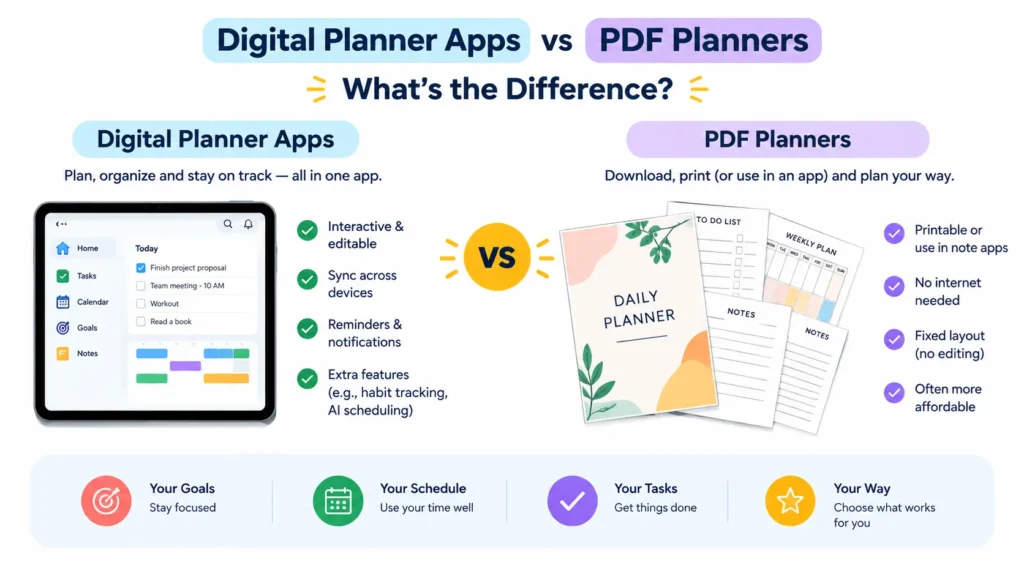
Here’s something that can get confusing.
A “digital planner” can mean two completely different things.
You might be talking about a planner app that manages tasks and schedules.
Or you might mean a digital PDF planner that you write in on a tablet.
They’re not really the same thing.
Digital planner apps
Apps like Todoist, TickTick, Sunsama, and ClickUp are designed to actively manage your work.
They can:
- Send reminders
- Track deadlines
- Create recurring tasks
- Sync calendars
- Update task status
- Reschedule work
- Organize projects
The system does some of the work for you.
PDF digital planners
A PDF planner is closer to a traditional paper planner.
You open it in an app such as GoodNotes and write on the pages with a stylus.
You might have pages for:
- Monthly planning
- Weekly planning
- Daily schedules
- Goals
- Habits
- Notes
- Journaling
It’s more hands-on.
The planner doesn’t automatically know that you’ve finished a task or that a meeting moved to 3 PM.
Which one should you choose?
Think about how you like to plan.
If you enjoy writing and want something that feels like paper, try a PDF planner with a note-taking app.
If you want reminders, automatic updates, recurring tasks, and calendar integration, choose a planning app.
Neither approach is automatically better.
The right one is the system you’ll actually keep using.
How to Choose the Right Digital Planner
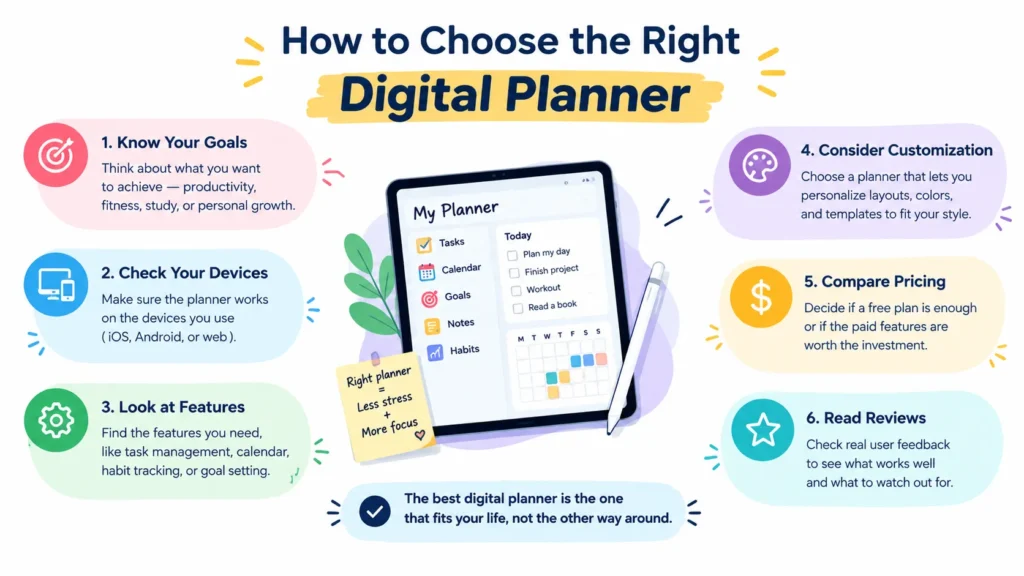
The best digital planner isn’t necessarily the one with the most features.
It’s the one that fits the way you already plan.
Before choosing one, think about what you actually need it to do.
Decide how you like to plan
Start with your planning style.
Do you prefer a simple task list?
Go with something like Todoist or Any.do.
Do you want to see your entire day on a timeline?
Structured may be a better fit.
Prefer writing by hand?
A GoodNotes planner could make more sense.
Want to build your own system?
Notion gives you much more flexibility.
Check your devices
Your planner should work wherever you need it.
If you switch between a phone, tablet, and computer, check that your planner supports all of them and keeps your data synchronized.
This matters more than it sounds.
A planner isn’t very useful if you create your schedule on your computer and can’t access it when you’re away from your desk.
Look for calendar integration.
If your calendar is already packed with meetings and appointments, calendar integration can save you a lot of manual work.
Tools such as TickTick, Sunsama, Motion, and ClickUp can connect planning with your calendar in different ways.
That means your tasks and appointments can live closer together.
Consider reminders
Some people need to see a task.
Others need to be reminded about it.
If you often forget deadlines, appointments, or recurring tasks, look for a planner with reliable notifications and recurring reminders.
A beautiful planner won’t help much if you keep forgetting to open it.
Decide whether you need handwriting
This is an important distinction.
If you like using an Apple Pencil or another stylus, a digital notebook such as GoodNotes may be more enjoyable.
If you prefer typing, searching, and automatically organizing tasks, a traditional planner app will probably be more practical.
Compare free and paid features.s
Don’t pay for features you’ll never use.
A free planner may be enough if you only need basic tasks, calendar events, and reminders.
Paid plans become more useful when you need things like advanced automation, AI scheduling, team collaboration, deeper customization, or larger limits.
Think about setup time.
Some planners work almost immediately.
Others require you to build your own system.
That’s not necessarily bad.
But be honest about how much setup you’re willing to maintain.
If you spend three hours creating a perfect productivity dashboard and then stop using it two weeks later, the extra customization didn’t help.
🧠 Expand Your Knowledge: 5 Best AI Tools for Automating Business Tasks in 2026
What Should You Look for in a Digital Planner?
Once you know your planning style, compare the features that actually matter to you.
Here are the main things to check.
Ease of use
You shouldn’t need a tutorial every time you want to add a task.
Look for an interface that makes everyday planning quick.
Cross-device access
Your planner should be available on the devices you use most.
For many people, that means a phone plus a computer or tablet.
Calendar integration
Calendar integration is useful when you need to combine appointments with tasks and planned work.
It can also make time blocking much easier.
Task management
If you have more than a few daily tasks, look for features such as subtasks, priorities, due dates, recurring tasks, and categories.
Reminders
Reminders are especially useful for deadlines, appointments, recurring chores, and anything you can’t afford to forget.
Customization
Some people want a ready-made planner.
Others want to build their own.
Notion, for example, gives you much more freedom than a fixed daily-planning app.
Templates
Templates can save time if you don’t want to build everything yourself.
They’re particularly useful for students, project managers, content creators, and people who follow specific planning methods.
Privacy and data ownership
Your planner may contain personal schedules, work information, notes, or other sensitive details.
Before committing to a service, check how it stores and handles your data.
This is easy to overlook when comparing features.
Price
Finally, look at the total cost.
A $5 monthly subscription might not sound like much.
But if you use the planner for several years, it adds up.
Compare the price with how much value you actually get from the features.
How to Get the Best Output of Your Digital Planner
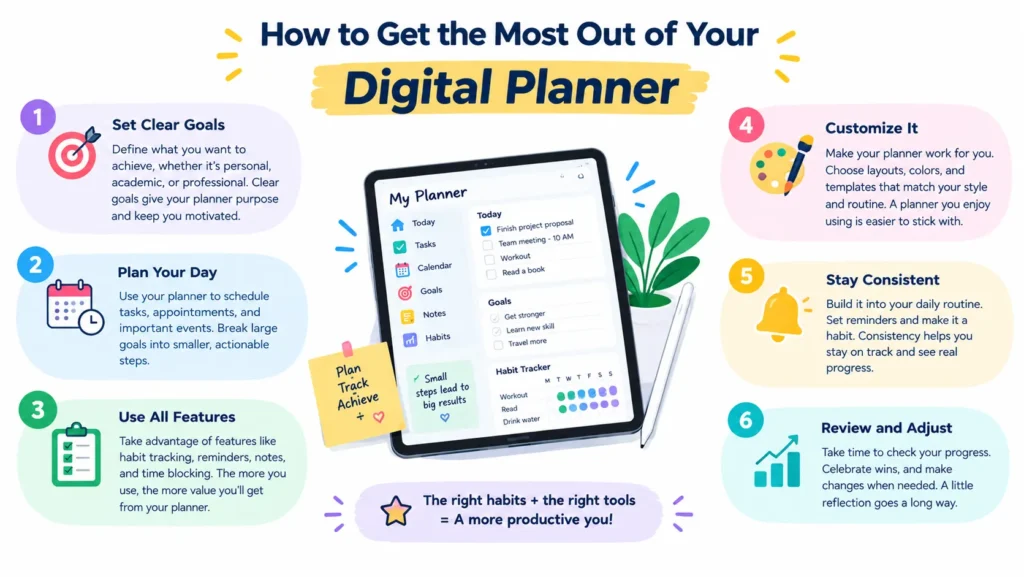
Choosing the right planner is only half the job.
You also need a system you’ll actually use.
Here are a few of the best ways to make it easier.
Keep one main planning system.
Try not to spread your tasks across five different apps.
You might use separate tools for specific purposes, but have one place where you keep your main tasks and schedule.
Otherwise, things can quickly get lost.
Plan your day the night before
Take some minutes at the end of your workday.
Look at tomorrow’s schedule.
Pick the important tasks.
Then give them a realistic place in your calendar.
You’ll start the next day knowing what needs your attention.
Use time blocking for important work
A task mentioned on a list is very easy to postpone.
A task with a scheduled time is harder to ignore.
Try blocking a specific period for important work.
You don’t need to schedule every minute.
Just protect time for the things that matter most.
Review your week
Once a week, take a few minutes to look back.
What did you finish?
What keeps getting pushed back?
Which thing needs to move to next week?
This simple review can tell you whether your planning system is actually working.
Don’t overfill your schedule
This is one of the easiest mistakes to make.
If you plan 15 important tasks for a day that realistically has time for five, your planner becomes a source of frustration.
Leave some breathing room.
Unexpected things happen.
Turn recurring tasks into routines.
If you do something every Monday, every month, or every morning, don’t keep recreating the task manually.
Use recurring tasks or events when your planner supports them.
It saves time and reduces the chance of forgetting something.
Frequently Asked Questions About Digital Planners
What is the best digital planner?
There isn’t one digital planner that works best for everyone.
The right choice depends on how you prefer to plan.
Todoist and any other tools are designed around simple task management, Google Calendar focuses on scheduling; GoodNotes works well for handwritten planning, while Motion and Sunsama take a more advanced approach to daily scheduling.
Are digital planners free?
Yes.
Several digital planning apps offer free plans, including Todoist, Notion, Google Calendar, TickTick, ClickUp, and Any.do.
Free plans usually have fewer features than paid versions, but they can be enough for basic personal planning.
Can I use a digital planner on my phone?
Yes.
Most modern planner apps offer mobile apps or mobile-friendly versions.
If you rely heavily on your phone, check the app’s mobile features before choosing it.
Some planners are designed primarily for desktop use, while others are built around mobile and tablet experiences.
Can I use a digital planner without an iPad?
Yes.
You don’t need an iPad to use a digital planner.
Apps such as Todoist, Notion, Google Calendar, TickTick, ClickUp, and Any.do work across different platforms.
However, if you specifically want a handwritten PDF planner, a tablet with stylus support may provide a better experience.
Are digital planners better than paper planners?
It depends on what you need.
Digital planners are useful when you want reminders, synchronization, search, recurring tasks, calendar integration, or automatic scheduling.
Paper planners can be simpler and more tactile.
If you enjoy handwriting and don’t need automation, paper may still work perfectly well.
What is the best digital planner for students?
Students usually need a combination of classes, assignments, deadlines, study sessions, and personal tasks.
A simple tool such as Google Calendar or Todoist can work well for basic organization.
Students who prefer handwritten notes and planner pages may prefer GoodNotes.
Those who want to build a more customized academic system can use Notion.
What is the best digital planner for work?
For straightforward personal work planning, Todoist or TickTick can be enough.
For project-based work and collaboration, ClickUp provides more advanced project-management features.
If your main challenge is fitting tasks around meetings and deadlines, Motion or Sunsama can be useful because they put more emphasis on calendar-based planning.
What is the best digital planner for ADHD?
There isn’t a single planner that works for everyone with ADHD.
Some people may prefer visual timelines, reminders, recurring tasks, or automatic scheduling because these features reduce the amount of planning they have to remember manually.
Structured, TickTick, Motion, and Todoist offer different combinations of these features.
The best choice depends on which part of planning you find hardest.
Can I create my own digital planner?
Yes.
Notion is one option for building a customized planning system.
You can also create or purchase PDF planners and use them in compatible note-taking apps.
Creating your own planner gives you more control, but it also takes more time to set up and maintain.
Do digital planners work with GoodNotes?
Yes, many PDF-based digital planners are designed to work with GoodNotes.
These planners typically use hyperlinks to let you move between monthly, weekly, and daily pages.
The exact experience depends on the planner file and the features supported by the note-taking app.
🧠 Expand Your Knowledge: 6 PDF to Excel Conversion Tools
Final Thoughts
A digital planner doesn’t need to organize your entire life.
It just needs to make planning easier.
If you want something simple, start with a basic task or calendar app.
If you want more control, try a customizable workspace like Notion.
If you prefer handwriting, a digital planner in GoodNotes may feel more natural.
And if you want your schedule to do more of the work for you, tools like Sunsama or Motion offer more advanced planning features.
The key is to start with your planning habits, not the feature list.
Pick a system that’s easy enough to use every day.
Then stick with it.
That’s usually more valuable than having the most powerful planner available.
✨ Liked this breakdown? Stick around, follow Tech Statar.



























One thought on “10 Best Digital Planners for Everyone (Free & Paid)”