


How to Set Up a Teams Meeting in Microsoft Teams
Microsoft Teams makes it easy to schedule online meetings, invite people, share a meeting link, and control who can participate. You can create a meeting directly from the Teams calendar, schedule one from a chat or channel, or create a Teams meeting through Outlook.
The basic process is simple: open Calendar in Teams, create a new event, add your attendees and meeting details, turn on the Teams meeting option, and save it. The meeting will then appear on your calendar, and invited participants will receive the meeting invitation.
But if you’re setting up a meeting for a client, team, class, interview, or larger group, there are a few settings worth understanding before you send the invite.
This guide walks you through the entire process, including how to schedule a Teams meeting, create a meeting link, customize meeting options, set up recurring meetings, and avoid common scheduling problems.
What Is a Microsoft Teams Meeting?
A Microsoft Teams meeting is an online meeting that lets people communicate through video, audio, chat, screen sharing, and other collaboration features.
You can use Teams meetings for everything from a quick one-on-one conversation to a larger team presentation. Depending on your organization’s Microsoft 365 setup and meeting configuration, you can also use features such as recording, transcription, breakout rooms, attendance reports, Copilot, and other meeting tools.
The useful part is that participants don’t necessarily need to work in the same organization to receive an invitation. You can add external attendees by entering their email addresses when scheduling the meeting.
For most everyday situations, you can think of a Teams meeting as a scheduled online event with three basic components:
When: The date and time of the meeting
Who: The people you’re inviting
How: The Teams link and meeting settings they use to join
Once those details are configured, Teams handles the invitation and calendar event for you.
What You Need Before Setting Up a Teams Meeting
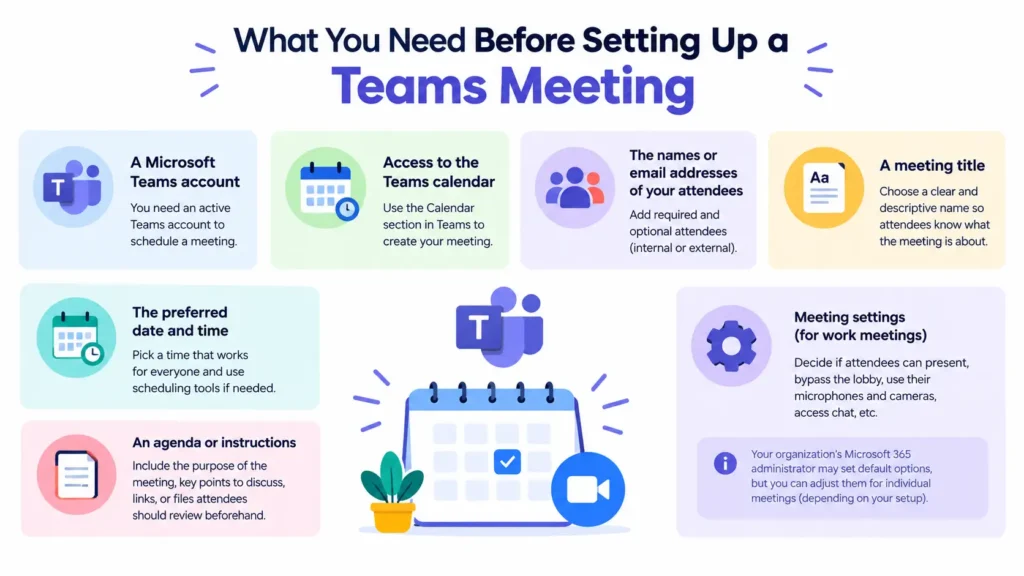
You don’t need much to schedule a standard Teams meeting, but having these details ready will make the process faster:
A Microsoft Teams account
Access to the Teams calendar
The names or email addresses of your attendees
A meeting title
The preferred date and time
Any agenda, instructions, or files attendees should see beforehand
If you’re scheduling a work meeting, it’s also worth deciding whether attendees should be able to present, bypass the lobby, use their microphones and cameras, or access meeting chat.
Your organization’s Microsoft 365 administrator may control some default meeting settings. However, organizers can change available meeting options for individual meetings depending on the organization’s configuration.
How to Set Up a Teams Meeting in Microsoft Teams
The easiest way to schedule a Teams meeting is through the Calendar section in Microsoft Teams.
Here’s how to do it.
1. Open the Teams Calendar
Open Microsoft Teams and select Calendar from the navigation panel.
Your Teams calendar displays your scheduled meetings and events. You can switch between different calendar views to find a suitable date and time.
2. Create a New Meeting
Select New or select an available time slot directly on the calendar.
Teams will open the meeting scheduling form.
At this point, you’re essentially creating a calendar event that will become your online Teams meeting.
3. Add a Meeting Title
Give your meeting a clear and descriptive name.
Instead of:
Meeting
Use something more specific, such as:
Q4 Marketing Strategy Review
or
Client Onboarding Call
A descriptive title makes the meeting easier to identify in your calendar and helps attendees understand why they’ve been invited.
4. Add Your Attendees
Enter the names or email addresses of the people you want to invite.
You can add required attendees and, where available, optional attendees. To invite someone outside your organization, enter their full email address. Teams can include external participants in scheduled meetings.
For example, you might have:
Required attendees
- Marketing manager
- SEO specialist
- Client
Optional attendees
- Content writer
- Sales representative
Don’t invite everyone as a required attendee simply because they might be interested. If someone’s presence isn’t necessary, making them optional can make the meeting easier to manage.
5. Choose the Date and Time
Select the meeting’s start and end time.
If you’re scheduling a meeting with several people, use the scheduling tools available in Teams to find a time that works for everyone. Microsoft’s Scheduler can show attendee availability and time zones, making it easier to avoid scheduling conflicts.
This is especially useful for distributed teams.
If your attendees are located in different countries, don’t assume that a convenient time for you is convenient for everyone else.
6. Turn On the Teams Meeting Option
Make sure the Teams meeting option is enabled.
This is the step that turns the calendar event into a virtual Teams meeting. Microsoft’s current Teams calendar instructions specifically recommend turning on the Teams meeting toggle when scheduling a virtual meeting.
Without it, you may create a normal calendar event rather than a Teams meeting with online join details.
7. Add Meeting Details or an Agenda
Use the description area to tell attendees what the meeting is about.
A simple agenda might look like this:
Agenda
Review last month’s performance
Discuss current SEO priorities
Assign upcoming tasks
Agree on deadlines
You can also include preparation instructions, relevant links, or questions attendees should consider before joining.
This small step can make a big difference. People are more likely to arrive prepared when they know what will be discussed.
8. Review the Meeting Settings
Before sending the invitation, check the meeting options.
Depending on your Teams setup, you may be able to control:
Who can bypass the lobby
Who can present
Whether attendees can use their microphones
Whether attendees can use their cameras
Meeting chat
Reactions
Attendance reporting
Recording and transcription
Co-organizers
Other security and participation settings
Microsoft describes these settings as controls that can affect meeting security, participant engagement, and meeting efficiency.
For a small internal meeting, the default settings may be perfectly fine.
For a client presentation or larger meeting, however, it’s worth reviewing them.
9. Send the Invitation
Once you’ve checked the details, select Send or Save, depending on the Teams interface you’re using.
The meeting will be added to your calendar, and invitees will receive the meeting invitation and join information. Teams and Outlook calendars are synchronized, so meetings scheduled in Teams can also appear in Outlook.
Your Teams meeting is now set up.
How to Create a Teams Meeting Link
Sometimes you don’t want to rely solely on the calendar invitation. You may want to send someone the Teams meeting link through email, chat, or another communication channel.
You can copy the link from the meeting details.
Open the meeting in your Teams calendar, select the sharing option, and choose Copy join link. You can then paste that link into an email, chat message, or other communication.
For example:
Hi John,
Here’s the link for our meeting tomorrow: [Teams meeting link]
See you at 10:00 AM.
Keep in mind that sharing a meeting link doesn’t replace good meeting security practices. If the meeting contains sensitive information, review the lobby and participant settings before sending the link widely.
How to Schedule a Teams Meeting From a Chat
You don’t always need to start from the calendar.
If you’re already talking with someone in Teams, you can schedule a meeting directly from the chat.
Open the chat, select More chat options, choose Schedule a meeting, add the required details, and send the invitation.
This is useful when a conversation naturally turns into:
“Let’s discuss this on a call.”
Instead of switching to another application, you can schedule the meeting without leaving Teams.
How to Schedule a Teams Channel Meeting
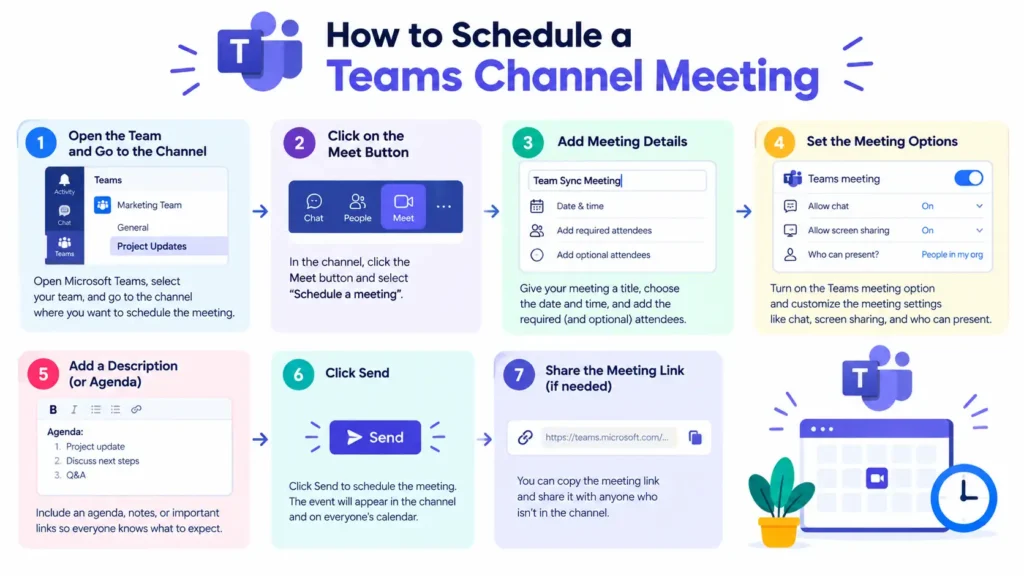
If the meeting is specifically for members of a Teams channel, you can schedule it from that channel.
Open Teams, select the relevant team and channel, choose the dropdown next to Meet now, and select Schedule a meeting.
Then add the meeting details and send the invitation.
Channel meetings are useful for project teams because the meeting can be visible within the channel, giving members another way to discover and join it.
One important limitation: Microsoft currently doesn’t support scheduling channel meetings in private channels.
How to Set Up a Recurring Teams Meeting
If you’re scheduling something that happens regularly, such as a weekly team meeting, you don’t need to create a new meeting every week.
When creating the meeting, use the recurrence option to specify how often it should repeat.
Common examples include:
- Every day
- Every week
- Every month
- A custom recurring schedule
Recurring meetings are particularly useful for:
- Weekly team meetings
- Monthly client calls
- Project check-ins
- Training sessions
- One-on-one meetings
- Sprint planning sessions
Before creating a recurring meeting, make sure the schedule actually needs to repeat. If you only expect to meet twice, two individual calendar events may be cleaner than creating a recurring series.
How to Set Up a Teams Meeting From Outlook
You can also schedule Teams meetings through Microsoft Outlook.
In the current Outlook experience, open Calendar, select New event, turn on the Teams meeting option, add your meeting details and attendees, and select Send. The Teams join information is added to the invitation when it is sent.
This can be particularly convenient if Outlook is where you already manage your work calendar.
Teams and Outlook are closely integrated, so you can view and manage Teams meetings through either application when your account and setup support the integration.
When Should You Use Teams vs. Outlook?
Use Teams when you’re already working inside Teams and want to quickly create a meeting from your calendar, chat, or channel.
Use Outlook when your scheduling workflow is centered around email and your Outlook calendar.
The result is essentially the same: attendees receive a calendar invitation containing the information needed to join the Teams meeting.
📌 Don’t Miss These Articles: Why Your Marketing Spend Isn’t Converting to Revenue
How to Customize Teams Meeting Options
Meeting options are where you can turn a basic Teams meeting into one that’s better suited to your audience.
After scheduling the meeting, open it from your Teams calendar and select the meeting options.
The exact options available can depend on your account, organization, licensing, and administrator settings.
Here are some of the most useful settings to understand.
Who Can Bypass the Lobby?
The lobby determines who can enter the meeting directly and who needs to wait for admission.
For a casual internal meeting, you may want trusted participants to enter without waiting.
For a client presentation, interview, or sensitive meeting, keeping some participants in the lobby can give the organizer more control over who enters.
Who Can Present?
You don’t necessarily want every participant to have presenter permissions.
If you’re running a formal presentation, consider limiting presenter access to the people who actually need to share content.
This helps reduce accidental interruptions and keeps control of the meeting with the appropriate people. Teams provides a Who can present meeting option for this purpose.
Can Attendees Use Their Microphones and Cameras?
For larger meetings, you may want tighter control over attendee audio and video.
Teams allows organizers to manage whether attendees can use their microphones and cameras, depending on the meeting configuration.
For example, a presentation with 100 attendees will usually work better if participants remain muted unless they need to speak.
Should Meeting Chat Be Available?
Teams can also control meeting chat.
For collaborative meetings, chat can be useful for questions, links, and quick comments. For highly structured sessions, limiting chat may reduce distractions.
The right choice depends on how interactive you want the meeting to be.
How to Start a Scheduled Teams Meeting
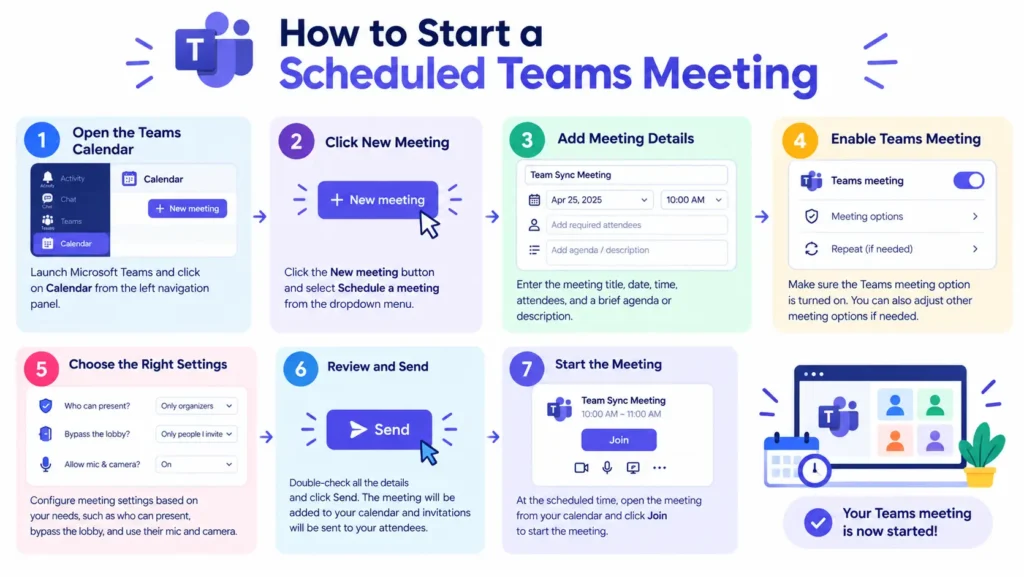
When the scheduled time arrives, open Calendar in Teams and select the meeting.
Choose Join to enter the meeting.
Before joining, check your:
- Microphone
- Camera
- Speaker
- Background
- Internet connection
Once you’re ready, join the meeting and wait for the other participants.
If you’re the organizer, you can manage participants and use the available meeting controls after the meeting starts. Teams provides controls for common functions such as microphone, camera, chat, participant management, and screen sharing.
Common Problems When Setting Up a Teams Meeting
Even though scheduling a Teams meeting is straightforward, a few issues can cause confusion.
The Teams Meeting Link Isn’t Showing
Make sure the Teams meeting option is enabled when creating the event.
If you’re using Outlook, check that Teams integration is available for your account and Outlook version. Microsoft notes that Teams meeting scheduling in Outlook depends on the account and Outlook setup.
Someone Can’t Join the Meeting
First, confirm that you’re sharing the correct meeting link.
Then check whether the person is being held in the lobby or whether your organization’s meeting policies restrict external participation.
If an external attendee still can’t join, your organization’s Teams administrator may have policies affecting external access.
Attendees Can’t Present
Check the Who can present meeting option.
If attendees are assigned the attendee role rather than presenter permissions, they may not have the ability to present content.
The Meeting Time Is Wrong for Someone
This often happens when participants work across different time zones.
Use Teams’ scheduling tools to compare attendee availability and time zones before selecting a meeting time.
Some Meeting Options Are Missing
Not every Teams account has access to every feature.
Your Microsoft 365 plan, Teams version, organization policies, administrator settings, and meeting type can affect which options are available. Microsoft’s documentation also notes that default meeting options can be determined by an IT administrator.
Tips for Setting Up Better Teams Meetings
Scheduling the meeting is only half the job. A few small improvements can make the actual meeting much more effective.
1. Give the Meeting a Specific Purpose
Don’t invite people to a meeting simply because a topic exists.
Define what the meeting needs to accomplish.
Instead of:
Marketing Meeting
Try:
Approve Q4 Marketing Campaign
The second title immediately tells attendees what outcome is expected.
2. Add an Agenda
A short agenda gives participants context before the meeting begins.
It also helps you keep the conversation focused once everyone joins.
3. Invite Only the Right People
More attendees don’t automatically mean a better meeting.
Invite people who need to make decisions, provide information, complete follow-up work, or stay informed.
4. Review Meeting Options Before Important Meetings
Don’t rely blindly on your default settings.
For important meetings, check the lobby, presenter permissions, participant controls, chat, and other relevant options before sending the invitation.
5. Share Preparation Material in Advance
If attendees need to review a report, presentation, proposal, or spreadsheet, send it before the meeting.
This gives people time to prepare instead of spending the first 15 minutes reading the document together.
6. Avoid Unnecessary Recurring Meetings
Recurring meetings can become calendar clutter.
If a weekly meeting no longer has a clear purpose, don’t keep it simply because it already exists.
Review recurring meetings periodically and cancel or adjust them when they’re no longer useful.
📌 Don’t Miss These Articles: 7 Document Detection Tools You Should Try in 2026
Teams Meeting vs. Teams Call: What’s the Difference?
A Teams meeting is generally better when you need structured collaboration with multiple people.
A Teams call can be more appropriate for a quick conversation when you don’t need the full scheduling experience.
Choose a Teams meeting when you need things such as:
A scheduled calendar event
Multiple attendees
Screen sharing
Meeting chat
Presentation controls
Meeting-specific settings
A formal agenda
For a quick question that takes two minutes, a call or chat may be enough.
The best choice depends on the amount of coordination the conversation requires.
Frequently Asked Questions
How do I create a Teams meeting for the first time?
Open Microsoft Teams, go to Calendar, select New, add the meeting title, attendees, date, and time, enable the Teams meeting option, add any additional details, and select Save or Send.
Can I schedule a Teams meeting without using Outlook?
Yes. You can schedule a Teams meeting directly from the Teams calendar. You can also schedule meetings from a Teams chat or channel where appropriate.
How to send a Teams meeting link?
Open the scheduled meeting in your Teams calendar, choose the sharing option, select Copy join link, and paste the link into an email, chat, or other message.
Can I invite someone outside my organization to a Teams meeting?
Yes. When scheduling the meeting, you can enter an external participant’s full email address. However, whether external participants can join and what they can access may depend on your organization’s Teams policies and meeting settings.
Can I make a Teams meeting recurring?
Yes. When scheduling a meeting, you can configure it to repeat according to a recurring schedule. This is useful for weekly meetings, monthly check-ins, and other regularly scheduled sessions.
Can I schedule a Teams meeting from Outlook?
Yes. In supported Outlook configurations, you can create a calendar event, enable the Teams meeting option, add attendees and meeting details, and send the invitation.
How do I control who can present in a Teams meeting?
Open the meeting options and adjust Who can present. This lets you control which participants receive presenter permissions, helping you keep larger or more structured meetings organized.
Why can’t I see some Teams meeting options?
Available settings can vary based on your Teams account, Microsoft 365 licensing, organization policies, administrator configuration, and meeting type. If an option isn’t available, check your organization’s Teams settings or contact your IT administrator.
Conclusion
Setting up a Teams meeting is straightforward once you know where the important controls are.
For a standard meeting, open Teams → Calendar → New, add your attendees, choose the date and time, turn on the Teams meeting option, add useful details, review the meeting settings, and send the invitation.
The bigger opportunity is making the meeting useful before it even starts. Give it a clear purpose, invite the right people, add an agenda, choose an appropriate meeting time, and review permissions when the meeting requires additional control.
Once you get comfortable with these settings, Microsoft Teams becomes more than a way to create video calls. It becomes a practical system for organizing conversations, presentations, recurring check-ins, and collaborative work.
✨ Turn insights into power. Follow Tech Statar.









































3 thoughts on “How to Set Up a Teams Meeting in Microsoft Teams”