

Your team probably doesn’t need another productivity tool.
It needs fewer places to look for information, fewer repetitive tasks, and a clearer way to see who’s doing what.
That’s the real problem with team productivity.
A company can have Slack for messages, Trello for tasks, Google Drive for files, Zoom for meetings, and a spreadsheet for tracking everything else. Each tool may work perfectly well on its own. Together, they can create a fragmented workflow that’s surprisingly difficult to manage.
The right productivity software should make work easier, not add another layer of work.
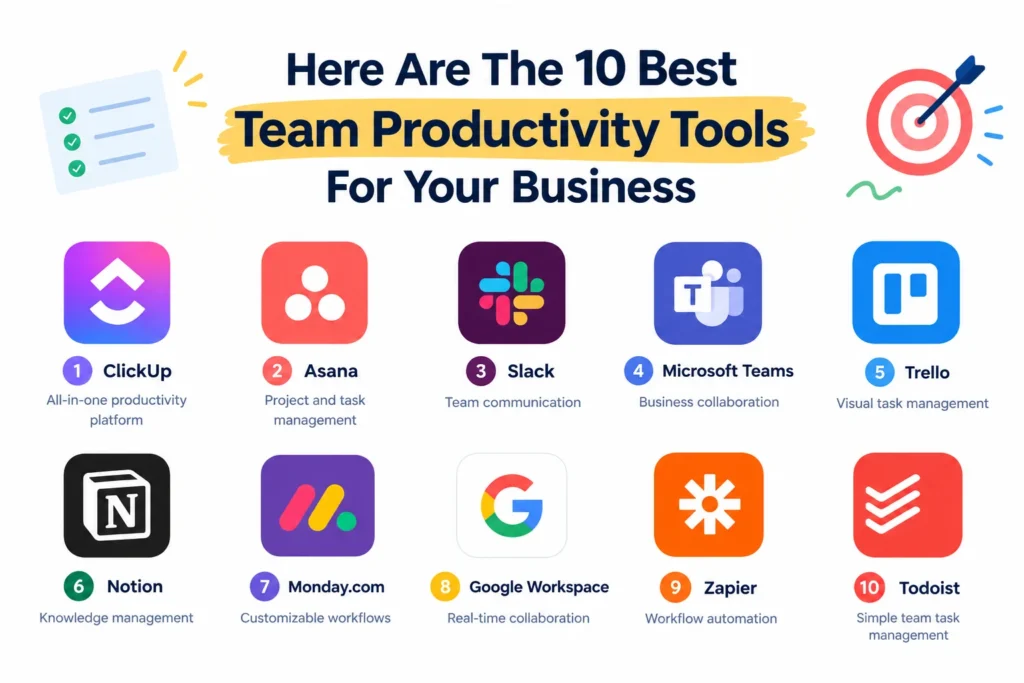
In this guide, we’ll look at 10 team productivity tools that cover different needs, from project management and communication to collaboration and automation. I’ll also explain what each tool is good at, where it may fall short, and what type of team should consider it.
What Are Team Productivity Tools?
Team productivity tools are software applications that help employees organize, communicate, collaborate, and complete work more efficiently.
They can handle relatively simple tasks, such as assigning a deadline, or much larger workflows involving projects, documents, approvals, automation, and reporting.
The important distinction is that these tools are built around shared work.
A personal to-do list helps you remember what you need to do.
A team productivity tool helps everyone understand:
- What needs to be done
- Who owns it
- When it’s due
- What stage it’s in
- What information is needed
- What happens next
For example, imagine a marketing team preparing a new blog post.
Instead of sending messages like:
“Did anyone finish the keyword research?”
the team could have a workflow where keyword research is assigned to a specific person, linked to the content brief, given a deadline, and automatically moved to the next stage when completed.
That’s where productivity software becomes useful.
And you don’t necessarily need ten different tools to achieve this. In many cases, one well-chosen platform can replace several disconnected apps.
How to Choose the Right Team Productivity Tool
There’s no universally “best” productivity tool.
A five-person startup and a 500-person enterprise can have completely different requirements.
Before choosing software, consider these factors.
Team Size and Business Needs
Start with the problem you’re trying to solve.
If your biggest issue is missed deadlines, project management software may be more useful than another communication platform.
If employees spend half their day answering messages, improving communication and documentation may have a bigger impact.
Don’t start with the tool. Start with the bottleneck.
Ease of Use and User Adoption
A tool can have hundreds of features and still fail if nobody wants to use it.
Look for software that your team can understand without extensive training. The interface should make common actions obvious, whether that’s creating a task, sharing a document, or checking project progress.
Collaboration and Communication Features
Consider how your team actually works.
Do people need real-time chat? Shared documents? Comments on tasks? Video meetings? Notifications?
The closer these features are to the team’s existing workflow, the less context switching you’ll create.
Integrations With Existing Tools
Your productivity tool shouldn’t become another isolated island.
Check whether it connects with the apps your team already uses, such as email, calendars, cloud storage, CRM platforms, development tools, or communication software.
For example, ClickUp currently advertises integrations with more than 1,000 tools, including Google Workspace, Microsoft Office, Slack, Zoom, and GitHub.
Automation and AI Capabilities
Look for opportunities to automate repetitive work.
That could mean automatically assigning tasks, sending reminders, moving work between stages, summarizing information, or connecting separate applications.
The goal isn’t to automate everything.
It’s to stop people from repeatedly doing work that software can reliably handle.
Pricing and Scalability
A tool that works for five employees may become expensive or restrictive at 100.
Look beyond the starting price. Check user limits, storage, advanced features, administrative controls, and how pricing changes as your team grows.
Security and Administrative Controls
Businesses also need to consider permissions, access controls, data handling, and administrative features.
This becomes particularly important when teams handle customer information, financial data, internal documents, or proprietary business information.
Here Are The 10 Best Team Productivity Tools For Your Business
1. ClickUp
ClickUp is designed to bring several parts of team productivity into one workspace.
You can use it for tasks, projects, documents, goals, dashboards, communication, and automation. Its current feature set also includes AI capabilities through ClickUp Brain and AI agents.
That’s useful if your team is tired of jumping between multiple applications just to move a project forward.
Key features
- Task and project management
- Multiple project views
- Collaborative documents
- Dashboards
- Automations
- Time tracking
- Team chat
- Goals
- AI-assisted workflows
- Integrations with external applications
One particularly useful feature is the connection between tasks and documentation.
For example, your content team could keep the article brief in a ClickUp Doc while assigning research, writing, editing, and publishing as individual tasks.
That creates a much clearer workflow than keeping the brief in one application and the tasks somewhere else.
Best for
ClickUp is a strong option for businesses that want to consolidate several productivity functions into one platform.
It’s especially useful for teams managing multiple projects simultaneously.
Potential downside
The sheer number of features can be overwhelming.
If your team only needs a basic task list, ClickUp may offer more functionality than you actually need.
2. Asana
Asana focuses heavily on helping teams organize projects and workflows.
Instead of treating work as a collection of unrelated tasks, you can structure it around projects, responsibilities, deadlines, and dependencies.
For example, a product launch might contain tasks for:
- Market research
- Product development
- Website updates
- Email campaigns
- Social media
- Customer support
- Launch reporting
Each task can have an owner and deadline, making it easier to see where the project stands.
Key features
- Project management
- Task assignments
- Deadlines
- Dependencies
- Workflow automation
- Project views
- Team collaboration
- Reporting
Asana is particularly useful when several people need to contribute to the same project but don’t necessarily work on the same tasks.
Best for
Businesses with structured projects and teams that need clear ownership and deadlines.
Potential downside
Teams looking for a lightweight to-do list may find its project-management approach more than they need.
3. Slack
Slack is primarily a communication platform, but it can have a major effect on team productivity.
Instead of keeping every conversation in email, teams can organize discussions into channels based on projects, departments, clients, or topics.
For example:
- #marketing
- #product-launch
- #customer-support
- #engineering
- #random
This makes conversations easier to find and keeps unrelated discussions out of people’s inboxes.
Slack becomes even more useful when connected to other tools. Notifications from project management systems, calendars, development platforms, and other applications can appear directly in relevant channels.
Key features
- Channels
- Direct messaging
- File sharing
- Search
- App integrations
- Workflow automation
- Huddles and collaboration features
Best for
Teams that need fast, organized communication throughout the workday.
Potential downside
Slack can become a productivity problem if every message is treated as urgent.
A constant stream of notifications can make focused work difficult.
The solution isn’t necessarily to stop using Slack. It’s to establish communication rules.
✨ Discover More Articles: 10 Best Digital Planners for Everyone (Free & Paid)
4. Microsoft Teams
Microsoft Teams combines chat, meetings, collaboration, and file sharing in one environment.
It’s particularly relevant for businesses already using Microsoft 365 because Teams fits naturally into that ecosystem.
A team might use it for daily communication, meetings, document collaboration, and project discussions without moving between several unrelated platforms.
Key features
- Team and channel-based communication
- Video meetings
- Chat
- File sharing
- Microsoft 365 integration
- Collaboration features
- Calendar integration
- Business administration controls
Best for
Organizations already invested in Microsoft 365.
Potential downside
Teams can feel like overkill for a small business that only needs basic messaging and task management.
5. Trello
Trello takes a simple approach to project management.
Its boards, lists, and cards make work visible without requiring a complicated setup.
A basic content workflow might look like:
Ideas → Research → Writing → Editing → Published
Each article becomes a card that moves through the workflow.
That’s the appeal.
You don’t need a project management expert to understand what’s happening.
Key features
- Boards
- Lists
- Cards
- Checklists
- Due dates
- Assignments
- Automation
- Integrations
Trello works particularly well for workflows that move through predictable stages.
Best for
Small teams and businesses that want straightforward visual task management.
Potential downside
As workflows become more complicated, you may eventually want more advanced reporting, dependencies, resource management, or project controls.
6. Notion
Notion sits somewhere between a document platform, knowledge base, database, and project management tool.
That flexibility is its biggest advantage.
You can build a company wiki, maintain project documentation, create editorial calendars, track tasks, and store standard operating procedures in one workspace.
For example, a marketing team could create a workspace containing:
- Brand guidelines
- Content calendar
- SEO processes
- Campaign plans
- Meeting notes
- Research
- SOPs
This makes Notion particularly useful for businesses where information is scattered across documents, spreadsheets, and chat messages.
Key features
- Documents
- Wikis
- Databases
- Project tracking
- Templates
- Collaboration
- AI features
- Knowledge management
Best for
Teams that need a central place for documentation and internal knowledge.
Potential downside
Notion’s flexibility can become a weakness.
Without clear conventions, teams can create a maze of pages and databases that’s difficult to maintain.
✨ Discover More Articles: 6 PDF to Excel Conversion Tools
7. Monday.com
Monday.com focuses on customizable work management.
Instead of forcing every team into the same workflow, it lets businesses create boards and processes around the way they already work.
A sales team, HR department, marketing team, and software team can all use different structures within the same platform.
Key features
- Customizable boards
- Project management
- Workflow automation
- Dashboards
- Team collaboration
- Templates
- Reporting
- Integrations
This makes it useful when a business has several departments with different processes.
Best for
Growing businesses that want flexibility and customizable workflows.
Potential downside
The customization can require more setup than a simple task management tool.
If your workflow is extremely basic, you may not need all that flexibility.
8. Google Workspace
Google Workspace is less of a single productivity app and more of a collection of tools that work together.
It includes applications such as:
- Google Docs
- Google Sheets
- Google Drive
- Google Meet
- Google Calendar
- Google Chat
Its biggest advantage is collaboration.
Multiple people can work on the same document or spreadsheet, leave comments, suggest changes, and see updates without creating multiple versions of the file.
That’s particularly useful for distributed teams.
Instead of emailing:
“Final-report-v7-FINAL-2.docx”
you can work from a shared document that everyone accesses from the same location.
Best for
Businesses that need reliable document collaboration and cloud-based productivity tools.
Potential downside
Google Workspace isn’t designed to replace every project management platform.
Teams with complex workflows may still need dedicated project management software.
9. Zapier
Zapier solves a different productivity problem.
Instead of helping your team manage work directly, it helps different applications work together.
For example:
New form submission → Create CRM lead → Send Slack notification → Add task to project management tool
Without automation, someone might need to perform each step manually.
With an automated workflow, the process can happen in the background.
This is especially valuable for repetitive administrative work.
Key features
- App integrations
- Automated workflows
- Triggers and actions
- Multi-step workflows
- Data transfer between applications
- Automation tools
Best for
Businesses that use several applications and repeatedly move information between them.
Potential downside
Automation requires thoughtful setup.
A badly designed automation can create more problems than it solves, especially when nobody knows why it exists or what happens when it fails.
✨ Discover More Articles: 12 Best Office Management Software for Modern Workplaces
10. Todoist
Todoist takes a much simpler approach than many all-in-one productivity platforms.
It’s primarily built around tasks, projects, priorities, deadlines, and organization.
For a small team, that simplicity can be an advantage.
You don’t need to build a complicated project structure just to answer a basic question:
What needs to get done next?
Teams can use shared projects to assign work, track deadlines, and keep responsibilities visible.
Key features
- Shared projects
- Task assignments
- Priorities
- Due dates
- Recurring tasks
- Reminders
- Productivity tracking
- Integrations
Best for
Small teams and businesses that want simple task management without a large project-management system.
Potential downside
Teams managing complex projects may eventually need more advanced project planning and reporting features.
Team Productivity Tools Compared
Here’s a quick way to narrow down the list:
| Tool | Best for | Project management | Communication | Automation |
| ClickUp | All-in-one work management | ✓ | ✓ | ✓ |
| Asana | Structured projects | ✓ | ✓ | ✓ |
| Slack | Team communication | – | ✓ | ✓ |
| Microsoft Teams | Microsoft 365 Teams | ✓ | ✓ | ✓ |
| Trello | Visual workflows | ✓ | – | ✓ |
| Notion | Knowledge management | ✓ | ✓ | ✓ |
| Monday.com | Custom workflows | ✓ | ✓ | ✓ |
| Google Workspace | Document collaboration | ✓ | ✓ | – |
| Zapier | App automation | – | – | ✓ |
| Todoist | Simple task management | ✓ | – | ✓ |
The important thing here isn’t the number of checkmarks.
It’s the problem each tool is designed to solve.
A company looking for better internal communication shouldn’t choose software simply because it has excellent project management features. Likewise, a team trying to automate repetitive processes probably doesn’t need another task board.
How Team Productivity Tools Improve Business Efficiency
Productivity software doesn’t magically make people productive.
It removes friction.
That’s an important distinction.
If your team’s process is broken, adding another application won’t fix it. But if the process is reasonable and employees are wasting time managing it manually, the right tool can make a noticeable difference.
Here are some of the biggest benefits.
Reduce Manual and Repetitive Work
Automation can handle predictable tasks such as reminders, notifications, assignments, data transfers, and status changes.
That gives employees more time for work that actually requires judgment.
Keep Projects and Deadlines Organized
A shared system gives everyone visibility into what needs to happen and who owns each task.
This is much easier than trying to reconstruct project status from dozens of emails and chat messages.
Improve Team Communication
Centralized communication makes it easier to keep conversations attached to the relevant project, department, or topic.
It also reduces the need to repeatedly ask people for information that’s already been shared.
Centralize Business Information
A team knowledge base can save employees from repeatedly answering the same questions.
Instead of asking:
“Where’s the onboarding process?”
people can find it themselves.
Make Remote and Hybrid Work Easier
When employees aren’t sitting next to each other, visibility becomes more important.
Shared tasks, documents, calendars, project updates, and communication channels give remote teams a common workspace.
Improve Visibility Into Team Workloads
Managers need to know whether someone has too much work, whether a project is falling behind, or whether a deadline is at risk.
Good productivity tools make this information easier to see without requiring constant status meetings.
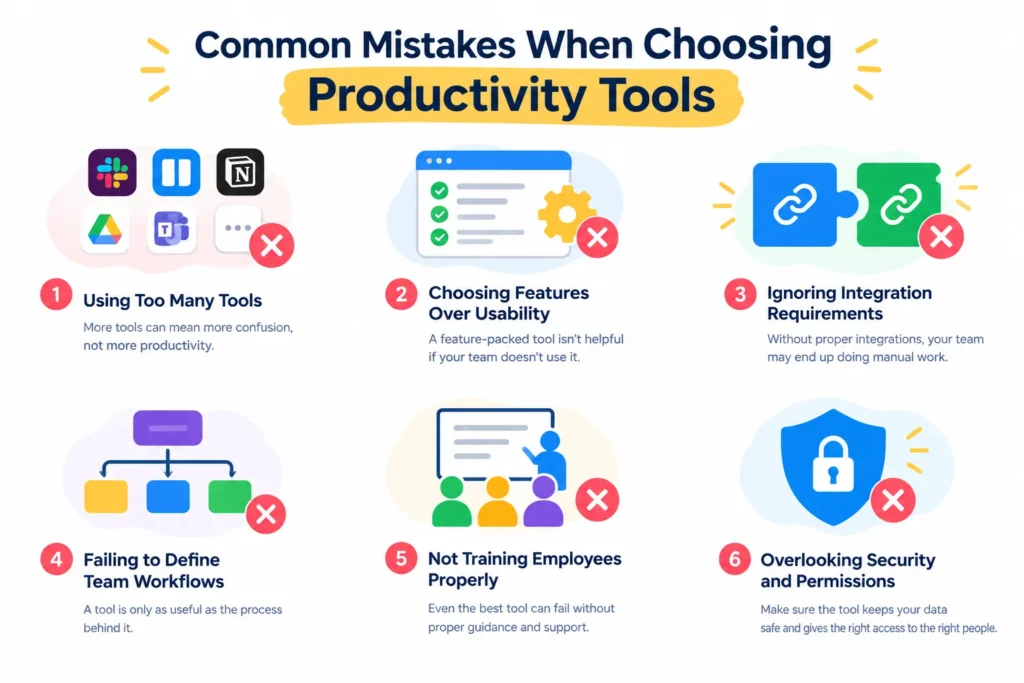
Common Mistakes When Choosing Productivity Tools
The biggest productivity mistake isn’t choosing the wrong tool.
It’s assuming that another tool will solve a workflow problem.
Here are a few common mistakes to avoid.
Using Too Many Tools
Every additional application introduces another login, interface, notification system, and source of information.
If your team needs six tools to understand one project, your stack may be too fragmented.
Choosing Features Over Usability
A 100-feature platform isn’t automatically better than a 20-feature platform.
If your employees only use five features, prioritize how well those five features work.
Ignoring Integration Requirements
Before adopting a new tool, check whether it works with the software you already rely on.
Otherwise, employees may end up copying information manually between systems.
Failing to Define Team Workflows
Don’t simply tell employees:
“We’re using this tool now.”
Explain how they should use it.
For example:
- Where should new tasks be created?
- Who assigns them?
- What statuses should be used?
- When should comments be added?
- How are completed tasks reviewed?
The tool is only as useful as the process around it.
Not Training Employees Properly
Even an intuitive platform can be confusing when introduced without context.
Give employees examples of real workflows rather than teaching every feature.
Overlooking Security and Permissions
Not everyone needs access to everything.
Review user permissions, shared data, administrative controls, and access policies before rolling out a tool across the business.
✨ Discover More Articles: Best AI Tools for Writing Marketing Copy
How to Get More Value From Team Productivity Tools
Buying the software is the easy part.
Getting your team to use it effectively is harder.
Here’s a simple approach.
Start With One Clear Business Problem
Don’t start with:
“We need a productivity platform.”
Start with:
“Our projects keep missing deadlines because nobody knows who owns the next step.”
Now you have something specific to solve.
Create Standardized Workflows
If everyone uses the tool differently, your data becomes difficult to understand.
Create simple conventions for tasks, statuses, naming, deadlines, and ownership.
Automate Repetitive Tasks
Look for processes that happen repeatedly.
If someone performs the same action dozens of times each week, ask whether it can be automated.
Set Clear Ownership and Deadlines
Every important task should have an owner.
“Marketing team” isn’t an owner.
“Sarah” is.
Clear ownership eliminates the classic workplace problem where everyone assumes somebody else is handling something.
Review Tool Usage Regularly
Your business will change.
The workflow that worked for a five-person team may not work for a 50-person team.
Review your productivity stack occasionally and remove tools or processes that no longer serve a purpose.
Frequently Asked Questions About Team Productivity Tools
What is the best productivity tool for a team?
There isn’t one tool that’s best for every team.
The right choice depends on your team’s size, workflow, communication style, existing software, and business requirements. A small team may prefer a simple tool such as Trello or Todoist, while a larger organization may need something more comprehensive.
Which productivity tools are free for small businesses?
Several of the tools in this guide offer free plans or free versions, although available features and usage limits vary.
Before choosing a free plan, check whether it includes the features your team actually needs and whether you’ll hit user, storage, automation, or project limits as you grow.
What tools help teams collaborate remotely?
Tools such as Slack, Microsoft Teams, Google Workspace, Asana, ClickUp, and Notion can support remote collaboration.
The best combination depends on whether your biggest requirement is communication, project management, documentation, or a mixture of all three.
How many productivity tools should a business use?
There’s no magic number.
The goal should be to use enough tools to support your workflow without creating unnecessary complexity.
If two applications perform almost the same job, it’s worth asking whether you really need both.
Are productivity tools worth it for small businesses?
They can be, especially when they solve a specific operational problem.
A small team doesn’t necessarily need an enterprise-grade platform. Often, a simple system for managing tasks, sharing documents, and communicating clearly is enough.
Can AI improve team productivity?
Yes, when it’s applied to the right tasks.
AI can help with things such as summarizing information, finding relevant data, drafting content, organizing work, and automating repetitive processes.
But AI isn’t a substitute for a good workflow. Automating a confusing process simply makes the confusion happen faster.
✨ Discover More Articles: Employee Management Software
Final Thoughts
The best productivity stack isn’t the one with the most apps.
It’s the one that helps your team spend less time managing work and more time doing it.
Start by identifying your biggest bottleneck.
If projects are disorganized, look at ClickUp, Asana, Monday.com, or Trello. If communication is the problem, Slack or Microsoft Teams may make more sense. If information is scattered everywhere, Notion or Google Workspace could help. And if your team spends too much time moving data between applications, Zapier is worth exploring.
You don’t need to transform your entire workflow overnight.
Pick one problem, choose one tool that addresses it, build a simple process around it, and see what changes.
That’s a much better starting point than adding another dozen apps to your team’s already crowded toolbox.
✨ Learning something new? Your feed needs Tech Statar.