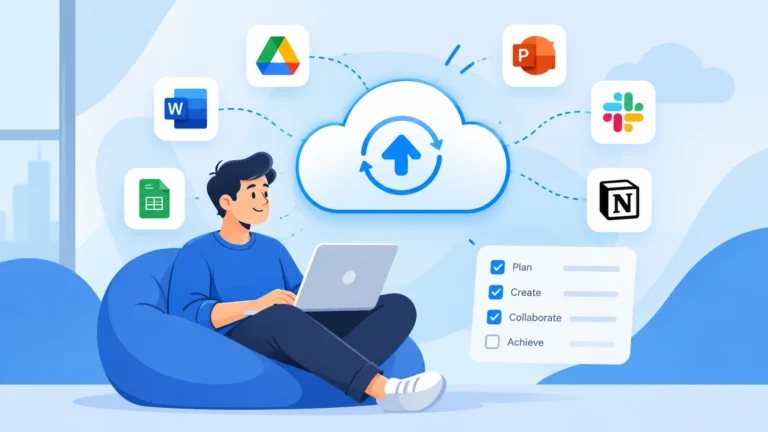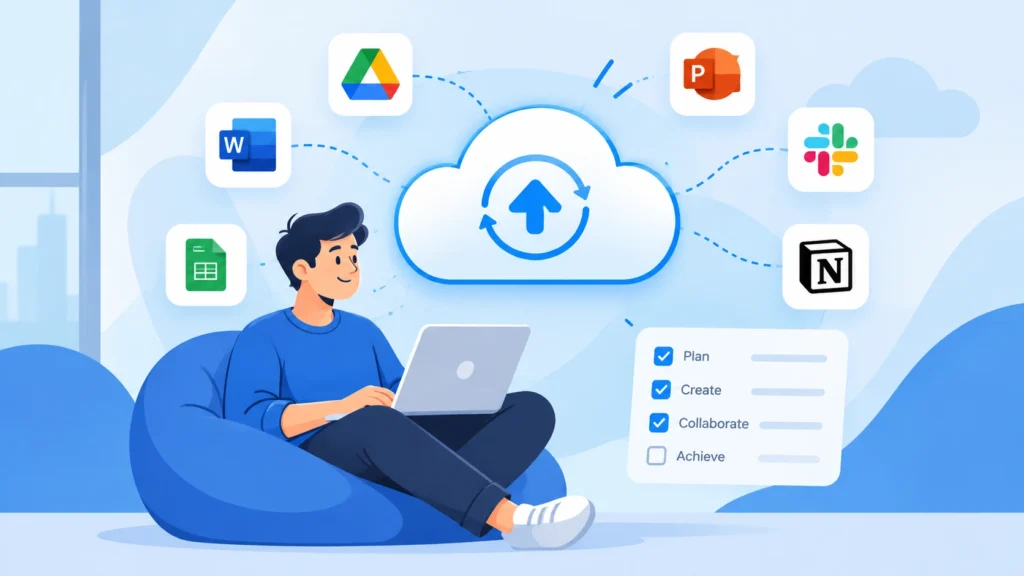
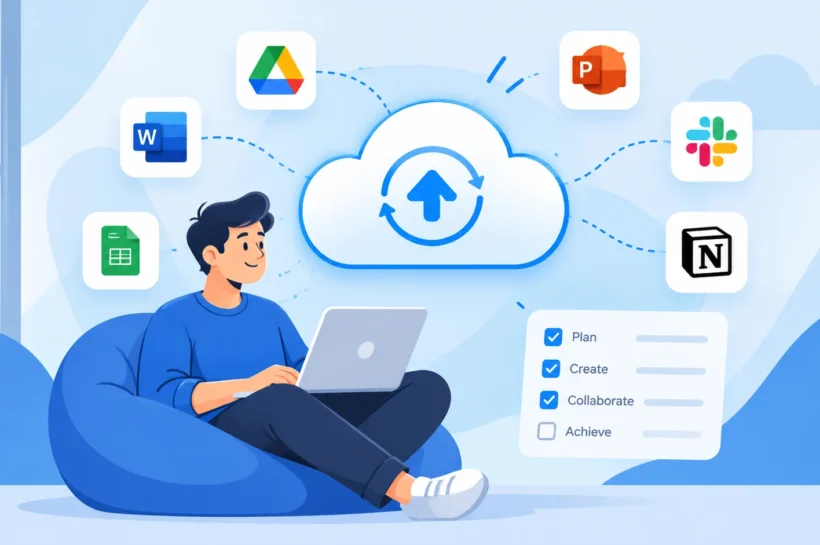

Cloud-based productivity applications help people create documents, manage tasks, communicate with teams, store files, organize information, and automate work through internet-connected services.
The value of these tools goes beyond simply being available online. Their data and core services are typically hosted by a cloud provider, allowing users to access them across supported devices and collaborate without maintaining the underlying infrastructure themselves. Most business-facing cloud productivity applications are delivered through the software-as-a-service (SaaS) model.
But choosing a productivity app is not as simple as picking the one with the longest feature list. The right choice depends on the problem you need to solve, the way your team works, the systems you already use, and the level of security and administration you require.
What Are Cloud-Based Productivity Applications?
Cloud-based productivity applications are software tools that use cloud infrastructure to deliver work-related functions such as document creation, project management, communication, storage, scheduling, or automation.
Instead of requiring an organization to host and maintain the entire application environment itself, the provider manages the underlying infrastructure while users access the service through supported interfaces. NIST describes SaaS as using provider-hosted applications that can be accessed from client devices through interfaces such as web browsers or program interfaces.
How Cloud-Based Productivity Applications Work
A typical cloud productivity application has three important layers.
First, the application provides the functions you use, such as editing a document, assigning a task, or sending a message.
Second, the provider runs the application and supporting infrastructure in the cloud. That can include servers, storage, databases, networking, security controls, and other services needed to operate the platform.
Third, users access the application through a browser, desktop application, mobile app, or another supported interface.
This model makes shared access and synchronization practical. A document can be edited by one person, reviewed by another, and accessed later from a different device without manually transferring the latest file between computers.
It also shifts much of the maintenance responsibility to the provider. Updates, infrastructure management, and many operational tasks are handled as part of the service rather than by each customer separately.
Cloud-Based vs. Traditional Desktop Software
Traditional desktop software is often installed primarily on a user’s computer, with files and some application functions handled locally. A cloud-based application places more of the service infrastructure under the provider’s control.
The difference matters most in collaboration and administration.
With a cloud-centered workflow, a team can work from a shared environment rather than maintaining multiple independent copies of the same information. Access permissions, synchronization, updates, and integrations can also be managed centrally.
That does not mean traditional desktop software has disappeared. In fact, some cloud services still provide full desktop applications alongside web and mobile access.
Are Cloud-Based Applications Always Browser-Based?
No.
“Cloud-based” describes how the service is delivered and where its underlying resources are managed. It does not mean the application can only be accessed through a browser.
Microsoft 365, for example, includes installed applications that can continue working offline after installation and activation, while Google Docs, Sheets, and Slides also support offline access when configured appropriately.
The more useful question is not whether the app is online or offline. But…
Where does the application run, where is the data stored, and what happens when an internet connection is unavailable?
That distinction helps avoid a common mistake when evaluating cloud productivity software.
What Can Cloud-Based Productivity Applications Help You Do?
The easiest way to understand the category is to look at the work it helps you complete.
Instead of asking which app is popular, start by asking what part of your workflow needs improvement.
Create and Collaborate on Documents
Cloud-based document applications allow teams to create, edit, review, and share documents from a common workspace.
This is especially useful when multiple people need access to the same information. Instead of emailing separate file versions, users can work from a shared document and control who can view or edit it.
Google Docs, Sheets, and Slides, for example, are designed around collaborative editing and controlled access.
For businesses, the value is not simply “online documents.” It is having a shared working version that reduces duplicate files and unnecessary handoffs.
Manage Projects and Tasks
Project and task-management applications turn plans into trackable work.
They can help teams define tasks, assign ownership, set deadlines, organize projects, and monitor progress. More advanced platforms may add dependencies, automation, reporting, or workflow rules.
These tools are especially useful when work involves multiple people and deadlines. A shared task system makes it easier to answer basic operational questions:
Who owns this task?
What is due next?
What is blocked?
What has already been completed?
Without that visibility, teams often rely on scattered messages, spreadsheets, or memory.
Communicate and Meet
Cloud productivity software also covers team communication and online meetings.
Communication platforms can organize conversations by teams, projects, or topics, while meeting tools support real-time discussions across locations.
The useful distinction is between communication and information management. A chat message may be ideal for a quick decision, but it may not be the best place to store a long-term process or project record.
Tools such as Slack increasingly connect communication with files, tasks, third-party applications, search, and AI features, showing how communication platforms are becoming part of broader work systems.
Store, Sync, and Share Files
Cloud storage applications provide a central place to keep files and make them available across supported devices.
The main benefits are easier access, centralized sharing, synchronization, and permission management.
Google Drive, for example, positions cloud storage as a shared environment for storing and collaborating on files rather than maintaining isolated copies on individual devices.
For a business, however, storage is not just about capacity. You should also consider who can access a file, how external sharing works, and what happens when an employee leaves the organization.
Organize Knowledge and Work
Some productivity platforms focus on knowledge rather than individual tasks.
These tools can hold meeting notes, internal documentation, project information, procedures, databases, and other shared knowledge.
They become particularly useful when employees repeatedly ask the same questions or when important information is scattered across emails and chat conversations.
A good knowledge system reduces the time spent searching for information and makes organizational knowledge less dependent on individual employees.
Automate Work With AI and Integrations
Productivity applications increasingly connect with other services and automate repetitive tasks.
Integrations can move information between applications, trigger workflows, or surface data where people already work. AI can add another layer by summarizing information, drafting content, answering questions, analyzing data, or helping users complete routine tasks.
Microsoft 365 Copilot and Google Workspace with Gemini are examples of major productivity ecosystems adding AI directly into work applications rather than treating AI as a completely separate destination.
The real value comes from reducing manual work. An AI feature that looks impressive but does not improve an actual workflow may add complexity rather than productivity.
Benefits and Limitations of Cloud-Based Productivity Applications
Cloud-based tools can simplify work, but they also introduce trade-offs. Understanding both sides helps you choose them for the right reasons.
Benefits of Cloud-Based Productivity Applications
Anywhere access: Users can access their work from supported locations and devices without relying on a single computer.
Real-time collaboration: Multiple people can work within shared documents, projects, conversations, or workspaces.
Centralized information: Teams can reduce duplicate files and fragmented records by using shared systems.
Automatic updates: Many cloud services handle application maintenance and updates as part of the service.
Scalability: Organizations can often add users, services, storage, or features without building the underlying infrastructure themselves.
Integrations: Cloud applications can connect with other systems, which helps information move through a workflow instead of remaining trapped in separate tools.
These benefits are closely related to the broader cloud model, which NIST defines around characteristics such as broad network access, resource pooling, rapid elasticity, and on-demand access.
Potential Limitations
Cloud software is not automatically better for every situation.
Internet connectivity can matter, especially for workflows that depend heavily on cloud-hosted information. Some platforms support offline work, but offline capabilities differ by application and plan.
Recurring subscription costs can also become significant when a company accumulates many tools and users.
There are security and privacy considerations as well. Moving work into a cloud service means evaluating how the provider handles authentication, permissions, data protection, retention, integrations, and administrative controls.
Finally, using too many specialized applications can create tool sprawl. A business may end up paying for several products that solve overlapping problems while making employees switch between systems throughout the day.
When Cloud-Based Tools May Not Be the Best Fit
A cloud application may require more careful evaluation when an organization has strict requirements around data control, regulatory compliance, offline operation, infrastructure ownership, or specialized environments.
That does not automatically mean cloud software is unsuitable. It means the decision should be based on the organization’s requirements rather than the assumption that every modern workflow should move to the cloud.
Types of Cloud-Based Productivity Applications
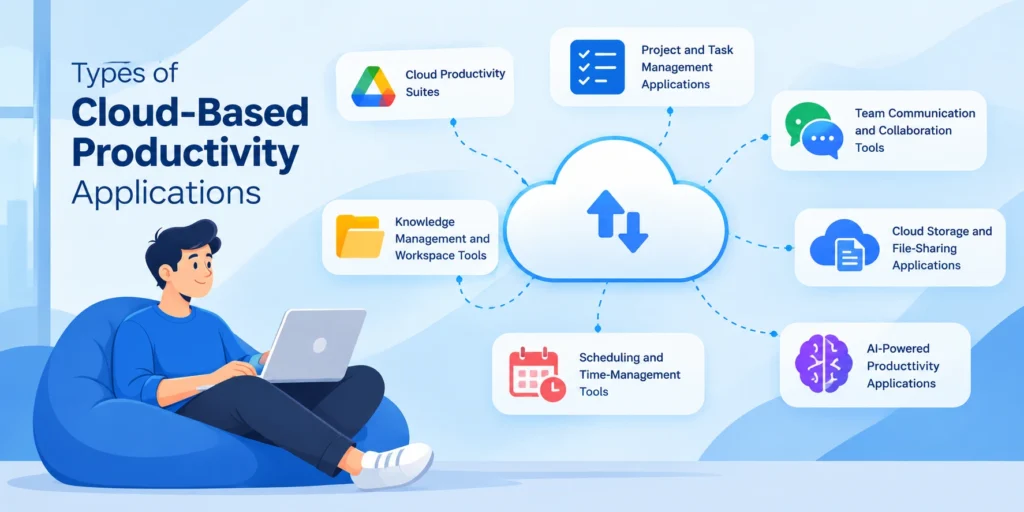
Cloud productivity software covers several categories. The best way to compare them is by the problems they solve.
Cloud Productivity Suites
Productivity suites combine several common workplace functions into one ecosystem.
Depending on the product and plan, a suite may include email, documents, spreadsheets, presentations, calendars, meetings, storage, collaboration, and AI features.
Examples include Microsoft 365, Google Workspace, and ONLYOFFICE.
Suites are often useful when an organization wants a common foundation rather than purchasing a separate application for every basic task.
Project and Task Management Applications
Project-management platforms focus on coordinating work.
Examples include Asana, ClickUp, and monday.com.
They can be useful when projects have multiple owners, deadlines, dependencies, or recurring workflows. A project-management platform is particularly valuable when a team needs more structure than a simple task list can provide.
Team Communication and Collaboration Tools
These applications organize workplace communication around channels, conversations, meetings, or shared workspaces.
Slack and Microsoft Teams are common examples.
Their value increases when communication needs to connect with other workplace systems. Slack, for instance, supports integrations with external tools and workflows so teams can bring information from other systems into their conversations.
Not every task needs to be handled through chat. Communication tools work best when they support the workflow rather than becoming the permanent home for every decision and document.
Cloud Storage and File-Sharing Applications
Cloud storage tools focus on keeping files accessible and shareable.
Google Drive, OneDrive, Dropbox, and Box are examples.
These tools are useful when teams need centralized file access, synchronization, controlled sharing, or integration with other productivity applications.
The important evaluation point is not only how much storage is included. Consider search, permissions, synchronization, versioning, external sharing, and how easily the storage system fits with the applications your team already uses.
Knowledge Management and Workspace Tools
Knowledge-management platforms help teams organize information that needs to remain useful over time.
Common examples include Notion and Confluence.
They are a strong fit for documentation, company procedures, project knowledge, meeting notes, internal guides, and shared reference material.
The key question is whether employees can reliably find and maintain information there. A knowledge platform filled with outdated pages does not solve an information problem.
Scheduling and Time-Management Tools
Scheduling tools help people coordinate availability, appointments, deadlines, reminders, or time tracking.
They can be valuable for service businesses, consultants, agencies, distributed teams, and anyone whose work depends on coordinating multiple calendars or tracking billable time.
The strongest fit is usually a tool that reduces repetitive coordination rather than simply adding another calendar interface.
AI-Powered Productivity Applications
AI now appears across many productivity categories rather than existing as one separate product type.
An AI feature might draft an email, summarize a meeting, analyze a spreadsheet, search internal information, generate a document, or automate a routine workflow.
The category is therefore broader than “AI writing tools.” Major productivity ecosystems are increasingly embedding AI directly into documents, communication, search, and workflow tools.
When evaluating AI productivity software, focus on the specific task it improves rather than the number of AI features listed on the product page.
How to Pick the Right Cloud-Based Productivity Application
The right productivity application is not necessarily the most feature-rich, it is the one that fits your workflow.
Identify the Problem You Need to Solve
Begin with the bottleneck.
Are people struggling to manage projects? Losing files? Missing deadlines? Repeating the same manual process? Searching through messages for information?
Write down the problem before comparing products.
This prevents a common buying mistake: selecting software because it looks impressive and then trying to invent a use for it.
Decide Between an All-in-One Suite and a Specialized Tool
An all-in-one suite can make sense when your needs are broad and relatively standard.
A specialized application makes more sense when an important workflow requires functionality that your existing suite does not handle well.
For example, a team may already have documents, email, meetings, and storage covered by its productivity suite. Adding another application only makes sense if it solves a real problem that the existing system cannot handle efficiently.
This approach can help reduce both costs and complexity.
Check Integrations and Workflow Compatibility
A productivity application should fit the systems around it.
Before choosing a tool, make sure it integrates with the applications you already use and supports your workflow.
Ask what happens after a task is created, when a document is updated, when a customer submits information, or when a project reaches a new stage.
A useful integration removes manual handoffs. A weak integration may simply add another notification.
Modern collaboration platforms increasingly treat integrations as a core part of productivity. Slack, for example, supports connections with project management, file management, CRM, developer, and other business systems.
Evaluate Collaboration and Ease of Use
A powerful application has little value if employees do not use it.
Evaluate how easily users can create work, find information, collaborate, share files, receive notifications, and complete common tasks.
Consider mobile access as well. For teams that work across locations, a usable mobile experience can matter as much as desktop functionality.
Also look at permissions. Different users may need different levels of access, especially when projects include external clients, contractors, or sensitive information.
Review Security and Administration Features
Security should be evaluated as part of the buying process, not after implementation.
Look for controls that match your environment, such as multi-factor authentication, single sign-on, user and role management, access controls, audit capabilities, retention settings, and external-sharing controls.
You should also consider what happens when an employee leaves the organization. Can administrators quickly remove access while preserving business records?
The right security requirements depend on the organization, but the principle is simple: evaluate how the application fits your existing security and governance model.
Calculate the Real Cost
The listed subscription price is only part of the total cost.
Consider the number of users, billing model, required plan level, storage requirements, AI features, add-ons, guest access, administration, and any additional services needed for integration or migration.
Also consider employee time.
A cheaper application that creates extra manual work may cost more in practice than a more expensive application that removes repetitive tasks.
Test the Application With a Real Workflow
A short pilot is often more useful than a long feature comparison.
Test the tool with a real workflow from start to finish.
For example, a marketing team might test how a campaign moves from planning to task assignment, document creation, approval, publication, and reporting.
During the test, look for friction:
Can people find what they need?
Are notifications manageable?
Do integrations work as expected?
Does information have a clear home?
Do users understand what they are responsible for?
Those answers tell you more than a feature checklist alone.
How AI Is Changing Cloud-Based Productivity Applications
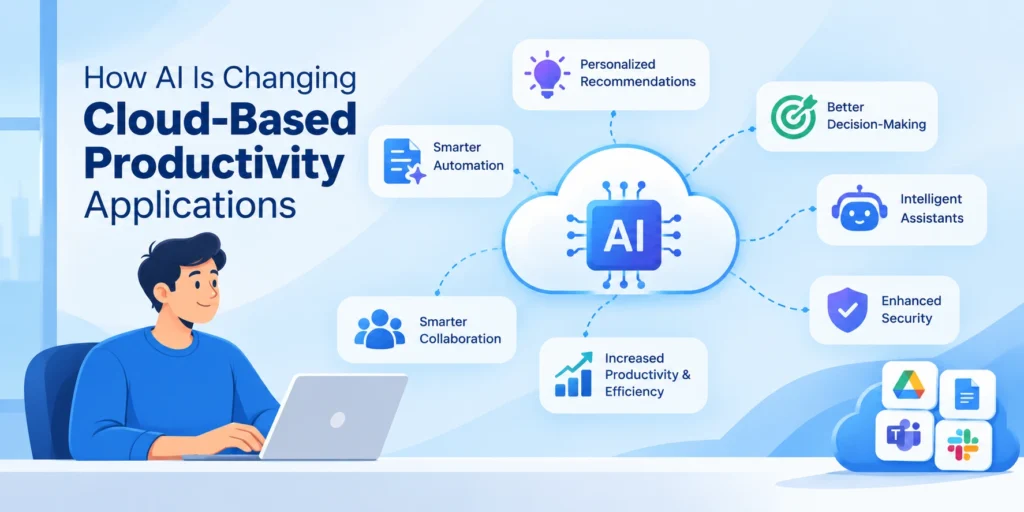
AI is becoming part of everyday productivity software, but its value depends on how well it connects to real work.
Built-In AI vs. Standalone AI Tools
Built-in AI is integrated directly into an existing productivity environment.
For example, Microsoft 365 Copilot is positioned around work data, chat, search, content creation, and collaboration within Microsoft’s productivity ecosystem. Google also provides Gemini capabilities inside Workspace applications such as Docs.
Standalone AI tools operate more independently and may be useful when you need broader research, writing, analysis, or automation capabilities.
The practical choice depends on context.
If most of your work already happens inside one productivity ecosystem, built-in AI may reduce context switching. If you need capabilities that span multiple systems or work types, a separate AI tool may be more flexible.
Common AI Productivity Use Cases
AI can help with tasks that involve large amounts of text, information, or repetitive processing.
Common examples include:
- summarizing long conversations or documents,
- drafting and refining content,
- extracting information,
- answering questions about organizational knowledge,
- analyzing structured data,
- generating meeting notes,
- assisting with routine workflows.
The important question is not whether a product “has AI.” Ask which task the AI completes, what information it can access, and whether the result is reliable enough for the job.
What to Consider Before Using AI With Business Data
AI features can interact with sensitive business information, so organizations should understand the product’s data handling, permissions, administrative controls, and applicable policies before enabling them.
Users should also understand what information they can safely share with an AI system.
For important work, human review remains necessary. A faster answer is not automatically a correct answer, especially when the output affects customers, finances, legal matters, or operational decisions.
How to Avoid Cloud Productivity Tool Sprawl
Adding more software does not necessarily improve productivity.
A business can easily end up with one tool for chat, another for notes, another for project tracking, another for files, another for AI, and another for automation. When those systems overlap, employees may spend more time moving information between applications than completing the actual work.
Give Each Workflow One Primary System of Record
A workflow should have a clear place where the authoritative information lives.
For example, a project task should not be simultaneously maintained in email, a chat channel, a spreadsheet, and two project-management platforms.
One system can handle the source of truth while other tools provide communication or supporting functions.
This helps prevent confusion over which version is current.
Add Tools Only When They Solve a Real Gap
Before purchasing another application, ask:
What problem does it solve?
What are we currently doing instead?
Can our existing tools handle the problem?
What will become simpler after we add it?
If the answer is mainly “it has additional features,” that may not justify another subscription.
Connect Tools Instead of Duplicating Work
When multiple applications are necessary, make their relationship explicit.
For example, a communication tool might notify a team about a project update while the project platform remains the place where the task is officially managed.
Good integrations should reduce repetitive data entry and unnecessary switching.
Platforms such as Slack increasingly support this approach by connecting external applications and workflows inside the collaboration environment.
Review and Remove Unused Applications Regularly
Productivity stacks should be reviewed just like other business expenses.
Look for applications with low adoption, overlapping functionality, unused subscriptions, or workflows that have moved elsewhere.
The goal is not to use the fewest possible applications. The goal is to maintain a stack where every tool has a clear role.
FAQs About Cloud-Based Productivity Applications
Are Cloud-Based Productivity Applications the Same as SaaS?
They are closely related, but the terms are not identical.
SaaS is a cloud service model in which the provider makes an application available to users while managing the underlying cloud infrastructure. Many cloud-based productivity applications fall into this category.
So, in everyday business use, “cloud productivity application” and “SaaS productivity application” will often describe the same type of software, but SaaS is the broader technical service model.
Can Cloud-Based Productivity Applications Work Offline?
Some can, but offline support varies by application.
Microsoft documents offline use for installed Microsoft 365 applications, while Google provides offline access for Docs, Sheets, and Slides when the feature is enabled.
Before choosing a tool, check exactly which functions remain available offline and how synchronization works when the connection returns.
Are Cloud-Based Productivity Applications Secure?
They can provide strong security controls, but “cloud-based” alone does not guarantee security.
Security depends on the provider’s architecture and controls, as well as how the customer configures accounts, permissions, sharing, authentication, integrations, and data policies.
For business use, review security documentation and administrative controls instead of assuming that a well-known brand automatically meets your requirements.
Do Small Businesses Need Multiple Productivity Applications?
Not necessarily.
A small business may be able to handle most daily work with a single productivity suite plus a small number of specialized tools.
Additional applications become useful when they solve a specific operational problem that the existing stack does not handle effectively.
The objective should be a simple workflow, not a large software collection.
What’s the difference Between a Cloud-Based Application and a Web Application?
A web application is primarily accessed through a web browser. A cloud-based application describes a broader delivery model in which the service is hosted on cloud infrastructure.
The two concepts can overlap, but they are not interchangeable. A cloud-based service may also provide desktop or mobile applications, and some cloud applications support offline functionality.
Final Takeaway
Cloud-based productivity applications can make work easier by centralizing information, supporting collaboration, connecting systems, and automating repetitive tasks.
But choosing the right tool requires more than comparing feature lists.
Identify the problem you need to solve. Decide whether an existing productivity suite is enough or whether a specialized application adds real value. Check integrations, security, usability, offline capabilities, and total cost. Then test the software with a real workflow before committing.
The strongest productivity stack is not the one with the most applications. It is the one where each application has a clear purpose, information moves smoothly between systems, and people can complete their work without unnecessary friction.
🔔 Follow Tech Statar for more insights like this!