
How to Fix a TV Remote That’s Not Working (2026 Guide)
A TV remote that suddenly stops working does not always mean the remote itself has failed. The problem can come from the batteries, a stuck button, a lost wireless connection, the TV’s remote sensor, or the TV itself.
The fastest way to fix it is to identify which side is failing before you start replacing parts. The steps below move from simple checks to more specific tests, so you can stop once you find the cause.
First, Find Out Whether the Remote or TV Is the Problem
Start with the TV, not the remote. Try using the physical buttons on the television to turn it on, change the volume, or access basic controls. Sony uses this as one of its first diagnostic steps because it helps separate a TV problem from a remote-control problem. The location and available functions of the TV’s buttons vary by model, so check the sides, back, bottom, or top of the set.
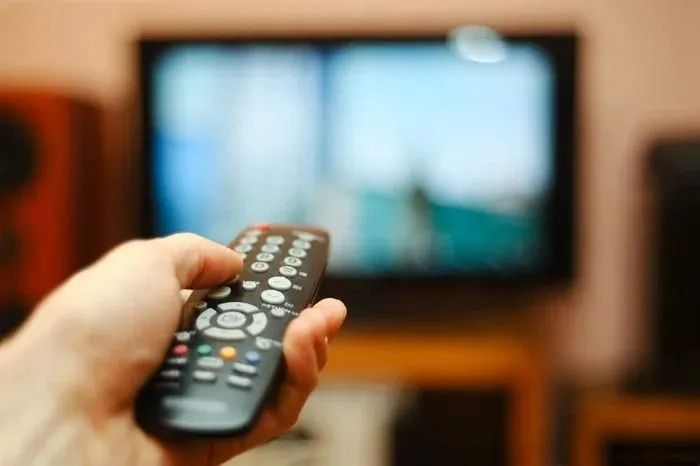
Next, try several buttons on the remote instead of testing only the Power button. If nothing works, the problem could be the remote’s power, connection, or electronics. If some buttons work while others do not, that points toward a different type of problem, such as a faulty button or internal contact. iFixit’s repair guidance specifically recommends checking which buttons work because the pattern can help isolate the fault.
A second compatible remote can provide another useful test. If another remote operates the TV normally, the original remote becomes the main suspect. If two compatible remotes fail with the same TV, investigate the TV or its connection rather than assuming both remotes are defective.
Check the Remote’s Batteries and Physical Condition
Replace the Batteries
Fresh batteries are the first thing to test because weak batteries can cause anything from intermittent operation to a completely unresponsive remote. Remove the old batteries, install a fresh matching set, and make sure the positive and negative ends are positioned correctly. Sony also advises against mixing new and used batteries.
If the remote uses a rechargeable battery or charges through USB-C, follow the charging procedure for that model instead of treating it like a disposable-battery remote. Sony specifically notes that rechargeable remotes should be handled differently during this initial check.
Check Battery Placement and Contacts
If new batteries do not help, inspect the battery compartment. Dirt, residue, or corrosion on the contacts can interrupt the electrical connection. Sony recommends gently cleaning the battery terminals with a soft cloth or cotton swab lightly moistened with rubbing alcohol before reinstalling the batteries.
Also check whether the batteries fit securely. A loose connection can make a remote work intermittently, especially when the remote is moved or dropped.
Check for Stuck or Damaged Buttons
Press the remote’s buttons individually and see whether any feel stuck, unusually hard to press, or remain partially depressed. A stuck button can interfere with normal operation. Sony recommends pressing each button twice as part of its basic troubleshooting process, and its IR testing guidance notes that a continuously active IR signal can also indicate a stuck button.
If the remote was dropped, exposed to liquid, or physically damaged, internal damage becomes more plausible. In that situation, repeated battery changes are unlikely to solve the underlying problem.
If It’s an IR Remote, Check Whether It Is Sending a Signal
Many TV remotes communicate with the television using infrared (IR). The human eye cannot see this light, but a compatible digital camera or smartphone camera may be able to display it.
Test the Remote With a Phone Camera
Open the camera app and point the front of the remote toward the camera lens. Press and hold a button while watching the camera display. If the camera can detect infrared, you should see the remote’s IR emitter light up.
This test is useful because it checks whether the remote is transmitting an IR signal rather than merely assuming that it is.
Understand the Limits of the Camera Test
A failed camera test does not automatically mean the remote is dead. Sony warns that many smartphones have IR filters that prevent their cameras from displaying infrared light. Sony recommends first confirming the camera by testing it with another working IR remote.
There is another complication with modern remotes: some Bluetooth remotes can still use IR for particular functions. Sony notes that certain Bluetooth remotes may transmit IR from the Power button even though other controls use a wireless connection. That means you should treat the camera test as a diagnostic clue, not a universal test for every type of smart remote.
What the Test Result Tells You
If you confirm that an IR remote is transmitting and the TV still ignores it, shift your attention toward the TV’s receiver, obstructions, or the TV’s own operation.
If the remote does not appear to transmit, first repeat the test with fresh batteries and a camera known to detect IR. If it still fails, the remote is more likely the source of the problem.
Discover More: iPhone Warranty in Bangladesh Explained
If the Remote Sends a Signal but the TV Does Not Respond
Check the TV’s Remote Sensor
Point the remote directly toward the TV’s remote sensor and make sure nothing is blocking the path. A soundbar, furniture, decoration, or other object positioned in front of the sensor can interfere with reception on TVs that use IR. Sony specifically recommends checking for physical obstructions and strong light sources that may interfere with infrared reception.
You do not need to guess where the sensor is located. Its position varies by model, so check the TV’s manual or support page if you cannot identify it.
Power-Cycle the TV
If the TV responds to its own buttons but is behaving strangely with the remote, a power reset is worth trying. Sony includes a TV power reset in its troubleshooting process for temporary or intermittent problems and currently recommends disconnecting the TV from power for about two minutes before reconnecting it. The exact procedure can vary by manufacturer and model, so use your TV’s support instructions when available.
A power reset is different from a factory reset. It is meant to restart the TV’s power state without erasing your settings.
Temporarily Disconnect External Devices
If the TV itself is behaving abnormally, temporarily disconnect devices connected through HDMI or USB and test the television again. Sony includes this as a troubleshooting step because a connected device can sometimes be involved in the problem. Reconnect devices one at a time after testing so you can identify whether one connection changes the behavior.
This step is most useful when the TV’s own controls are also acting strangely. It is not necessary to disconnect every device simply because the remote stopped working.
Test Another Remote
A second compatible remote is one of the simplest ways to confirm the diagnosis. If the second remote works, the original remote needs attention. If the second remote also fails, the problem may be on the TV side.
That distinction matters because replacing a working remote will not fix a TV that is failing to receive or process commands.
If You Have a Smart or Bluetooth Remote
Traditional IR troubleshooting does not cover every modern TV remote. Smart remotes can use Bluetooth or another wireless connection, and losing that connection can leave some functions unavailable even when the remote still appears powered on.
Samsung’s current support guidance lists weak or lost connection alongside battery and setup problems for its Smart Remote, while LG’s current Magic Remote guidance treats loss of connection as a pairing issue.
Check the Remote’s Pairing
Look at the symptom rather than assuming the remote is completely broken. For example, a smart remote may still perform certain functions while navigation or pointer-based controls stop working because its wireless connection has been lost.
LG says that when the Magic Remote pointer does not appear, the remote may have lost its connection to the TV.
Re-Pair the Remote
The correct pairing procedure depends on the remote and TV model. There is no single button combination that works for every smart remote.
For example, LG’s current instructions use different re-registration procedures for different Magic Remote generations. Samsung also provides its own pairing procedure for Smart Remote models. Use the instructions for your exact TV rather than applying a pairing sequence found for another model.
Check for Relevant Software Updates
Some supported smart-TV platforms allow the remote or TV software to be updated. Sony’s current remote troubleshooting guidance includes remote software updates for supported Android TV and Google TV models.
This is usually a later troubleshooting step, not the first thing to try. Start with the physical and connection checks first.
Use a Phone as a Temporary Workaround
A phone can sometimes replace the physical remote while you troubleshoot. For Google TV and Android TV, Google provides a virtual remote through its Google TV app, and the phone and TV need to be connected to the same Wi-Fi network for the connection to work.
This can be especially useful when the TV is already connected to your network and the physical remote has stopped working. It does not prove that the TV’s IR receiver is faulty because the phone and TV may be communicating over the network instead of infrared.
Discover More: Top Hidden iOS Features You Should Be Using in 2026
If Only Some Buttons Work
When only a few buttons fail, replacing the batteries may not solve the problem because the remote is already demonstrating that it can send at least some commands.
Clean the Remote
Dirt or liquid residue can interfere with the contacts beneath the buttons. iFixit’s repair guide shows that contamination on the membrane or circuit-board contact pads can prevent individual keys from registering.
For a badly contaminated remote, cleaning requires opening the case, which should be treated as an advanced repair rather than a first step. Opening some remotes can be difficult because their housings use clips or hidden screws.
Check for Worn Button Contacts
Many traditional remotes use a membrane keypad with conductive material beneath each button. Repeated use can wear that material, while contamination can stop the contact from closing properly. iFixit’s guide identifies worn conductive paint and dirty contacts as possible causes of individual button failures.
This is why a remote with a working Power button but a dead Volume or Navigation button can require a different fix from a remote where nothing works.
Know When Repair Is Practical
If cleaning does not restore a failed button, the problem may involve worn conductive material or the remote’s circuit board. At that point, opening and repairing the remote is possible on some models, but it is more technical and carries a risk of damaging the case or electronics. iFixit documents repairs involving the membrane and conductive contacts, while also noting that circuit-board faults can require a different level of repair.
For an inexpensive remote, replacement may be more practical than an internal repair. For an uncommon or expensive remote, repair may make more sense.
When to Replace the Remote Instead
Signs the Remote Is Actually Faulty
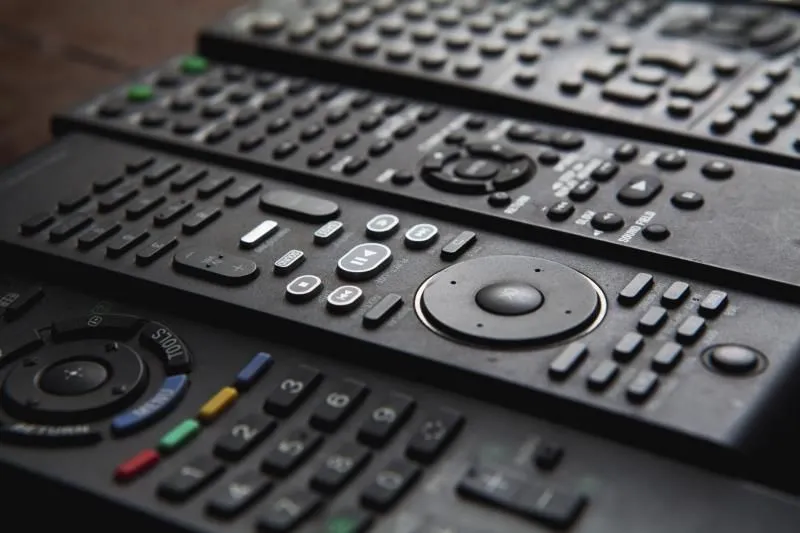
Replacement becomes reasonable when fresh batteries, basic button checks, and the appropriate signal or pairing tests all point to the remote.
One of the clearest signs is when another compatible remote works with the same TV while the original does not. Another is a confirmed IR transmission problem on an IR remote after you have ruled out the batteries and camera-test limitations.
If a button remains stuck, the remote has obvious liquid or physical damage, or several internal contacts have failed, replacing it may also be more practical than attempting a repair.
Check Compatibility Before Buying a Replacement
Don’t assume that every remote from the same brand will work with your TV. Smart and voice remotes can depend on specific models, features, or pairing systems.
Check the exact TV model and the remote model or part number before buying a replacement. Sony, for example, recommends replacing an IR remote with the same model when a remote needs to be replaced.
The same principle applies to universal remotes: compatibility and supported functions should be checked before purchase rather than assumed from the brand name alone.
FAQs
Why isn’t my TV remote working with new batteries?
New batteries only rule out one possible cause. The remote may have a stuck or damaged button, dirty battery contacts, a lost Bluetooth connection, or an internal fault. The TV can also be the problem, so test its physical controls and, when possible, another compatible remote before replacing the original.
How can I tell whether the remote or TV is broken?
Test the TV using its own controls and compare the behavior of the original remote with another compatible remote. If the second remote works, the original remote is likely the problem. If the TV does not respond even to its own controls or multiple compatible remotes, investigate the TV instead.
Can I test a TV remote with my phone?
Yes, you can test an IR remote with your phone’s camera, as long as the camera can detect infrared light. Sony warns that some smartphone cameras filter IR, so a missing flash is not conclusive. Testing the camera with another working IR remote can help determine whether it can detect infrared signals.
Why do some buttons work while others don’t?
Partial button failure can come from dirt, liquid residue, worn conductive contacts, or a problem with the remote’s circuit board. If some buttons consistently work while specific others do not, the pattern points toward the remote’s button circuitry rather than a simple battery problem.
Can I control my TV without the physical remote?
Sometimes. Supported Google TV and Android TV devices can be controlled from a phone using the Google TV app, provided the required network connection is available. Other manufacturers also offer their own mobile control options, but availability and setup depend on the TV model.
Conclusion
When a TV remote stops working, replacing it immediately is not always the best first move. Start by establishing whether the TV itself responds, then check the remote’s batteries and physical condition. For an IR remote, verify its signal carefully and remember that a phone-camera test has limitations. For a smart remote, check its pairing and wireless connection instead.
Once the evidence points clearly to the remote, you can decide whether cleaning, repair, or replacement makes sense. That approach avoids replacing a working remote when the actual problem is somewhere in the TV.
🔔 Follow Tech Statar for more insights like this!