

Have you noticed a faint image, dark patch, or ghost-like outline remaining on your computer screen? A computer screen shadow problem can make text and images look blurry, leave trails behind moving objects, or cause parts of a previous image to remain visible.
The cause is not always the same. What looks like a “shadow” could actually be screen ghosting, image retention, burn-in, a faulty cable, incorrect display settings, or a hardware problem.
The good news is that many screen shadow problems can be fixed without replacing your monitor.
In this guide, we’ll explain what causes screen shadows, how to identify the actual problem, and the practical steps you can take to fix and prevent it.
What Is the Computer Screen Shadow Problem?
The computer screen shadow problem occurs when a faint outline or previous image remains visible on the display, even after the original content has changed.
For example, you might notice a faint browser window outline after closing it, a trail behind a moving object in a game, or a dark area that stays in the same location on the screen.
The problem generally falls into a few categories:
- Ghosting: Moving objects leave visible trails because pixels cannot change quickly enough.
- Image retention: A previous static image temporarily remains visible.
- Burn-in: A permanent image or pattern becomes embedded in the display, most commonly associated with OLED panels.
- Backlight or panel problems: Certain areas appear darker, brighter, or uneven.
- Connection or graphics problems: A bad cable, port, GPU issue, or driver problem can create unusual display artifacts.
Identifying which type you’re experiencing is important because the solution for ghosting is different from the solution for permanent burn-in.
Why Does a Computer Screen Develop Shadows?
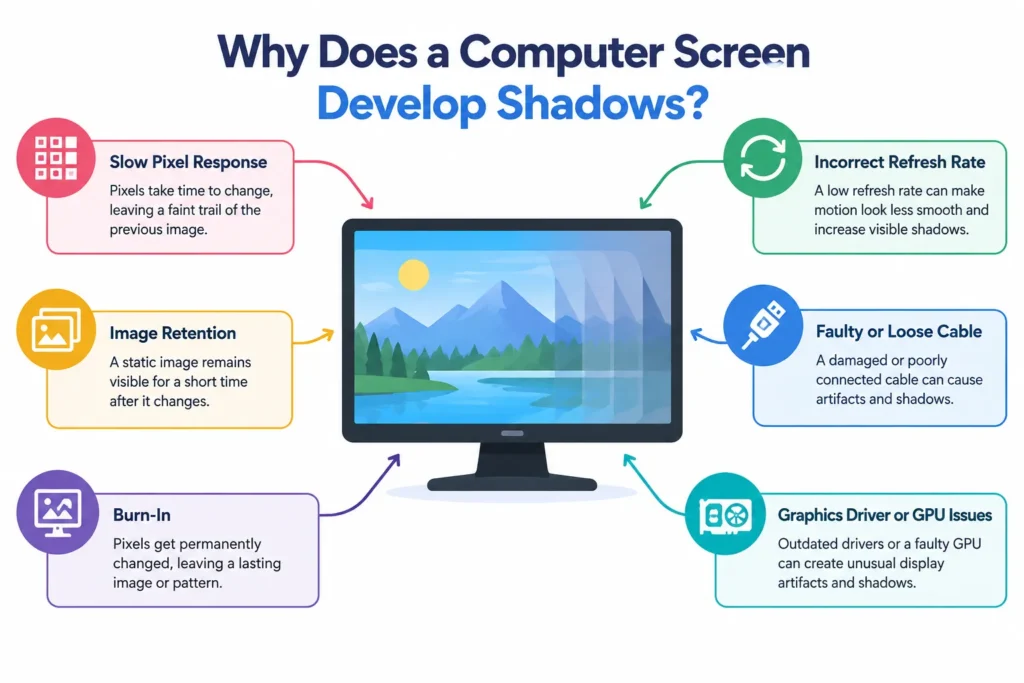
Several factors can cause a shadow or ghost image to appear on a computer display. Some are related to software and settings, while others are caused by the monitor’s hardware.
1. Slow Pixel Response
Every pixel needs to change from one color to another when the image on your screen changes. If the pixels respond slowly, remnants of the previous image can remain visible for a short time.
This is commonly called monitor ghosting.
It’s especially noticeable when:
- Playing fast-paced games
- Scrolling quickly through webpages
- Watching action-heavy videos
- Moving windows across the screen
A monitor with a slower response time is generally more susceptible to visible ghosting.
2. Image Retention
Image retention happens when a static image remains faintly visible after the content changes.
For example, if you display the same toolbar, window, or desktop element for many hours, you may temporarily see its outline after switching to another screen.
Temporary image retention can disappear after the display is turned off or after the screen displays different content for a while.
3. Burn-In
Burn-in is different from temporary image retention.
With burn-in, certain pixels experience permanent changes, leaving a persistent image or pattern on the screen.
It is more commonly associated with OLED displays because their pixels emit their own light. LCD monitors can experience image retention and other panel issues, but permanent burn-in is less typical.
If the same shadow remains regardless of what you display, especially after restarting the computer, permanent panel damage becomes more likely.
4. Incorrect Refresh Rate
Your monitor’s refresh rate determines how many times per second it updates the image.
For example:
- 60Hz = 60 updates per second
- 120Hz = 120 updates per second
- 144Hz = 144 updates per second
- 240Hz = 240 updates per second
Using an unexpectedly low refresh rate can make motion appear less smooth and may make ghosting more noticeable.
However, increasing refresh rate isn’t a guaranteed fix for every shadow problem. If the issue is caused by panel hardware, a higher refresh rate won’t repair it.
5. Faulty or Loose Display Cable
A damaged or poorly connected HDMI, DisplayPort, USB-C, or other display cable can cause visual problems.
Depending on the type of connection and hardware involved, you may see:
- Flickering
- Lines
- Random artifacts
- Color problems
- Intermittent black screens
- Distorted images
If the shadow appeared suddenly, checking the cable and port is one of the easiest troubleshooting steps.
6. Graphics Driver or GPU Problems
Display problems aren’t always caused by the monitor.
An outdated, corrupted, or malfunctioning graphics driver can produce strange visual artifacts. In some cases, a graphics processing unit (GPU) problem can also cause persistent display abnormalities.
This is why testing the monitor with another computer is useful when diagnosing the issue.
How to Tell What Type of Screen Problem You Have
Before changing settings or buying a new monitor, determine what you’re actually seeing.
A few simple tests can narrow down the cause.
| Problem | What It Looks Like | Usually Permanent? |
| Ghosting | Trail behind moving objects | No |
| Image retention | Faint previous image | Usually no |
| Burn-in | Persistent image or pattern | Yes |
| Dead pixel | Small permanently black pixel | Yes |
| Stuck pixel | Pixel stuck on one color | Usually yes |
| Backlight issue | Uneven bright or dark areas | Often |
| Cable/GPU issue | Artifacts, flickering, distortion | Depends |
Test 1: Display a Different Image
Open a plain white, gray, or solid-color background.
If you can still see the same outline, it may indicate image retention or a panel-related problem.
Test 2: Take a Screenshot
Take a screenshot while the problem is visible.
Then open that screenshot on another device.
If the shadow appears in the screenshot, the problem may be related to the computer, GPU, driver, or software.
If the screenshot looks normal but the physical monitor still shows the shadow, the monitor itself is more likely to be responsible.
Test 3: Connect Another Monitor
Connect a different monitor to the same computer.
If the problem disappears, your original display is likely the source.
If the same artifact appears on the second monitor, investigate the computer, GPU, drivers, cable, or display settings.
How to Fix the Computer Screen Shadow Problem
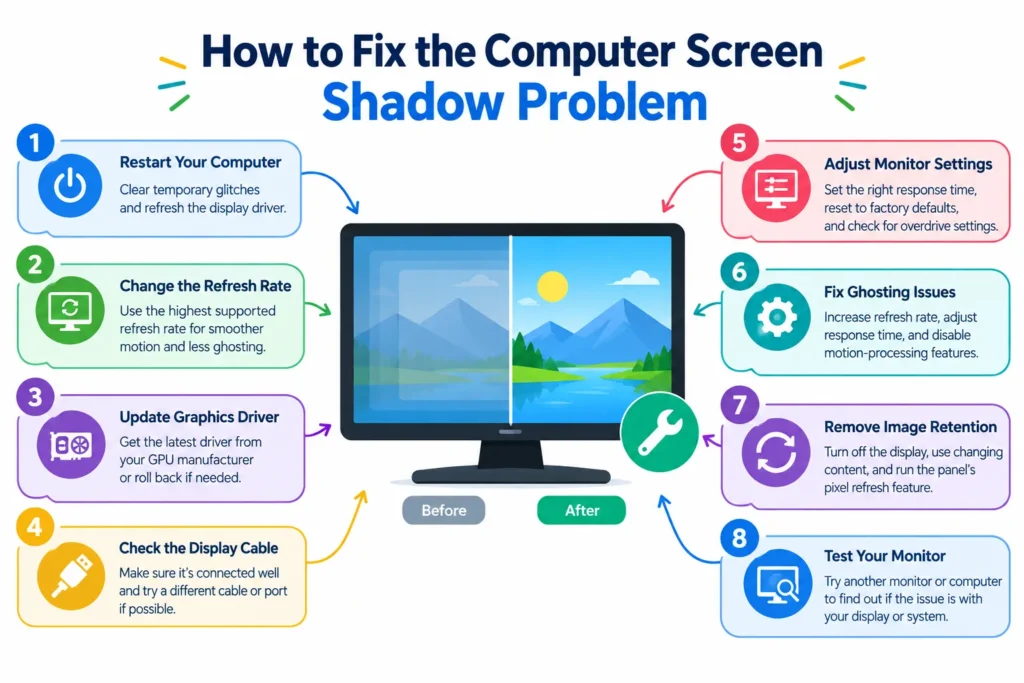
Once you’ve identified the likely cause, start with the simplest solutions.
1. Restart Your Computer
It sounds basic, but restarting can eliminate temporary graphics glitches and refresh the display driver.
Turn off the computer completely, wait a few seconds, and start it again.
If the shadow disappears after restarting and doesn’t return, it may have been a temporary software or graphics issue.
2. Check and Change the Refresh Rate
Make sure Windows is using the refresh rate your monitor supports.
On Windows, you can generally find this under:
Settings → System → Display → Advanced display
Select the connected monitor and check its refresh rate.
If your monitor supports 120Hz, 144Hz, or higher but is running at 60Hz, selecting the supported higher refresh rate may improve motion clarity and reduce noticeable ghosting.
Don’t select a refresh rate your display doesn’t support.
3. Update Your Graphics Driver
A graphics driver can affect how your computer communicates with the display.
If the problem started after a driver update, rolling back to a previous stable driver may also be worth testing.
For persistent problems, check the graphics manufacturer’s official driver updates and install the version appropriate for your GPU and operating system.
4. Check the Display Cable
Turn off the computer and monitor, then make sure the display cable is firmly connected at both ends.
If possible, test with another compatible cable.
Also try another display port on the computer or monitor.
This is particularly useful if the problem is accompanied by flickering, intermittent signal loss, lines, or other artifacts.
5. Check Your Monitor’s Response-Time Setting
Many gaming monitors include settings such as:
- Response Time
- Overdrive
- Trace Free
- Pixel Response
- Motion Response
These settings are designed to improve pixel response and reduce motion blur or ghosting.
However, setting overdrive too aggressively can create a different artifact called inverse ghosting, where bright or dark outlines appear around moving objects.
Try the monitor’s normal or medium response-time setting first rather than automatically choosing the highest setting.
6. Reset Monitor Settings
If you recently changed several display settings, restoring the monitor to its factory defaults can help determine whether a configuration caused the problem.
Look for an option such as Reset, Factory Reset, or Restore Defaults in the monitor’s on-screen menu.
This is particularly useful when the issue started after changing response time, contrast, picture modes, or other display settings.
7. Try a Different Cable or Port
If changing the cable doesn’t help, try another compatible port.
For example, if you’re using DisplayPort, test another DisplayPort connection if your hardware provides one.
This helps isolate whether the problem comes from:
- The cable
- The monitor port
- The GPU port
- The monitor itself
- The computer’s graphics output
🌟 Recommended for You: 10 Best Productivity Apps for Students in 2027
How to Fix Screen Ghosting
If you’ve confirmed that the problem is ghosting rather than burn-in or image retention, focus on motion-related settings.
Start by checking your monitor’s supported refresh rate and make sure you’re using an appropriate setting.
Then adjust the monitor’s response-time or overdrive option.
A useful approach is to test three settings:
- Normal
- Medium/Fast
- Maximum/Extreme
Move a high-contrast object across the screen while testing each option.
The best setting is usually the one that reduces trailing without introducing obvious inverse ghosting.
If ghosting remains severe even with the correct refresh rate and reasonable response-time settings, the monitor’s panel characteristics may simply limit how much improvement is possible.
How to Remove Image Retention From a Monitor
Temporary image retention may disappear on its own.
Start by turning the monitor off for a while. If your monitor has a built-in pixel refresh, panel refresh, or compensation cycle, follow the manufacturer’s instructions for using it.
You can also avoid displaying the same static image continuously.
Useful habits include:
- Letting the display sleep when you’re away
- Using an appropriate screen timeout
- Avoiding static images for extended periods
- Using built-in panel-care features when available
Don’t confuse temporary image retention with permanent burn-in. If a shadow remains unchanged across different content and continues after the display has been off, the issue may be more serious.
What to Do if the Shadow Is Caused by Burn-In
If the same image remains visible regardless of what you’re displaying, burn-in may be responsible.
This is particularly relevant for OLED monitors.
First, check whether your monitor manufacturer provides a pixel-refresh or panel-care function. Follow the manufacturer’s recommended procedure rather than repeatedly running maintenance cycles unnecessarily.
If the image remains permanently visible, software settings cannot restore the affected pixels to their original condition.
At that point, your realistic options may include:
- Checking whether the display is still under warranty
- Contacting the manufacturer’s support team
- Having the panel professionally assessed
- Replacing the monitor
The right choice depends on the severity of the problem and the cost of replacing the panel or display.
🌟 Recommended for You: 5 Best Google Lens Uses You Should Try
How to Check Whether the Monitor or Computer Is the Problem
One of the most useful troubleshooting techniques is to separate the monitor from the rest of the system.
Try these tests:
Connect your monitor to another computer.
If the shadow remains, the monitor is probably responsible.
Connect another monitor to your computer.
If the second monitor works normally, your original monitor becomes the main suspect.
Take a screenshot.
If the shadow doesn’t appear in the screenshot, it may be a physical display problem.
Test another cable.
A different compatible cable can rule out connection problems.
Check the screen before the operating system loads.
If the artifact appears in the monitor’s startup screen or firmware environment, the issue is less likely to be caused by an operating-system setting.
These tests can save you from replacing perfectly good hardware.
How to Prevent Computer Screen Shadow Problems
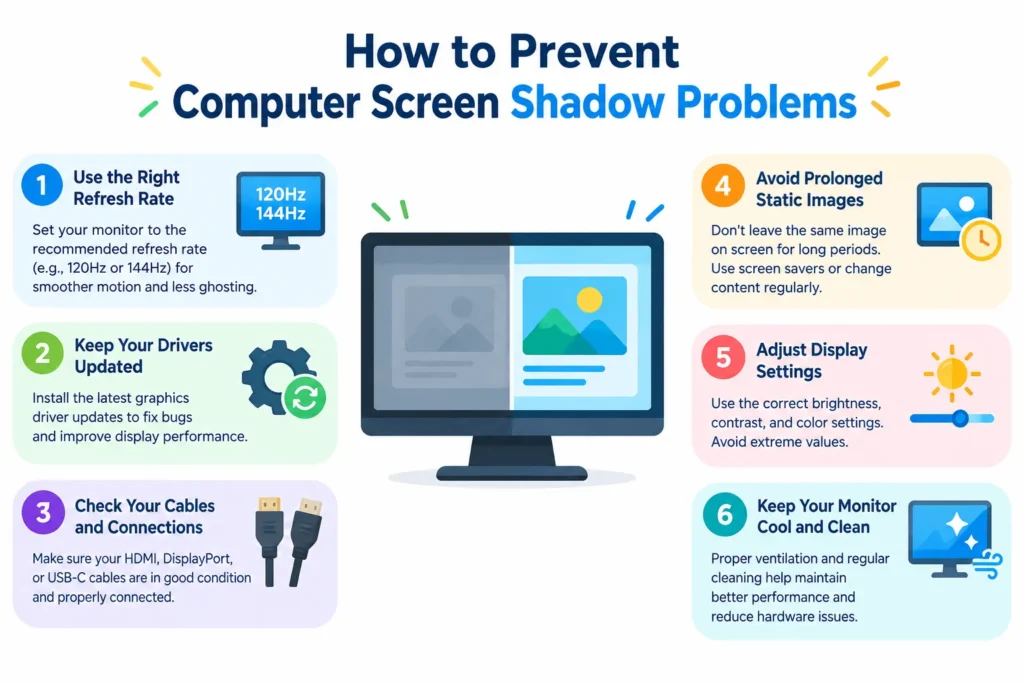
Prevention depends on the type of display, but a few habits can reduce the risk of display problems.
Avoid Long-Lasting Static Images
If you’re using an OLED monitor, don’t leave the same desktop interface or application visible for hours unnecessarily.
Use Automatic Screen-Off Settings
Set your computer to turn off the display when you’re away.
This reduces unnecessary operating time and helps prevent prolonged static content.
Use the Recommended Refresh Rate
Check your operating system and monitor settings to make sure the display is running at an appropriate supported refresh rate.
Keep Graphics Drivers Updated
Driver updates can address compatibility and display-related problems, although you shouldn’t assume every screen artifact is a driver issue.
Don’t Overuse Extreme Overdrive Settings
The fastest response-time setting isn’t always the best one.
If it produces bright halos or strange outlines around moving objects, use a less aggressive setting.
Keep the Monitor Properly Ventilated
Excessive heat can affect electronic components over time. Keep ventilation openings clear and avoid placing the monitor in conditions outside the manufacturer’s recommended operating environment.
When Should You Replace or Repair the Monitor?
Not every shadow problem means you need a new monitor.
If changing the refresh rate, checking cables, resetting settings, and testing another computer fixes the problem, there’s usually no reason to replace the display.
Replacement or professional repair becomes more reasonable when:
- The shadow remains permanently
- The panel has visible physical damage
- Burn-in is severe
- Large portions of the display are affected
- The backlight is failing
- The monitor develops persistent lines or artifacts
- Repair costs approach the price of a replacement monitor
For an older display, replacement may simply be more economical than paying for a panel repair.
FAQs About Computer Screen Shadow Problems
Why is there a shadow behind everything on my screen?
A shadow behind moving objects is often caused by monitor ghosting, while a faint previous image that remains after content changes may indicate image retention. Persistent shadows can also result from burn-in or panel damage.
How do I get rid of a ghost image on my monitor?
First, check the refresh rate and response-time settings. Try a different cable, reset the monitor settings, and test the display with another computer. If the image remains permanently, the problem may be panel-related.
Can screen shadowing be fixed?
Yes, depending on the cause. Software glitches, incorrect refresh rates, cables, and monitor settings can often be corrected. Permanent burn-in or physical panel damage may not be repairable through settings.
Is monitor ghosting permanent?
Usually not. Ghosting is generally a motion-related display artifact caused by pixel response characteristics. Adjusting refresh rate and response-time settings can sometimes reduce it significantly.
Can an HDMI cable cause screen ghosting?
A cable is not usually the direct cause of traditional pixel ghosting. However, a damaged or problematic cable can cause other visual artifacts, such as flickering, signal loss, lines, or distortion. Testing another compatible cable is a useful diagnostic step.
Does a higher refresh rate fix ghosting?
A higher refresh rate can improve motion clarity, but it doesn’t automatically eliminate ghosting. Pixel response time and the monitor’s panel characteristics also play an important role.
Is screen burn-in permanent?
True burn-in is generally considered permanent. Some displays have panel-care features that can help with image retention and may reduce certain types of visible artifacts, but they should not be treated as a guaranteed cure for established permanent burn-in.
Final Thoughts
A computer screen shadow problem can have several causes, and identifying the type of artifact is the first step toward fixing it.
If you’re seeing trails behind moving objects, start by checking the refresh rate and response-time settings. If a previous image remains visible, investigate image retention or burn-in. For sudden visual artifacts, don’t overlook the display cable, ports, graphics driver, or GPU.
The most effective approach is to troubleshoot systematically. Test the display with different content, try another cable or computer, and determine whether the problem follows the monitor or the computer.
If the shadow remains permanently after these checks, especially on an older or damaged panel, repair or replacement may be the most practical solution.
✨ You’re one follow away from smarter daily thinking; follow Tech Statar.