
Your iPhone can already shoot impressive video. But raw footage rarely looks finished without some editing.
The right video editing app can help you trim clips, remove mistakes, add captions, improve audio, apply transitions, resize videos for social media, and export everything in the format you need.
The problem? There are dozens of iPhone video editors, and they’re not designed for the same type of user.
Some are built for TikTok and Instagram. Others give you a desktop-style timeline. Some are completely free, while others lock their best features behind a subscription.
Here are the best options worth considering.
10 Best Video Editing Apps for iPhone
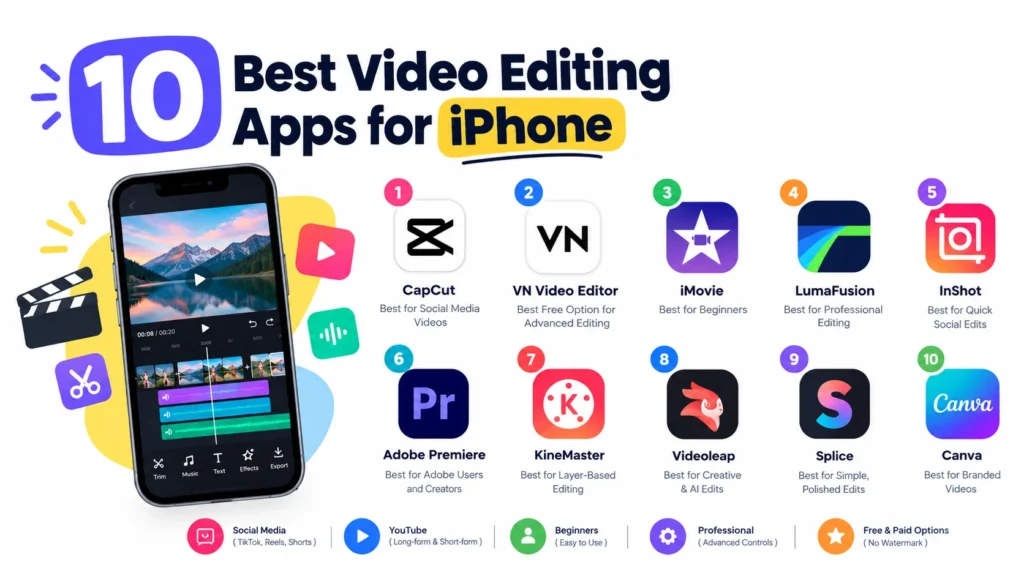
1. CapCut: Best for Social Media Videos
Best for: TikTok, Instagram Reels, YouTube Shorts, templates, captions, and fast edits.
CapCut is one of the easiest choices if most of your videos are going straight to social media.
Instead of making you build every effect from scratch, CapCut puts a lot of popular editing tools within easy reach. You can cut clips, add text, create captions, apply transitions, adjust speed, add music, and use templates to speed up repetitive edits.
That’s especially useful for short-form creators who need to produce videos quickly.
CapCut’s biggest advantage is its combination of traditional editing tools and AI-assisted features. That makes it useful for everything from a basic talking-head video to a heavily stylized Reel.
Pros
- Beginner-friendly interface
- Strong collection of templates and effects
- Useful captioning tools
- Good for vertical videos
- Fast workflow for social media
- Advanced editing features are available
Cons
- Some features are restricted to paid plans
- Templates and effects can make videos look repetitive
- Advanced projects can become harder to manage on a small screen
Our take: If your main goal is creating TikToks, Reels, or Shorts quickly, start with CapCut.
2. VN Video Editor
Best for: Creators who want more control without starting with a subscription.
VN Video Editor is a good alternative if you find simple social editors too limiting.
The app provides a more traditional editing experience, including a multi-track timeline, keyframe controls, transitions, text, audio editing, speed controls, and other tools you’d normally associate with more advanced video editors.
That gives you more room to grow.
You can start with simple cuts and gradually move into more complicated projects without immediately switching to desktop software.
One of VN’s biggest attractions is that it has a usable free version and is frequently recommended as a no-watermark alternative for creators who want more timeline control.
Pros
- Strong free feature set
- Multi-track editing
- Keyframe controls
- Good for short- and long-form videos
- More traditional timeline workflow
- Suitable for beginners and intermediate editors
Cons
- More complicated than iMovie
- Fewer plug-and-play templates than some social-first apps
- Advanced editing still takes time to learn
Our take: If you want a free iPhone video editor with serious editing controls, VN is one of the first apps we’d try.
3. iMovie
Best for: Beginners, family videos, school projects, and simple YouTube videos.
If you own an iPhone and don’t want to pay for a video editor, don’t overlook iMovie.
It’s free, made by Apple, and designed around a relatively simple editing workflow.
You can create a project, import your clips, arrange them on the timeline, trim unwanted footage, add titles and music, apply transitions, and export the finished video.
iMovie also includes Magic Movie and Storyboards, which can make it easier for beginners to turn a collection of clips into a structured video. The current app also supports picture-in-picture, green-screen, split-screen effects, Cinematic mode editing on supported devices, and a large selection of soundtracks.
And despite its simplicity, iMovie isn’t limited to low-quality exports. Apple says supported projects can be edited and shared in 4K and 60 fps.
Pros
- Free
- No complicated subscription system
- Beginner-friendly
- No watermark
- Good Apple ecosystem integration
- Supports 4K editing and export on supported devices
Cons
- Fewer advanced controls than professional editors
- Limited effects compared with social-first apps
- Not ideal for complex multi-track projects
💚 You Might Also Like: How to Create AI Videos Using Multimodal References
4. LumaFusion
Best for: Professional creators, filmmakers, journalists, YouTubers, and complex projects.
LumaFusion is where mobile video editing starts to feel much more like desktop editing.
Instead of focusing primarily on templates and quick social posts, LumaFusion gives you a deeper timeline-based workflow.
You get more control over your clips, audio, transitions, keyframes, color adjustments, and other elements of a professional editing process.
That makes it a better fit for projects where you need precise control rather than simply applying a template.
It’s also important to distinguish iPhone editing from iPad editing. While LumaFusion can run on iPhone, a larger iPad display gives you considerably more room to work with a complex timeline.
Pros
- Advanced timeline editing
- Multi-track workflow
- Professional-oriented tools
- Strong audio controls
- Suitable for long-form projects
- More control than most social-focused apps
Cons
- Learning curve
- More expensive than basic editors
- Can be overkill for simple videos
- A larger screen is preferable for complex projects
Our take: Don’t pay for LumaFusion just because it has more features. Use it when you actually need those features.
If you’re editing interviews, documentaries, client projects, or longer YouTube videos, that’s where its additional control becomes valuable.
5. InShot
Best for: Instagram, TikTok, Reels, Stories, and fast edits.
InShot takes a different approach from professional editors.
It’s built around speed.
You can import a video, trim it, change its aspect ratio, add text or music, apply effects, adjust playback speed, and export it without spending hours learning the interface.
That’s exactly what many social media creators need.
If you’re regularly converting horizontal videos into vertical content or creating short promotional clips, InShot’s straightforward workflow can save time.
Pros
- Simple interface
- Easy to learn
- Good social-media presets
- Text and sticker tools
- Music and sound effects
- Fast editing workflow
Cons
- Advanced editors may find it limiting
- Some features require payment
- Less suited to complex long-form projects
Our take: Choose InShot when speed matters more than advanced editing control.
6. Adobe Premiere
Best for: Creators who already use Adobe’s creative ecosystem.
Adobe Premiere brings a more professional editing mindset to mobile.
The major reason to consider it isn’t simply the number of editing tools. It’s the broader Adobe ecosystem.
If you’re already using Adobe’s desktop applications and want your mobile editing workflow to fit into that environment, Premiere becomes more attractive.
It’s also useful for creators who want a more capable timeline than a basic social-media editor provides.
The key question is whether you actually need Adobe’s ecosystem.
If you’re making occasional 20-second Instagram videos, you probably don’t need to choose an Adobe workflow simply because it’s professional.
Pros
- Professional-oriented editing tools
- Strong Adobe ecosystem
- Useful for creators who work across devices
- Good for short-form and longer projects
- No need to rely exclusively on templates
Cons
- Can feel more complicated than beginner apps
- Some advanced features may require payment
- Better suited to users who already understand editing concepts
Our take: Adobe Premiere makes the most sense when mobile editing is part of a larger Adobe workflow.
7. KineMaster
KineMaster has been around for years because it gives mobile editors a surprisingly deep set of controls.
Its layer-based approach is useful when you need to combine multiple visual elements, such as video, images, text, graphics, and effects.
You can also use tools such as keyframes, chroma key, transitions, and audio controls.
That makes KineMaster a good middle ground between a basic mobile editor and a professional editing application.
Pros
- Layer-based editing
- Chroma key
- Keyframe tools
- Multiple media elements
- Large selection of effects and transitions
Cons
- Interface can take time to learn
- Free-plan limitations
- Can feel excessive for simple edits
Our take: KineMaster is worth considering when layers and effects are more important than templates.
💚 You Might Also Like: The Future of AI Video Creation: Which Tools to Use in 2026
8. Videoleap
Videoleap focuses heavily on creative editing.
Instead of simply trimming clips and adding music, you can use effects and AI-assisted tools to create more stylized content.
This can be useful for creators producing visual effects, promotional videos, short-form content, or experimental social posts.
The trade-off is that creative features can quickly turn into paid features, depending on the tool you’re trying to use.
Pros
- Creative effects
- AI-assisted editing tools
- Good for social content
- Background and visual effects
- Easy to experiment with
Cons
- Many advanced features are paid
- Can be more complicated than basic editors
- Not necessarily the best choice for traditional editing
Our take: Choose Videoleap if your definition of video editing includes creative effects and AI experimentation, not just cutting clips together.
9. Splice
Splice is another option for users who don’t want to spend hours learning video editing.
Its workflow focuses on the basics:
- Import your footage.
- Cut unnecessary sections.
- Arrange clips.
- Add music or audio.
- Add text and transitions.
- Export the finished video.
That’s enough for many personal videos, social posts, and simple YouTube projects.
Pros
- Easy to understand
- Clean editing workflow
- Good trimming tools
- Audio and music controls
- Suitable for beginners
Cons
- Not designed for highly complex projects
- Some features require payment
- Advanced users may want more control
Our take: Splice is a solid choice if you want simple editing without an overwhelming interface.
10. Canva
Best for: Businesses, marketers, educators, and creators who combine video with graphic design.
Canva isn’t primarily a traditional video editing application.
And that’s actually its advantage.
If your video needs branded graphics, presentation-style text, social media designs, animations, thumbnails, or marketing elements, Canva can bring those pieces together.
Its templates also make it easy to create content without designing every element from scratch.
For a professional filmmaker, however, Canva isn’t going to replace a dedicated nonlinear editor.
Pros
- Large template library
- Easy graphic and video combination
- Brand-focused tools
- Useful for social media
- Good for marketing teams
Cons
- Limited compared with professional video editors
- Template-driven workflow
- Some assets and features require a paid plan
Our take: Canva is best when video is only one part of the content you’re creating.
The Best Video Editing Apps for iPhone
| App | Best for | Free version | Watermark | Best feature |
| CapCut | TikTok, Reels, Shorts | Yes | Varies by feature/template | AI and social editing |
| VN Video Editor | Free advanced editing | Yes | No | Multi-track timeline |
| iMovie | Beginners | Yes | No | Simple Apple workflow |
| LumaFusion | Professional editing | Limited/paid | No | Advanced timeline controls |
| InShot | Quick social edits | Yes | Varies | Fast editing and resizing |
| Adobe Premiere | Creators and Adobe users | Yes | No | Professional-style mobile workflow |
| KineMaster | Layer-based editing | Yes | Premium removes limitations | Layers and effects |
| Videoleap | Creative and AI editing | Yes | Varies | AI-powered effects |
| Splice | Simple polished edits | Yes | Varies | Easy timeline editing |
| Canva | Branded video content | Yes | Varies | Templates and design tools |
Apple’s own iMovie remains particularly capable for a free editor. It supports features such as Storyboards, Magic Movie, green-screen and picture-in-picture effects, and exports of up to 4K at 60 fps on supported devices.
How to Choose the Right Video Editing App for iPhone
Don’t choose an editing app based only on the number of features it advertises.
More features don’t automatically mean a better editor.
Instead, start with what you actually create.
Choose CapCut for TikTok, Reels, and Shorts
If your videos are mostly in reel format and you’re making for social media, CapCut is a natural fit.
You get templates, captions, effects, transitions, speed controls, and other tools designed around short-form content.
Choose VN for Free Advanced Editing
If you want a more traditional timeline and don’t want to start with a paid subscription, VN is worth trying.
It’s especially useful if you expect your editing needs to grow over time.
Choose iMovie for Simple Personal Videos
For birthdays, vacations, family videos, school projects, or basic YouTube content, iMovie may be all you need.
There’s little reason to learn a complicated editor for a project that only requires trimming, titles, music, and transitions.
Choose LumaFusion for Professional Projects
If you’re working with multiple tracks, long-form content, detailed audio, or client projects, LumaFusion makes more sense.
You’re paying for control, not just convenience.
Choose InShot for Fast Social Content
If you need to crop, trim, resize, add text, and publish quickly, InShot is a good fit.
Choose Adobe Premiere for an Adobe Workflow
Already working in Adobe’s ecosystem?
Premiere is worth considering because your mobile editing needs can fit into the same broader workflow.
Choose Canva for Marketing Videos
If you’re creating videos alongside presentations, social graphics, advertisements, branded posts, and other visual content, Canva can save you from switching between several tools.
Best Free Video Editing Apps for iPhone
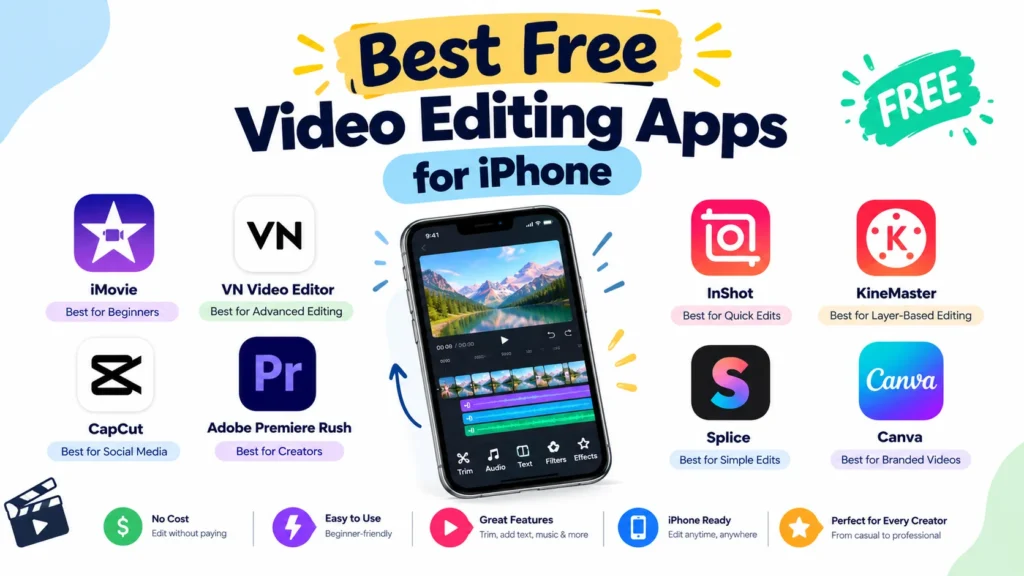
If your main requirement is free video editing, start with these:
iMovie
Best for simple, Apple-native editing.
It’s completely free and offers enough features for many everyday projects.
VN Video Editor
Ideal for creators seeking powerful timeline-editing features without the need to invest in professional editing software right away
CapCut
Best for creators focused on short-form social content.
Its free tier can be useful, although available features and restrictions can vary.
Adobe Premiere
Worth considering if you want a more capable editing environment and already use Adobe products.
InShot
Good for quick edits and social media formatting, although you’ll need to check which features are included in the free version.
The important point is that free doesn’t mean one-size-fits-all.
iMovie might be the best free app for a family video but the wrong choice for a TikTok creator. VN might be better for a YouTuber, while CapCut may be more efficient for Reels.
Best iPhone Video Editing Apps Without a Watermark
If watermark-free export is your priority, pay close attention to each app’s current export rules.
VN and iMovie are particularly attractive starting points for users who want to avoid the typical free-editor watermark problem. Current comparisons also identify VN as a strong no-watermark free option.
CapCut can also produce clean exports in many workflows, but template- or feature-specific restrictions can apply.
Before starting a large project, export a short test clip. It’s much easier to discover a watermark restriction before editing a 10-minute video than afterward.
💚 You Might Also Like: Which iPhone Has the Best Camera? (2026 Guide)
Best Video Editing Apps for Different Types of Creators
Here’s the simple version:
| Creator type | Recommended app | Why |
| Beginner | iMovie | Simple and free |
| TikTok creator | CapCut | Templates, captions, effects |
| Instagram creator | CapCut / InShot | Fast vertical editing |
| YouTuber | VN / LumaFusion | Better timeline control |
| Professional editor | LumaFusion | Advanced editing workflow |
| Adobe user | Adobe Premiere | Fits Adobe ecosystem |
| Marketer | Canva | Video + design tools |
| AI-focused creator | Videoleap / CapCut | Creative AI features |
| Casual user | iMovie | Easy to learn |
| Advanced mobile editor | KineMaster / LumaFusion | More detailed controls |
The right choice becomes much clearer once you stop asking “Which app is best?” and start asking “Which app is best for my workflow?”
How to Edit a Video on iPhone
Here’s a simple process that works in almost any iPhone video editing app.
1. Import Your Footage
Start by importing only the clips you actually need.
Don’t dump hundreds of clips into your project if you already know most won’t make the final cut.
2. Trim Unnecessary Clips
Remove:
- Mistakes
- Long pauses
- Shaky sections
- Duplicate footage
- Empty space
- Unnecessary introductions
Good editing often starts with subtraction.
3. Arrange Your Timeline
Put the clips in the order that tells your story.
For social videos, this might mean putting your strongest moment near the beginning.
For YouTube videos, it might mean establishing the topic before moving into the main content.
4. Voiceover
Add background voiceover only when it really needs to be in the video.
5. Add Text and Captions
Use text to clarify information, not to decorate every frame.
For short-form content, captions can improve accessibility and make videos easier to follow without sound.
6. Adjust Color and Speed
Small adjustments can make footage feel more consistent.
You can also use speed changes strategically for transitions, action sequences, or emphasis.
Don’t overdo either.
7. Export in the Right Resolution
Choose your export settings based on where the video will be published.
For example, a vertical Reel and a 16:9 YouTube video shouldn’t necessarily use the same aspect ratio.
8. Optimize the Video for Its Platform
Before publishing, check:
- Aspect ratio
- Resolution
- Frame rate
- File size
- Caption placement
- Audio levels
- Platform-specific requirements
This final step can prevent an otherwise good video from looking awkward after upload.
Best Video Editing App for iPhone: Our Verdict
There’s no single app that wins for everyone.
If we simplify the choices:
- Best for social media: CapCut
- Best free advanced editor: VN Video Editor
- Best for beginners: iMovie
- Best for professional mobile editing: LumaFusion
- Best for quick social edits: InShot
- Best for Adobe users: Adobe Premiere
- Best for layer-based editing: KineMaster
- Best for creative AI effects: Videoleap
- Best for simple polished edits: Splice
- Best for branded content: Canva
For most people, we’d start with iMovie, VN, or CapCut.
Try the simplest option that can handle your current projects. If you eventually hit a limitation, move to a more advanced editor.
That’s usually better than downloading the most complicated app on day one.
Frequently Asked Questions
What is the best video editing app for iPhone?
The best app depends on what you’re editing. CapCut is a strong choice for short-form social content, VN is excellent for free advanced editing, iMovie is best for simple projects, and LumaFusion is better for professional-style editing.
What is the best free video editing app for iPhone?
iMovie and VN Video Editor are two of the strongest free options. iMovie is easier for beginners, while VN offers more advanced timeline controls.
Which iPhone video editor has no watermark?
iMovie doesn’t add a traditional watermark to exported videos, while VN is also a popular no-watermark option. Other apps may offer watermark-free exports depending on the plan, template, or feature being used.
Is CapCut better than iMovie for iPhone?
Not necessarily.
CapCut is better for social-media editing, templates, captions, effects, and fast short-form content. iMovie is better if you want a simple, free Apple-native editor without a complicated interface.
Is VN better than CapCut?
It depends on your priorities.
What is the best iPhone video editor for YouTube?
For simple YouTube videos, iMovie or VN may be enough. For more complex projects, LumaFusion offers more advanced editing controls.
What is the best iPhone video editor for TikTok?
CapCut is one of the strongest choices for TikTok-style content because its workflow is built around short-form video, effects, captions, templates, and fast editing.
Can I edit 4K videos on an iPhone?
Yes. Supported iPhones and editing apps can handle 4K video. Apple confirms that iMovie can work with 4K footage and export 4K projects on supported devices.
What video editing app do professional creators use on iPhone?
There isn’t one universal choice. LumaFusion is designed for more advanced mobile editing, while Adobe Premiere makes sense for creators already working within Adobe’s ecosystem.
Does iPhone have a built-in video editing app?
The iPhone includes Apple’s Photos app for basic video adjustments, while iMovie provides a more complete video editing workflow. iMovie is available for free and supports features such as timelines, titles, transitions, soundtracks, Storyboards, and Magic Movie.
Final Thoughts
The best video editing app for iPhone isn’t necessarily the one with the longest feature list.
It’s the one that helps you finish videos without getting in your way.
If you’re a beginner, start with iMovie. If you want more control without spending much, try VN. If your content is mainly TikTok, Reels, or Shorts, CapCut is a practical choice. And if you’re producing serious long-form projects, LumaFusion is worth considering.
Start with your workflow, not the app’s marketing page.
Once you know what you actually need to edit, choosing the right iPhone video editor becomes much easier.
✨ Stay ahead of the curve. Follow Tech Statar.