
How to Turn Notes Into a Presentation With AI
Turning a pile of notes into a presentation can take longer than the presentation itself.
You have the information. You know what you want to say. But now you need to organize everything into slides, write concise copy, choose visuals, and make sure the whole thing flows logically.
AI can handle much of that busywork.
With the right instructions, AI can turn raw notes into a presentation outline, suggest slide titles, condense lengthy paragraphs into key points, recommend visuals, and even create speaker notes.
But there’s a catch: you shouldn’t simply paste your notes into an AI tool and accept whatever it generates.
The best results come from treating AI as a presentation assistant, not a replacement for your judgment.
In this guide, you’ll learn how to turn notes into a polished presentation with AI, including the prompts to use, tools worth trying, common mistakes to avoid, and how to improve the final slides.
Can AI Turn Your Notes Into a Presentation?
Yes. AI can transform notes, documents, outlines, or other text into a structured presentation.
For example, suppose your notes look something like this:
Customer growth increased in Q3.
Social media generated more leads.
Email conversions dropped.
Competitors increased ad spending.
We should focus more on retention next quarter.
That’s useful information, but it’s not yet a presentation.
AI can organize those notes into something like:
- Q3 performance overview
- Customer growth
- Marketing channel performance
- Competitive landscape
- Key challenges
- Recommendations for Q4
- Next steps
From there, you can ask AI to develop each section into individual slides.
Depending on the tool you’re using, AI can also help with:
- Slide titles and subtitles
- Bullet points
- Presentation structure
- Speaker notes
- Visual suggestions
- Charts and diagrams
- Design and layouts
- Presentation scripts
- Q&A preparation
The important part is that AI works best when you provide enough context.
If you give it a vague instruction like “Turn these notes into a presentation,” you may get generic slides.
Tell it who the presentation is for, what you want the audience to learn, how long the presentation should be, and which points matter most, and the output becomes much more useful.
💚 You Might Also Like: 10 Best Digital Planners for Everyone (Free & Paid)
What You Need Before Turning Notes Into Slides
Before opening an AI presentation tool, spend a few minutes preparing your notes.
You don’t need perfectly written notes. In fact, that’s one of the reasons to use AI.
At minimum, identify these five things:
| What to define | Why it matters |
| Topic | Gives AI the subject and context |
| Audience | Determines the language and level of detail |
| Purpose | Helps establish the presentation’s main message |
| Length | Prevents AI from creating too many or too few slides |
| Key points | Makes sure important information isn’t left out |
For example, there’s a big difference between creating a presentation about AI marketing tools for beginners and one about AI marketing tools for a company’s executive team.
The topic may be similar, but the language, examples, data, and structure should be different.
Organize Your Notes Before Giving Them to AI
Your notes don’t have to be perfect, but they should be understandable.
Imagine you’ve written:
Customer growth Q3
social media good
email down
competitors spending more
retention important
new campaign idea
maybe increase budget
Customer feedback says onboarding is difficult
You could paste this directly into an AI tool.
But you’ll usually get better results if you first group related ideas:
Q3 performance
- Customer growth increased.
- Social media generated strong results.
- Email conversions declined.
Competitive landscape
- Competitors increased advertising spending.
Customer feedback
- Some customers reported problems with onboarding.
Next-quarter strategy
- Improve customer retention.
- Test a new campaign.
- Consider adjusting the marketing budget.
Now AI has a much clearer starting point.
You haven’t written the presentation for it. You’ve simply given it enough structure to understand what matters.
How to Turn Notes Into a Presentation With AI
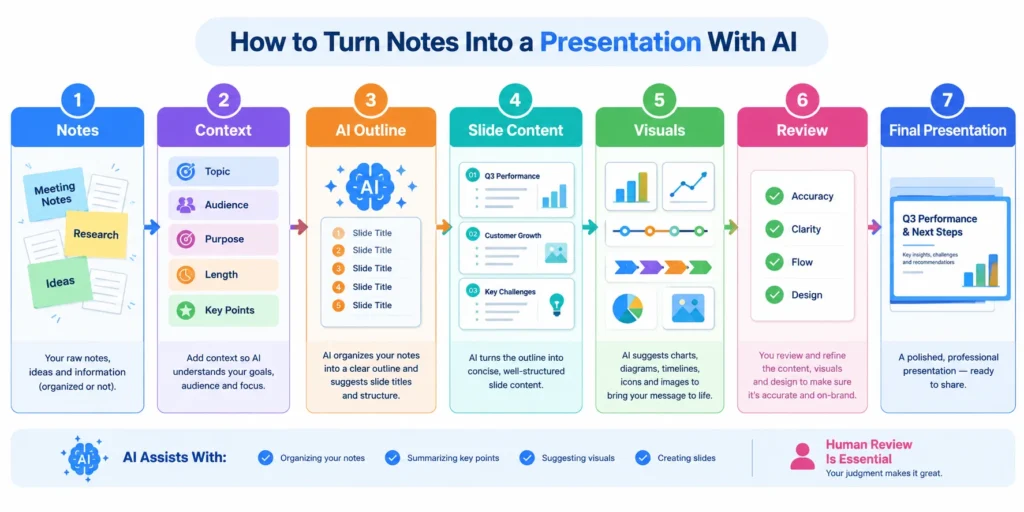
Once your notes are ready, you can turn them into slides through a simple workflow.
The process looks like this:
Notes → Context → Outline → Slide content → Visuals → Review → Final presentation
Let’s go through each step.
Step 1: Gather and Clean Up Your Notes
Start by collecting everything you want to include in the presentation.
This could be:
- Meeting notes
- Research notes
- Class notes
- Project documentation
- Customer feedback
- Interview notes
- Marketing data
- An existing document
- A rough outline
Don’t worry about making the notes sound polished.
Instead, focus on accuracy and completeness.
Remove duplicate points, correct obvious errors, and separate unrelated ideas. If your notes contain statistics, names, dates, or other important facts, keep the original information available so you can verify the AI’s output later.
This matters because AI can reorganize information, but it shouldn’t become your source of truth.
Step 2: Tell AI What the Presentation Is About
Don’t immediately ask AI to create slides.
First, give it some context.
A useful instruction might look like this:
I’m creating a 10-slide presentation for a marketing team. The goal is to explain our Q3 performance and recommend priorities for Q4. The audience already understands basic digital marketing concepts. Keep the presentation professional, concise, and data-driven. Avoid unnecessary text on slides.
Then provide your notes.
This gives AI several important signals:
- Who will see the presentation
- Why you’re presenting it
- How much information to include
- What tone to use
- How sophisticated the audience is
The more useful context you provide, the less time you’ll spend correcting generic output later.
Step 3: Ask AI to Create a Presentation Outline
Before generating the final slides, ask AI to create an outline.
This extra step is easy to skip, but it’s one of the most useful parts of the process.
Why?
Because fixing the structure is much easier before you’ve generated 15 fully designed slides.
For example, your raw notes might contain information about:
- Sales
- Customer growth
- Advertising
- Competitors
- Customer complaints
- Product improvements
AI might organize those ideas into this sequence:
- Q3 overview
- Revenue and customer growth
- Marketing performance
- Customer feedback
- Competitive changes
- Key challenges
- Opportunities
- Q4 recommendations
- Action plan
- Conclusion
You can then review the outline and ask:
- Is anything missing?
- Is anything unnecessary?
- Does the story flow logically?
- Does the order make sense for this audience?
- Are there too many slides?
Once you’re happy with the structure, move on to the slide content.
💚 You Might Also Like: 6 PDF to Excel Conversion Tools That Actually Preserve Table Accuracy
Step 4: Generate the Slide Content
Now ask AI to turn the approved outline into individual slides.
Give it clear rules.
For example:
Create the content for each slide using the approved outline. Keep each slide focused on one main idea. Use short bullet points instead of paragraphs. Highlight important numbers and recommendations. Don’t repeat information between slides. Add a brief speaker note for each slide.
This helps prevent one of the most common problems with AI-generated presentations: too much text.
A presentation isn’t a document pasted onto slides.
The slide should communicate the main idea quickly, while the presenter provides the additional explanation.
For example, you can do this instead of converting this paragraph into a slide:
Our customer base grew by 18% during Q3, primarily because of improvements in our social media campaigns and referral program. However, email conversion rates declined by 7%, suggesting that our current email strategy may need to be reviewed.
AI could condense it into:
Q3 Customer Growth
- Customer base grew 18%
- Social campaigns drove significant growth
- Referral program contributed to acquisition
- Email conversions declined 7%
- Q4 focus: improve email performance
That’s much easier to scan during a presentation.
Step 5: Add Visuals to Your Slides
Once the content is ready, think about how each slide should be presented visually.
Not every slide needs an image.
Depending on the information, you might use:
- Bar charts
- Line graphs
- Timelines
- Process diagrams
- Comparison tables
- Icons
- Screenshots
- Illustrations
- Simple statistics
- Flowcharts
For example, if you’re showing revenue growth over six months, a chart is more useful than a paragraph explaining the trend.
If you’re explaining a three-step process, a simple process diagram may work better than three large bullet points.
You can ask AI to recommend an appropriate visual for every slide:
For each slide, suggest one visual that would help communicate the main idea. Prioritize charts, diagrams, screenshots, and other useful visuals over decorative images.
This keeps the visuals connected to the content instead of adding images simply to fill empty space.
Step 6: Review and Edit the AI-Generated Presentation
Don’t consider the presentation finished just because AI generated it.
This is where your judgment matters most.
Review every slide for:
Accuracy:
Are the facts, numbers, names, and dates correct?
Relevance:
Does every slide contribute to the presentation’s goal?
Clarity:
Can someone understand the main point quickly?
Flow:
Does each slide naturally lead into the next?
Length:
Could you remove any slides without losing important information?
Tone:
Does the presentation sound appropriate for the audience?
Design:
Are the visuals and layouts helping or distracting from the message?
Also look for AI-generated filler.
Phrases such as “in today’s rapidly evolving landscape” or “unlock new opportunities” may sound polished, but they don’t necessarily communicate anything useful.
Replace generic language with specific information.
For example:
Generic:
Businesses can leverage AI to unlock new opportunities.
Specific:
The marketing team can use AI to turn customer feedback into campaign ideas and first-draft ad copy.
The second version tells the audience what actually changes.
💚 You Might Also Like: Best AI Tools for Writing Marketing Copy (2026 Guide)
Step 7: Practice the Presentation
Your work doesn’t end when the slides are ready.
Use AI to prepare for the actual presentation, too.
You can ask it to create:
- Speaker notes
- A presentation script
- Talking points
- Likely audience questions
- Answers to difficult questions
- A short summary of each slide
- Practice questions
For example:
Review this presentation and give me three questions an executive audience might ask after each major section. Provide concise answers based only on the information in my presentation.
This turns AI from a slide-generation tool into a presentation preparation assistant.
The final goal isn’t to create more slides.
It’s to help you understand your creative ideas more clearly.
The Best AI Tools for Turning Notes Into Presentations
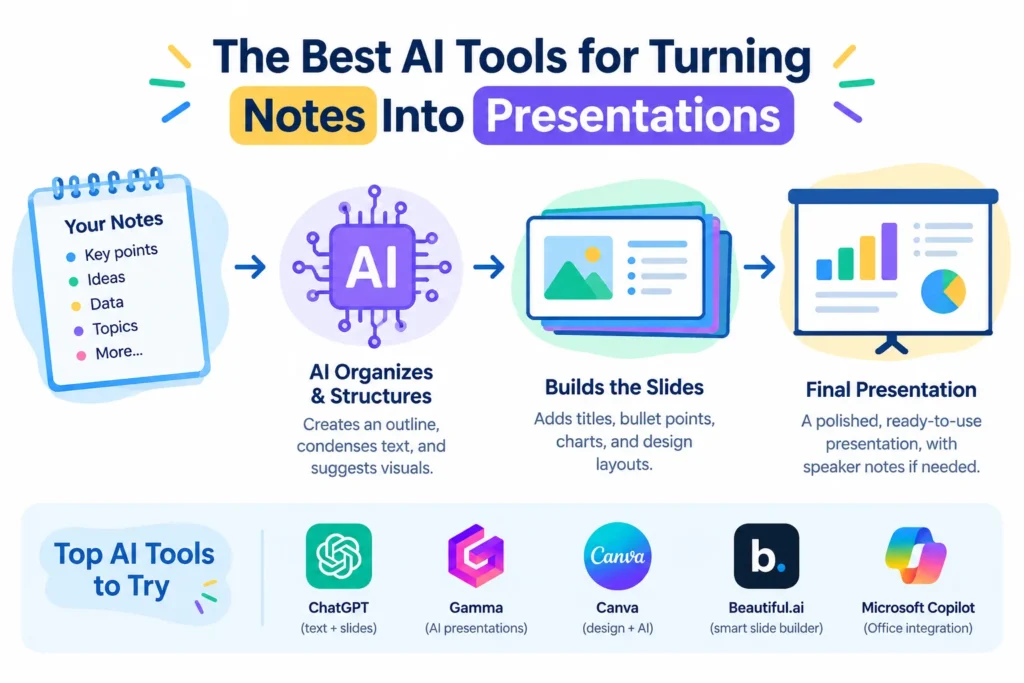
You don’t need a specialized AI presentation tool to turn notes into slides.
A general-purpose AI assistant can help you organize your ideas and write slide content, while dedicated presentation tools can take that content a step further by handling layouts, design, and visual elements.
The right choice depends on how much control you want over the final presentation.
Here are some common options to consider.
ChatGPT
ChatGPT is useful when you want to turn unstructured notes into a logical presentation before worrying about design.
You can use it to:
- Organize messy notes
- Create a presentation outline
- Write slide-by-slide content
- Summarize lengthy information
- Create speaker notes
- Suggest charts and visuals
- Write presentation scripts
- Generate questions for practice
One advantage is that you can work through the presentation conversationally.
For example, you can start with:
“Turn these notes into an 8-slide presentation outline.”
Then follow up with:
“Please change the position of the Customer Feedback section so that it shows before the section of Marketing Performance.”
Then:
“Rewrite slides 4–6 for an executive audience.”
This iterative workflow gives you more control than asking AI to generate everything in one step.
Canva
Canva is useful when presentation design is just as important as the content.
You can use AI-assisted features to help transform your ideas into presentation layouts and then customize the result using Canva’s templates, graphics, charts, and other design elements.
It’s particularly useful if you want to:
- Start with a visual template
- Customize fonts and layouts
- Add branded elements
- Create charts and graphics
- Adjust individual slides manually
The main benefit is the combination of AI assistance and hands-on design control.
Gamma
Gamma focuses on quickly turning text and ideas into visually structured presentations and other documents.
It’s useful when you want to start with an outline or written content and get a designed presentation without manually arranging every element.
A typical workflow might look like:
Notes → Outline → AI-generated presentation → Edit → Export
This can be useful when speed matters and you don’t want to spend much time building layouts from scratch.
Microsoft PowerPoint with Copilot
If your workflow already revolves around Microsoft PowerPoint, using its AI features can make sense.
AI assistance can help you work with existing content and create or refine presentation material while staying inside the PowerPoint ecosystem.
This can be particularly convenient for:
- Business presentations
- Internal reports
- Project updates
- Sales decks
- Presentations based on existing Microsoft documents
The important thing isn’t which tool has the most AI features.
It’s whether the tool fits the way you already create, edit, and present information.
A Prompt You Can Use to Turn Notes Into Slides
Prompt for a Business Presentation
For a business presentation, give AI more information about the decision you’re trying to support.
Try:
Create a 10-slide business presentation from the notes below. The audience is a company’s marketing leadership team. The goal is to explain our recent performance, identify the main challenges, and recommend next steps. Structure the presentation around evidence and actionable recommendations. Use concise slide copy, highlight important numbers, and suggest charts where appropriate. Keep the tone professional and avoid generic marketing language. Separate facts from recommendations and do not invent information.
This gives AI a clearer job than simply asking it to “make a business presentation.”
Prompt for an Academic Presentation
Academic presentations usually require a different structure.
You may want to emphasize research questions, evidence, methodology, findings, and conclusions.
For example:
Turn these research notes into a 12-slide academic presentation for a university audience. Start with the topic and research question, then explain the background, methodology, key findings, evidence, limitations, and conclusion. Keep the slide text concise and suggest charts or diagrams where they would improve understanding. Preserve important terminology and statistics from the notes. Do not introduce unsupported claims. Add speaker notes that explain what should be discussed for each slide.
The more specific your audience and purpose are, the easier it is for AI to make appropriate decisions about structure and language.
How to Make AI-Generated Slides Better
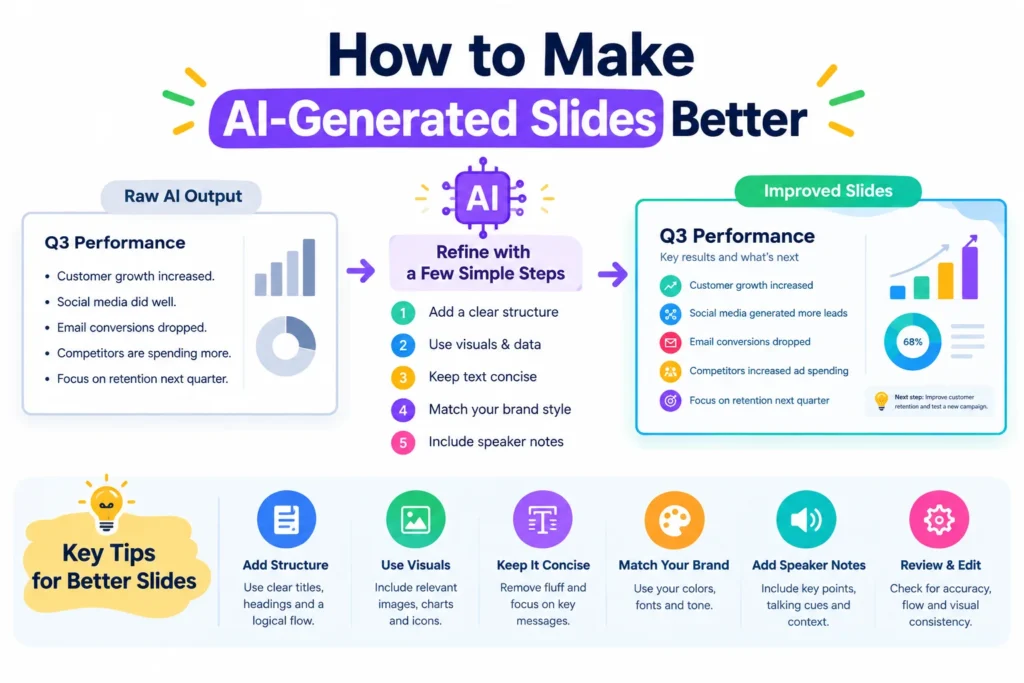
The first version of an AI-generated presentation is rarely the final version.
Think of it as a draft.
Your job is to identify what works, remove what doesn’t, and make the presentation sound like you.
Here are a few ways to improve the result.
Keep One Main Idea Per Slide
A slide shouldn’t try to explain everything at once.
If a slide contains five unrelated ideas, your audience has to figure out which one matters.
Instead, give each slide a clear job.
For example:
Weak slide title:
Marketing Results
Better slide title:
Social Media Drove Most New Leads in Q3
The second title already tells the audience what the slide is about.
You can then use the rest of the slide to support that point.
This is also useful when presenting because your slide titles become a natural storyline.
Replace Paragraphs With Visuals
AI often produces text because text is easy to generate.
But presentations aren’t articles.
If you’re explaining a trend, use a chart.
If you’re explaining a process, use a diagram.
If you’re comparing two different options, use a comparison table.
If you’re showing a sequence of events, use a timeline.
For example, instead of:
“Our onboarding process begins when a customer creates an account, followed by profile completion, product setup, training, and finally activation.”
You could show:
Sign up → Profile → Setup → Training → Activation
The audience can understand the process almost instantly.
Use Data Instead of Generic Claims
Specific information makes a presentation more credible and useful.
Compare these two statements:
“Customer satisfaction improved significantly.”
With:
“Customer satisfaction is starting to increase from 76% to 84% after the new onboarding changes.”
The second line gives the audience something concrete.
When your notes contain numbers, dates, percentages, survey results, or other evidence, make sure those details survive the AI transformation.
At the same time, verify them before presenting.
Make the Presentation Sound Human
AI-generated copy can sometimes feel too polished, repetitive, or generic.
You don’t need to remove every sign that AI helped you.
You simply need to make the final presentation sound like something you would actually say.
Look for:
- Repeated phrases
- Unnecessary jargon
- Long sentences
- Generic introductions
- Corporate clichés
- Excessive bullet points
- Claims without evidence
If you wouldn’t say a sentence out loud during the presentation, rewrite it.
Your slides should support your voice, not replace it.
💚 You Might Also Like: 7 Work-Life Balance Tips for Remote Workers to Create Better Boundaries
Common Mistakes When Turning Notes Into Presentations With AI
AI can save significant time, but it can also create new problems if you rely on it too heavily.
Here are some of the most common ones.
1. Pasting Messy Notes Without Context
AI can handle complex and unstructured information, but it still needs clarity about the goal you want to achieve.
Give it the topic, audience, purpose, and desired length before asking it to create slides.
2. Asking AI to Create Too Many Slides
More slides don’t automatically mean a better presentation.
If your notes can be explained clearly in eight slides, there’s little reason to stretch them into 20.
Start with the amount of information your audience actually needs.
3. Putting Too Much Text on Each Slide
This is probably the easiest mistake to make.
AI is capable of summarizing text, but you need to explicitly tell it to keep slide copy concise.
Use the slides for the key ideas and use speaker notes for additional explanation.
4. Trusting AI-Generated Facts Without Checking Them
AI can make factual mistakes.
This matters even more when your presentation contains:
- Statistics
- Financial information
- Research findings
- Dates
- Names
- Technical information
- Citations
Check important claims against the original source or your notes before presenting them.
5. Using Irrelevant Visuals
A presentation doesn’t become better just because every slide contains an image.
A decorative image that has nothing to do with the point can actually make the slide harder to understand.
Choose visuals based on what they communicate.
6. Ignoring the Audience
A presentation for new employees shouldn’t sound like a presentation for senior executives.
Likewise, a classroom presentation and a sales presentation have different goals.
Tell AI who the audience is and what they already know.
7. Letting AI Decide the Entire Narrative
AI can suggest a structure, but you know the subject and audience better than it does.
If the generated storyline doesn’t convey your intended message, revise it to better reflect your vision.
Don’t keep a bad structure simply because the AI produced it confidently.
8. Skipping the Editing Stage
Generating slides is not the same as finishing a presentation.
Always do a final pass for accuracy, clarity, flow, design, and relevance.
Notes-to-Presentation Example
Let’s look at a simple example.
Suppose you’ve been asked to create a presentation about a company’s Q3 marketing performance.
Your original notes might look like this:
Original Notes
Q3 customer growth was 18%.
Social media leads increased.
Email conversion decreased by 7%.
Referral program brought more customers.
Competitors increased ad spending.
Customers mentioned onboarding problems.
Need to improve retention.
Test new email campaigns.
Consider improving onboarding.
Review marketing budget for Q4.
There’s useful information here, but the notes aren’t organized into a story.
AI can turn them into a clearer structure.
AI-Generated Outline
Slide 1: Q3 Marketing Performance
Slide 2: Customer Growth
Slide 3: What Drove New Customers
Slide 4: Email Performance
Slide 5: Customer Feedback
Slide 6: Competitive Landscape
Slide 7: Key Challenges
Slide 8: Q4 Recommendations
Slide 9: Action Plan
Slide 10: Conclusion
Now you have a logical progression.
The presentation starts with the overall result, explains what happened, identifies the challenges, and finishes with what should happen next.
Final Slide Structure
| Slide | Main purpose |
| 1 | Introduce the Q3 results |
| 2 | Show customer growth |
| 3 | Explain acquisition drivers |
| 4 | Highlight the email decline |
| 5 | Present customer feedback |
| 6 | Explain competitor activity |
| 7 | Summarize key challenges |
| 8 | Present Q4 recommendations |
| 9 | Define next actions |
| 10 | Reinforce the main takeaway |
The important transformation isn’t simply that AI created ten slides.
It’s that the tool turned disconnected notes into a sequence that an audience can follow.
What the AI Improved
The original notes contain facts and ideas, but they don’t have a clear narrative.
The AI-generated structure creates one:
What happened → Why it happened → What isn’t working → What needs to change → What to do next
That’s the real value of using AI for presentations.
You’re not just saving time typing slides.
You’re reducing the work involved in organizing information into a story.
How to Turn Notes Into a Presentation With AI Without Losing Your Voice
AI can improve the structure of your presentation without becoming the voice of the presentation.
This distinction matters.
Your notes may contain personal observations, original research, opinions, examples, or experiences that shouldn’t be replaced with generic AI-generated language.
Use AI for the parts where it provides leverage:
- Organizing information
- Summarizing long notes
- Finding a logical structure
- Rewriting complicated sentences
- Suggesting visuals
- Creating speaker notes
- Generating practice questions
Then add your own expertise back into the presentation.
For example, AI might write:
“Organizations should focus on retaining customers to build steady, long-term growth.”
You might change that to:
“Our Q4 priority should be retention. We’ve already increased acquisition, but losing new customers during onboarding is limiting the value of that growth.”
The second version contains a specific point of view and connects directly to the situation you’re presenting.
That’s what makes it yours.
A good workflow is:
AI creates the draft → You challenge the draft → AI helps refine it → You make the final call.
The goal isn’t to make the presentation look like AI created it.
The goal is to spend less time on formatting and rewriting and more time improving the ideas you’re communicating.
FAQs About Turning Notes Into Presentations With AI
Can AI create a PowerPoint from notes?
Yes. AI can transform notes into a presentation structure, slide content, speaker notes, and visual suggestions. Some dedicated presentation tools can also generate designed slides that you can edit and export.
What is the best AI tool for turning notes into presentations?
There isn’t one tool that’s right for every workflow. General AI assistants are useful for organizing and developing your notes, while dedicated presentation tools can automate more of the slide design and layout.
Can ChatGPT turn notes into PowerPoint slides?
ChatGPT can help turn notes into a presentation outline, slide-by-slide content, speaker notes, visual ideas, and presentation scripts. You can then move that content into your preferred presentation software or use a compatible workflow for creating the final deck.
Can I turn handwritten notes into a presentation with AI?
Yes, if your handwriting can be accurately converted into text first. Once the notes are available as readable text, AI can organize them into an outline and presentation structure.
How many notes should I give AI for a presentation?
There’s no fixed amount. Give AI enough information to understand the topic and create the presentation without leaving out important details. For longer notes, organizing them into sections before submitting them can make the output easier to manage.
Can AI create speaker notes for a presentation?
Yes. You can ask AI to create speaker notes that expand on the information shown on each slide. It’s useful to specify that the notes should add context rather than simply repeat the slide’s bullet points.
How do I make AI-generated presentations look professional?
Start with clear slide structure and concise content. Then use consistent typography, spacing, layouts, and visual elements. More importantly, make sure the design supports the information rather than distracting from it.
Can AI create charts and visuals from my notes?
AI can recommend appropriate charts and visual formats and, depending on the tool and workflow, may be able to generate or help build them. Always verify the underlying data before using a chart in a presentation.
💚 You Might Also Like: 10 Best Productivity Apps for Students in 2027
Final Thoughts
Turning notes into a presentation doesn’t have to mean starting from a blank slide and building everything manually.
AI can handle much of the repetitive work, from organizing scattered ideas to drafting slide content and suggesting visuals.
But the best workflow isn’t:
Notes → AI → Finished presentation
It’s:
Notes → AI draft → Human review → Refinement → Final presentation
Start with clear notes, give AI enough context, generate the outline before the slides, and keep each slide focused on one main idea.
Then check the facts, remove unnecessary content, replace generic language, and add your own expertise.
That way, AI does what it’s good at speeding up the tedious parts while you remain in control of the message.
✨ Smart minds follow smart pages; hit follow on Tech Statar.