
How to Change Your Amazon Language Settings on Mobile and Desktop
If you’ve ever opened Amazon and noticed the language suddenly changed, or maybe you just want to switch it to something more comfortable, you’re not alone. I’ve personally run into this issue multiple times, especially when traveling or using different devices. The good news? Changing your Amazon language settings is simple once you know where to look.
In this guide, I’ll walk you step-by-step through how I change my Amazon language settings on both mobile and desktop. I’ll also cover common issues and troubleshooting tips to make the process smooth.
Why I Needed to Change My Amazon Language Settings
There are a few common reasons I’ve had to adjust my Amazon language:
- I accidentally clicked a different region site (like Amazon Canada or Amazon Mexico).
- My browser auto-redirected me to another marketplace.
- I was testing regional settings for SEO or content research.
- I was traveling, and Amazon automatically adjusted my region.
- The app updated and changed preferences.
Whatever the reason, the fix is straightforward.
How to Change Amazon Language Settings on Desktop
If I’m using a laptop or desktop computer, here’s exactly what I do:
Step 1: Go to Amazon.com
First, I make sure I’m on Amazon.com (U.S.) and not another country’s version.
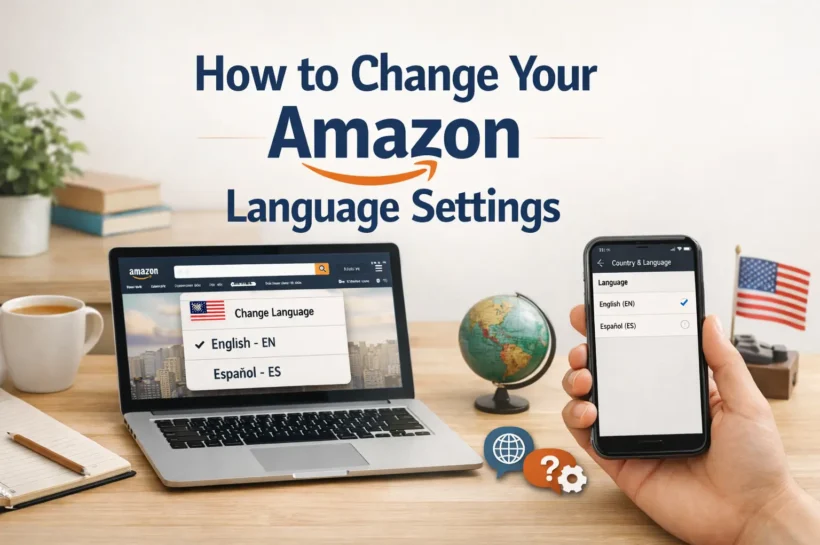
Step 2: Hover Over the Flag or Language Icon
At the top right of the homepage, near the search bar, I hover over the small flag icon (usually showing a U.S. flag).
If I don’t see it, I click on:
Accounts & Lists → Your Account → Preferences
Step 3: Click “Change Language”
Once the dropdown appears, I click on the language option.
Step 4: Select My Preferred Language
Amazon typically allows:
- English (EN)
- Español (ES)
I choose my preferred language and click Save Changes.
That’s it. The page refreshes and updates immediately.
How to Change Amazon Language on the Mobile App
Changing the language in the Amazon mobile app is slightly different but still easy.
Step 1: Open the Amazon App
I open the app on my iPhone or Android device.
Step 2: Tap the Three-Line Menu (☰)
This is located at the bottom right (iPhone) or top left (Android).
Step 3: Scroll Down to “Settings”
Inside the menu, I tap:
Settings → Country & Language
Step 4: Choose Language
I select my preferred language and confirm.
The app refreshes automatically.
How to Change Amazon Language in a Mobile Browser
If I’m not using the app and instead browsing Amazon through Safari or Chrome on my phone:
- I scroll to the bottom of the homepage.
- I tap the globe or language selector.
- I choose my preferred language.
- I confirm the change.
Sometimes I also clear the cache if the change doesn’t apply right away.
What If My Amazon Language Keeps Changing?
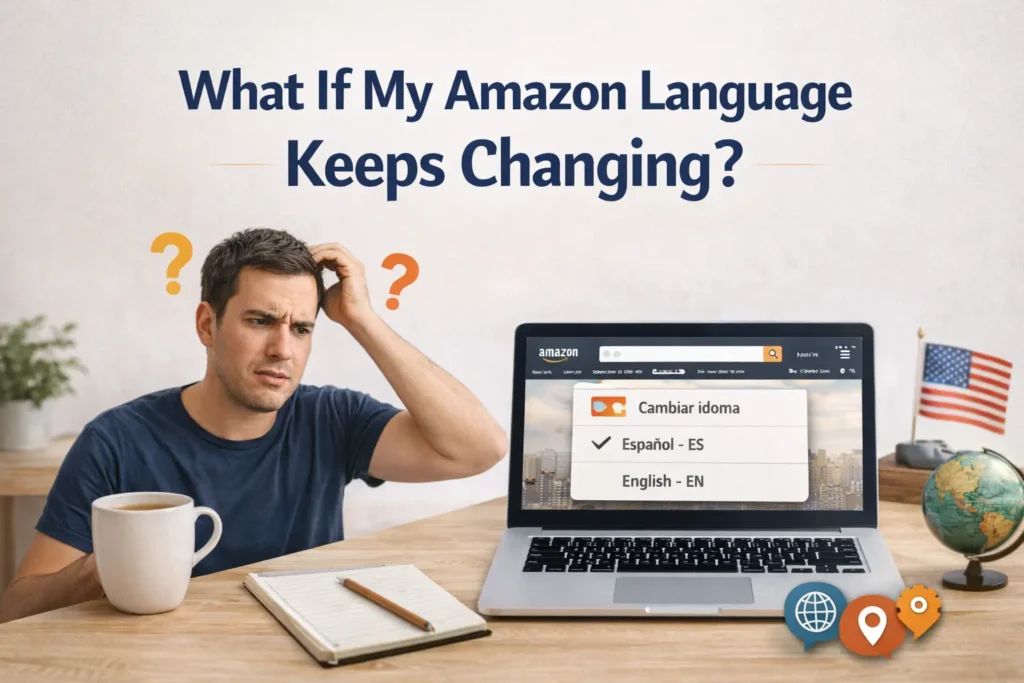
I’ve experienced this before, and here are the main reasons it happens:
1. Region Settings Are Different
If my shipping address is set to another country, Amazon may default to that region.
I fix this by:
- Going to Your Account
- Clicking Your Addresses
- Updating my default address
2. Browser Location Detection
Amazon sometimes auto-detects my location based on my IP address.
Using a VPN can also trigger this.
3. Account Linked to Another Marketplace
If I use multiple Amazon marketplaces (like Canada or the UK), I may need to manually switch back to the U.S. site.
How to Switch Back to Amazon U.S.
If I accidentally land in another country’s Amazon:
- I scroll to the bottom of the page.
- I click the country selector.
- I chose the United States – Amazon.com.
- I confirm.
This restores the default U.S. marketplace.
Does Changing Language Affect My Orders?
No. When I change my Amazon language settings:
- My orders remain the same.
- My payment methods stay intact.
- My Prime membership remains active.
- My subscriptions don’t change.
It only changes the display language.
Does Language Setting Affect Amazon Vine or Other Programs?
From my experience, changing the language does not impact my account eligibility for programs like Amazon Vine. Those programs are tied to marketplace eligibility and account status, not language preference.
However, I always double-check that I’m on the correct marketplace (Amazon U.S.) because program availability can differ by region.
Troubleshooting Tips I Use
If the language doesn’t change right away, I usually try:
- Logging out and logging back in
- Clearing browser cache and cookies
- Updating the Amazon app
- Restarting my phone
- Making sure I’m on Amazon.com (not another country’s domain)
These steps fix the issue 95% of the time.
Frequently Asked Questions
Can I Add More Languages?
In the U.S. marketplace, Amazon primarily supports English and Spanish. If I need more language options, I may need to switch to another regional Amazon site.
Why Is Amazon Showing Spanish Automatically?
If I previously selected Spanish or Amazon detected a Spanish language preference from my browser or device, it may default to Spanish.
Does Changing Language Change Currency?
No. Language and currency settings are separate. Currency depends on the marketplace.
Final Thoughts
Changing my Amazon language settings on mobile or desktop is quick once I know where to look. Whether I’m adjusting for convenience, travel, or testing purposes, it takes less than a minute.
If you’re stuck with the wrong language or simply prefer a different one, just follow the steps above. It’s a simple fix that makes your shopping experience much smoother.
And if the language keeps switching unexpectedly, checking your region settings and default shipping address usually solves the problem fast.
Now you know exactly how I do it step by step.
✨ Let’s keep leveling up together. Follow Tech Statar.